Home

Thursday, January 07, 2010

Governance Concepts, Strategy, and Authority

One of the initial challenges with establishing governance model is organizing the concepts appropriately. In order for governance to be effective, the concepts need to be grouped according to the appropriate scope, authority, and audience.

Information Management is a concept that may apply across an entire enterprise; same with corporate polices and procedures. However, the SharePoint platform may only be responsible for organizing a sub-set of an organization's information and therefore the scope of this is smaller. Additionally, SharePoint is technical in nature and so the emphasis on Information Technology audience is greater. For these reasons, it makes little sense to try to encapsulate all of the governance topics for an organization's information management needs, within a SharePoint governance plan. Instead, topics should be divided and organized appropriately.

For example, if you were on a whiteboard brainstorming and creating idea clouds for the purpose of outlining your governance topics, you might start to group topics like this:

Information Management Statement of Governance

  • Overview
  • Roles and responsibilties
  • Decision making processes
  • Explanation of information architecture
  • How taxonomies are developed and integrated
  • References to file naming conventions
  • References to policies and procedures

SharePoint Governance

  • Overview
  • Roles and responsibilities
  • Operating processes
  • Explanation of the applied use of SharePoint with respect to Information Management
  • References to SLA
  • References to policies and procedures

Policies and Procedures

  • Information Security policies
  • System Use policies
  • Support policies
  • Request processes
  • Project processes

Thinking about these concepts right is a prerequisite to creating governance documents and perhaps even beginning to model any new, collaborative solutions. Authority needs to be defined and delegated up front. Without a central managing body having necessary authority, the decision making process will be a constant road block.

Consider this classic scenario; a hypothetical Information Technology department owns and manages technology systems for an organization. They don't happen to possess authority to own or commence initiatives around analysis, design, and integration of information architecture policies and processes. This department decides to deploy SharePoint as a technology offering. A likely, potential result of this is that the deployment becomes a commodity service. The odds that this platform will do much to improve information management practices throughout the organization, are thin. The initiative was not started by the body which governs information architecture practices for the company.

Now consider a variation. Consider that this hypothetical business unit now has the authority to work with other business units collectively, and facilitate a company wide initiative to analyze, interpret, and parse the information management requirements of the company, the teams, and the individuals. They also have authority to facilitate the creation and management of information management policies and procedures. Finally, they retain the authority to own and manage technology systems. This scenario has a much greater potential to produce a full bodied SharePoint deployment, adding lots of value throughout the business by integrating information management capabilities. In this scenario, the technology can actually be used to mandate how documents are organized, where they are stored, and how they are tagged.

Having said this, a commodity service may be the right next step for an organization, who is to say. But evolution of processes tell us that one day, silos of information will want to be joined. Progression is a natural thing and it should be embraced. SharePoint as a commodity service is not the end game, it is a starting point. Strategy is recognizing progression paths and figuring out how to make it happen. There will be people fighting the progression and arguing the direction is wrong, that they have different ideas. There will be resistance. Strategy demands authority. Governance provides it. The right combination of these pieces can act as one hell of a steam roller.

Outline for Disaster Recovery Plan Document

The purpose of this post is to share a disaster recovery plan outline. This is an outline that I have been evolving for several years. And, although this outline was intended for SharePoint environments, it can be used for any system or application.

The reason I like this outline is because I know it works. Unlike many other plans on the Web, I think this outline provides more complete coverage of the business and technical aspects of disaster recovery. Many of the plans I have seen are merely explanations of the SharePoint product features and limitations, or advertisements for third party products. Detailing what SharePoint's strengths and weaknesses are with regards to backup and restore will not do you an ounce of good in the event you need to perform a recovery of some sort. Additionally, no matter what tools you have for backing up and restoring, you still need a good plan to address the process. Different tools only change the content of the backup and recovery procedure section of the plan, they don't change the structure of the document or eliminate the need for any of the sections of the document.

The audience for this document can include the tactical team members who execute the plan, but also the business stakeholders, sponsors, and business process owners who are affected by the availability and recovery policies and procedures. Everybody should be involved with contributing to and reviewing the plan. This review process is very healthy because it resets expectations and keeps everybody on the same page.

SharePoint Disaster Recovery Plan Outline

I. Overview
a. Explanation of the document
b. Explanation of when to use the plan

II. Business Profile
a. Application or system owners, points of contact
b. Application or system summary
c. Related business processes
d. Usage information
e. Availability requirements (link to SLA)
f. Recovery requirements (link to SLA)

III. Technical Profile
a. Hardware inventory
b. Software inventory
c. Related systems
d. Vendor contact information (contact, support agreement information, etc.)

IV. Failure Scenarios
Matrix listing all failure scenarios with description of each scenario

V. Backup Procedures
Instructions for each method of back up used to support every possible recovery scenario

VI. Recovery Procedures
Instructions for recovering from each failure scenario

VII. Verification Procedures
a. Functional testing
b. Security testing
c. Performance testing
d. Checklists

VII. Appendix
a. Glossary
b. Links to policies, procedures

VIII. References

Interesting Change Affecting Microsoft Office 2003 and 2007

According to KB978951, versions of Microsoft Office 2003 and 2007 sold after January 2010 will no longer include some of the custom XML tagging capabilities. Full details are available in the article, "Description of the January 2010 update for Office Word."

Monday, December 28, 2009

Governance: Capability Driven, Not Platform Driven

Although I have no survey or poll results to support this; I believe that the SharePoint community as a whole is putting more weight on the topic of governance as time moves forward. I am basing this on the number of blog posts, conference presentations, third party products, and research available on the Web. Microsoft even has made a SharePoint governance plan template (SharePoint Products and Technologies Governance Plan) available for download.

I have mixed emotions about some of the messaging in the community. I think the topic of governance has become so SharePoint-centered that the original intent of governance becomes lost. Taking a few steps back, I thought I might weigh-in on the subject.

When push comes to shove, SharePoint is simply a platform, a means to an end. It is a tool to facilitate a capability. If that capability happens to be information management, then SharePoint is providing the technical functionality required to make managing information better.

My take on governance planning is that an organization should first address the capability (e.g. information management) as a whole, and then develop a plan for it. Once that overarching effort is in motion, it should branch off into defining the policies, processes, and measures specifically addressing SharePoint.

The flaw I see in creating a governance plan starting with SharePoint platform is that too many questions and risks about the overall initiative of providing that information management capability exist. This flaw may be a symptom or an indicator of larger ailments in the organization such as a lack of clarity or a lack of sponsorship (or a lack of clarity within its sponsorship). The way I see it, if an executive management team is willing to embrace the idea of using the SharePoint platform, then it ought to be willing to accept and embrace the larger initiatives at hand; which is where governance should originate.

In conclusion, I think that in order to maintain long term credibility with the subject of governance planning, we in the SharePoint community should share more ideas about how to integrate SharePoint governance into existing corporate governance as well as how to properly originate governance where it does not already exist. And, in order to do this I think it requires stepping out of the world of SharePoint and taking a wholistic view of the organization and understanding the fundamental policies and processes at play, as well as understanding what is the underlying intent and purpose for which SharePoint is being deployed.

Friday, December 18, 2009

My Favorite Windows 7 Feature

For me, the most valuable enhancements to usability affect the basic things that I do the most often. This includes browsing folders and opening files. And, although, I do like to keep twelve or more windows open at one time, I do not like clutter.

For this reason, my favorite Windows 7 feature is the ability to right click on an open application and then click a shortcut to open another instance of that application.

2009 SQL Server Magazine Best SharePoint Product

I thought it might be interesting to note the SQL Server Magazine, 2009 Best SharePoint Product awards. Here they are:

2009 SQL Server Magazine Best SharePoint Product


Editor's Best

Gold: ControlPoint for SharePoint, Axceler, www.axceler.com
Silver: Professional Archive Manager, Metalogix,
www.metalogix.net
Bronze: NearPoint for SharePoint, Mimosa Systems,
www.mimosasystems.com


Community Choice

Gold: Site Administrator for SharePoint, Quest Software, http://www.quest.com/
Silver: Colligo Contributor Pro, Colligo Networks,
http://www.colligo.com/
Bronze: CorasWorks Workplace Sutie 10, CorasWorks,
http://www.corasworks.com/


References:

2009 SQL Server Magazine (2008, December). 2009 SQL Server Magazine Editor's Best and Community Choice Awards. SQL Server Magazine, pp. 12-19.

Thursday, December 17, 2009

Error: SQL Server Maintenance Plan, Database Backup Job

Description:

When executing a SQL Server maintenance plan, having a database backup job, an error occurs. The issue is that the SQL Server Agent service account does not have access to the backup folder. This happens more frequently on backup folders which exist on a separate server, such as a backup server.


1. First, navigate to SQL Server Management Studio > Maintenance Plans > Right click on maintenance plan > View History.

You might see something like this in the history:

"Action: Execute maintenance plan (full backup of all SQL databases). ErrorMessage: Execution failed: See the maintenance plan and SQL Server Agent job history for details. Additional Information: Job 'Backup SQL' failed. (SqlManagerUI)"


2. Next, navigate to the history log for the SQL Server Agent job:

SQL Server Management Studio > SQL Server Agent > Jobs > Right click on job > View History > Highlight the error > Click Export > Export a log file > Open the log file in a text editor

...and you might see entries like this:

"Reason for failure: " failed with the following error: "Cannot open backup device 'backup device name'. "
"Error information: Operating system error 5(Access is denied.)."


Solution:

The solution to this is to configure the appropriate access for the SQL Server Agent service account on the folder security access control list and the folder sharing access control list.

However, the catch here is that you may need to add the service account directly to the access control list, as opposed to an AD group in which the user account belongs. In fact, I tested this by doing the steps below.


1. Deleted the maintenance plan and created it again.


2. Added the backup folder location, and clicked Next.

This brought up an error:

"Maintenance Plan Wizard: The Database Engine service could not resolve the specified folder location. Either the location does not exist, or the current login account does not have access to it. Verify that the folder exists, and that the login account has permissions on it."


3. Added the SQL Server Agent service account directly to the backup folder's access control lists for folder security and folder sharing. After doing this, the creation of the maintenance plan was successful.

Saturday, December 05, 2009

I Respectfully Disagree

As I was searching for some references for a risk management white paper that I am writing, I stumbled upon an old PowerPoint on the Web titled, "Risk Management and ROI: The IT Leadership Financial Conversation." It was created by Peter G. W. Keen of Delft University in Sepetember 2004. This PowerPoint was used to educate an IT Leadership community attending a CIO summit.

As I looked through the PowerPoint for some insight to use in my paper, I started finding statements such as:

"ROI from IT: There is none. There never will be." (Keen, 2004)
"ROMI not ROI: Return on Minimized Investment" (Keen, 2004)
"80% of IT costs are hidden below the surface - and a navigation threat" (Keen, 2004)


The more slides I viewed, the more I realized that I completely disagree with the intent of the message; essentially to encourage CIOs to view IT as a business liability which needs to be tightly controlled and driven primarily by its cost drivers.

I disagree because I think a better approach for CIOs to take is to understand the purpose of the technologies their teams are evaluating, understand the costs and benefits, and choose projects which support the objectives of the organization. Managing cost should be part of the decision making process, but it should not be the primary driver. When cost is measured, all aspects of cost should be included. And, the financial benefits of the project should also be measured and included.

The objective of Information Technology is to facilitate two very important capabilities for today's businesses:

1. Revenue generation
2. Business productivity (process efficiency)

Most leaders in the IT space generally understand the financial benefits of the IT projects they choose to pursue, but perhaps the IT industry as a whole generally does not place enough emphasis on methodologies and practices for measuring and translating these back to the financial statement. This would require more focus, analysis, calculation, and validation.

To be clear, I am not saying that all IT projects are sensible and they should be done blindly. However, what I am saying is that it is incorrect to characterize IT as a business function that shows no return on investment.

If you deploy a technology that allows people to attend meetings over the Web instead of traveling to another location, then your costs are those which are required to implement and maintain the technology while your savings are those which you do not spend to travel? Both sides of equation need to be considered, not just cost.

I also disagree with the claim that 80% of IT costs are hidden. I believe that if budgeting is done properly, most IT costs are completely visible and manageable. There are always some unforeseen costs with IT, but by learning from past experiences, it becomes possible to anticipate these variations.

In summary, I disagree with the PowerPoint. Information Technology can have a positive ROI, and costs can be manageable and predictable. I think the real problem is some organizations just don't know how to measure these things effectively.


References:
Keen, P. (2004). The IT Leadership Financial Conversation. Retrieved December 5, 2009 from www.peterkeen.com/presentations/IT%20Risk%20Management.ppt.

Friday, November 20, 2009

Windows Server 2008: Active Directory Protection From Accidental Deletion

Description:

When you create an Organizational Unit (OU) or security group in Active Directory, there is checkbox titled, "Protect container from accidental deletion." If you create the object with this check box marked, then you have to follow special steps if you would like to delete that OU in the future.

If you attempt to delete the object while it is protected, then you will receive the error, "Active Directory Domain Services. You do not have sufficient privileges to delete object, or this object is protected from accidental deletion."


Solution:

1. Open Active Directory Users and Computers.
2. Select the root domain, "company.domain.com."
3. From the menu bar, select "View" and "Advanced Features."
4. Navigate to the OU you would like to delete.
5. Right-click, properties.
6. Select the "Object" tab.
7. Uncheck the option, "Protect object from accidental deletion."
8. Now the object is no longer protected. You can proceed with deleting the object.

Thursday, November 19, 2009

SharePoint 3.0: Allowing SharePoint RSS Viewer Web Part to Read SharePoint RSS Feeds

Description:

SharePoint RSS Viewer Web Part does not display RSS feed from SharePoint list or library.

After configuring a SharePoint RSS Viewer Web Part to display an RSS feed from a SharePoint RSS list, you receive the error, "The RSS webpart does not support authenticated feeds."


Solution:

Configure anonymous access on the list which is serving the RSS feed.

1.
Enable anonymous access for the Web Application containing the list which is serving the RSS feed.
- Central Administration > Application Management > Application Security > Authentication Providers > Edit Authentication
-
Edit Authentication > Anonymous Access: Check "Enable anonymous access"
- Edit Authentication > Click "Save"

2.
Enable anonymous access for the site collection containing the list which is serving the RSS feed.
- Site Collection > Site Actions > Site Settings Site Collection Settings > Advanced Permissions
- Advanced Permissions > Settings > Anonymous Access
- Change Anonymous Access Settings > Anonymous Access: Select "Lists and Libraries"

3.
Enable anonymous access for the list which is serving the RSS feed.
- List > Settings > Permissions for this List > Settings > Anonymous Access
- Assign the "Read" or "View Only" permission level to the Anonymous User


References:

Holmes, T. (2008). Enabling Anonymous Access in SharePoint 2007. Retrieved November 19, 2009 from http://blog.tylerholmes.com/2008/01/enabling-anonymous-access-in-sharepoint.html.

Monday, October 26, 2009

Back from SharePoint Conference 2009

I have returned home from ten days in Las Vegas NV where I attended the Microsoft SharePoint Conference 2009 at Mandalay Bay. I cannot say that I am happy to be home, especially since I have to clean up after myself again. I love throwing wet towels on the floor and then going out for the day so that I can return to the hotel room at the end of the day and the towels are magically clean and put away.

There were many highlights of the conference. The cocktail reception, the keynote, the sessions, the Huey Lewis & the News concert, catching up with old friends and meeting new ones.

The bottom line is SharePoint 2010 delivers!! It is going to be an awesome, next three years working with this generation of products and technologies. Things are moving full steam ahead.

I especially enjoyed the governance planning session by my friends, Susan Hanley and Scott Jamison.

Friday's full day workshop on SharePoint Server 2010 Installation and Upgrade Training by Shane Young and Todd Klindt from SharePoint911 was fantastic and informative. It was more fun than hanging out at House of Blues Foundation Room until 3:00am...almost.

Most of all I love the fact that I won all of my gambling money back at the craps table after I checked out on Saturday morning, as I was killing some time before the cab ride to the airport. I hit three point numbers and several hard ways. Folks were happy to be winning and I received an applause for the good shooting.

Thursday, September 17, 2009

Sunday, August 30, 2009

Migrating Internet Explorer Favorites and RSS Feeds

With Windows 7 releasing soon, it will be time to think about migrating user profile settings to a new operating system build.

Aside from file folders, and desktop files, you may have a bit of time invested in the Internet Explorer favorites and feeds. Even if it only saves a couple minutes of searching in the end, I thought it would be worthwhile to post locations of these items on a source Vista build.

Favorites:
C: (Operating System) \Documents and Settings\UserProfileName\Favorites

RSS Feeds:
C: (Operating System) \Documents and Settings\UserProfileName\AppData\Local\Microsoft\Feeds

Friday, August 21, 2009

SharePoint 3.0: Clarifying Check Out Status on Multiple Document Upload

I found a post on TechArchive.net, "Re: disabling check out on document library upload," in which the author was observing that multiple document uploads were resulting in status of "checked out" after uploading. The author cited a post of mine, "SharePoint V3: Achieving Checked-In Status When Uploading Mulitple Documents," and explained that the post didn't solve the issue.

So, I am posting the two possible reasons why, after uploading multiple documents to a document library, the uploaded documents have the status of "checked out."


1. Require check out is configured on the library

I did a test, configuring six document libraries, and then performed a multiple document upload. Here are the results:

a.
Document library configurations resulting in "checked out" status when multiple documents are uploaded:

Require Check out + No Versioning
Require Check out + Major Versioning
Require Check out + Major and Minor Versioning

b.
Document library configurations resulting in "checked in" status when multiple documents are uploaded:

No Require Checkout + No Versioning
No Require Check out + Major Versioning
No Require Check out + Major and Minor Versioning


2. The document library is configured with a required field. When the document upload completes, the field is not populated and the status for each of the uploaded documents is set to "checked out."

Monday, August 17, 2009

SharePoint 3.0: Custom Permission Levels

When planning site collection security models for SharePoint deployments, there is certainly a case for simplicity and sticking to the out of box permission levels. Doing this requires the least amount of thought, administrative effort, documentation, and training.


As an added benefit of sticking with the out of box, you can leverage many of the Web based training tutorials and end user, computer based training modules, that are available on the Web with since most of these instructional resources are based on out of box configurations.

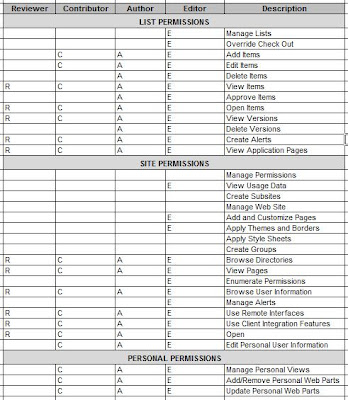
Having said that, circumstances and business requirements can require something different than the out of box permission levels. For example, you might want to lock out SharePoint Designer from some users by configuring a permission level that excludes the "Use Remote Interfaces" permission. Or, you might want to prevent content contributors from being able to delete by excluding the "Delete Items" permission. In most cases, having thirty three distinct permissions allows enough flexibility to accommodate.

When I need to utilize custom permission levels, I put a good amount of effort into planning for these and ensure to be consistent with their names, descriptions, and definitions. Below is a sample matrix that I used for planning four custom permission levels, instead of using those which are out of box.


Friday, August 14, 2009

Publishing SharePoint Web Applications in ISA Server

Background:

This article assumes SharePoint Web applications are configured with NTLM Authentication, that multiple Web applications are being published outside a company's firewall, and ISA Server is being used as a firewall. The scenario described also assumes that a one set of Windows credentials has access to multiple SharePoint Web applications.


Description:

It is common for a SharePoint environment to include multiple Web Applications. Since each Web Application requires its own IIS Web site and may have its own IP address and host header, having mutliple Web applications does create some complexity and therefore requires some consideration.

It gets a bit more complicated when multiple Web applications need to be made accessible outside of a company's local network, such as an extranet or public internet scenario. In this case, firewall rules and NAT must be configured for each Web application to protect the organization and the application being published.

Then comes the user experience. Inside the network, client computers often times belong to the same domain as the SharePoint servers, or at least a trusted domain. Furthermore, the domain URLs are considered either "Local Intranet" or "Trusted" by the users' internet browser. In this environment, a user can navigate from Web application to Web application without receiving an authentication prompt. Life is good on the local network.

This all changes when Web applications are published outside the company's firewall. First, client computers accessing the sites no longer belong to the same domain as the SharePoint servers. Second, the users' browsers aren't configured to automatically log users into the Web applications. The challenge this creates for the user is if a contiguous user experience requires accessing multiple Web applications, the user is going to receive an authentication prompt for each application.


Solution:

ISA Server allows Rules to share Listeners. What this means is that you can create one Listener and add multiple Web applications to that Listener. Then, you can create a Rule for each unique Web application, associating these Rules with the Listener.

The result of this is that users can access multiple, externally facing SharePoint Web applications, without requiring to authenticate to each one.

Monday, August 10, 2009

MSDN: Enterprise Search URL Syntax Reference

One of the most simple, yet powerful features of Microsoft SharePoint Search is the URL syntax. Using URL syntax you can submit a query to a search results page without requiring the use of a SharePoint search box. This means that search results can be rendered on a search results page any way that the proper URL string can be built.

For example, search queries may be submitted implicitly throughout the user experience as a user is navigating a SharePoint Web site. Hyperlinks (dynamic or static) containing search query parameters do all of the work.

The MSDN article, "Enterprise Search URL Syntax Reference, http://msdn.microsoft.com/en-us/library/aa637082.aspx," explains the proper format for submitting keywords, scope, view, and start page information through the query string.

Thursday, August 06, 2009

Microsoft's Position on Changing SharePoint Databases

I caught a Twitter message from a colleague, Mauro, today passing along a Microsoft Help and Support article which discusses Microsoft's position on database modifications for SharePoint Products. In short, the article breaks down to Microsoft doesn't support changes to SharePoint databases.

The article, "Support for changes to the databases that are used by Office server products and by Windows SharePoint Services (http://support.microsoft.com/default.aspx?scid=kb;EN-US;841057 )" includes a list of unsupported database changes, shown below:

" Examples of such database changes include, but are not limited to, the following:
  • Adding database triggers
  • Adding new indexes or changing existing indexes within tables
  • Adding, changing, or deleting any primary or foreign key relationships
  • Changing or deleting existing stored procedures
  • Adding new stored procedures
  • Adding, changing, or deleting any data in any table of any of the databases for the products that are listed in the "Applies to" section unless Microsoft protocol documentation is followed exactly
  • Adding, changing, or deleting any columns in any table of any of the databases for the products that are listed in the "Applies to" section
  • Making any modification to the database schema
  • Adding tables to any of the databases for the products that are listed in the "Applies to" section Changing the database collation "

This subject comes up rather frequently during discussions and as a proponent of SQL Server in general and especially its Business Intelligence features such as Reporting Services for extending the capabilities of SharePoint solutions, I feel compelled to chime in.

I completely understand Microsoft's position. How could a software company possibly support custom, schema changes or functional modifications to their application? They cannot. Nor can Microsoft really ensure their software will function (optimally) with any type of foreign database object running on the live databses, even a view.

However, accepting Microsoft's position doesn't change two things:

1. SharePoint information is business intelligence information and often times needs to extract, transform, load, and display in other places than its native content database.
2. Where there's a will there's a way.

Exploring some scenarios...

If you need to add custom functionality to your SharePoint environment, then you might build your own custom database with triggers, functions, sprocs and all, and then use a programmatic methods to move the data you need out of the SharePoint content databases and into your custom database. Then, use Web Parts to deliver the data and functionality from the custom database throughout the SharePoint Web sites. This does not overstep any of the guidelines listed in the article.

Secondly, T-SQL queries are some times necessary for reports when using the Object Model as an XML data source reaches limitations. If you need to integrate SharePoint data with other systems or for reports you can:

1. Create a database snapshot of the SharePoint content datbase (if you have SQL 2005 / 2008 Enterprise Edition)
2. U
se programmatic methods to move the data from the SharePoint content database into an intermediary database for abstraction purposes.
3.
Move data into an existing data mart or data warehouse during regular intervals.

Any of these three approaches allows you to leverage Views. The benefits of compiling T-SQL queries as Views is that you can secure them, you can use them as data sources in SQL Reporting Services reports, and you can store them on the database where they are accessible, reusable, they get backed up with database backups, you can optimize query performance with Indexes, and querying Views performs better because you are not storing queries nor are you filtering or transforming data in the Web tier.

Tuesday, July 21, 2009

SharePoint 3.0: Unable to Activate SQL Server 2008 Reporting Services Add-in for SharePoint

Background:

The SQL Server 2008 Reporting Services Add-in for SharePoint is available for download at this location:

Microsoft SQL Server 2008 Reporting Services Add-in for Microsoft SharePoint Technologies
http://www.microsoft.com/downloads/details.aspx?displaylang=en&FamilyID=200fd7b5-db7c-4b8c-a7dc-5efee6e19005

The downloads include a readme_rsaddin.htm file, which contains complete instructions for installing and configuring the Add-in.


Description:

After running the rsSharePoint_x64.msi (installer) file, the setup appears to have finished. However, by following steps in the readme_rsaddin.htm file for activating the Add-in features, it is not possible to activate the features.

The reason it is not possible to activate the features is because setup experienced an error and the user does not have permission to add the feature to the site collection.

Navigate to:
C:\Documents and Settings\SetupUser\Local Settings\TempOpen the log file, RS_SP.0.log

Within the log file, look for an error; for example:Activating feature to root site collection: https://centraladmin.domain.com******* User does not have permission to add feature to site collection: https://centraladmin.domain.com


Solution:

To resolve this, either log in as a user that is a Site Collection Administrator on the Central Administration site collection or make the current user account a site collection Administrator by doing the following:

Navigate to Central Administration > Application Management > Site Collection Administrators.
Select the Central Administration site collection.

Add the desired user account as either primary or secondary site collection administrator for the site collection.

Once logged in as a Central Administration, Site Collection Administrator, run the rsSharePoint_x64.msi again, this time choosing the "Repair" option.

To verify the permission issue has been resolved, navigate to:
C:\Documents and Settings\nbisciotti\Local Settings\Temp

Open the log file, RS_SP.0.log

Within the log file, the entry should now read:
Activating feature to root site collection: https://centraladmin.domain.com
Activated feature for root site collection: https://centraladmin.domain.com

Next, navigate to Central Administration > Site Actions > Site Settings > Site Collection Administration > Site Collection Features

Activate the "Report Server Integration Feature"

Next, navigate to Central Administration > Application Management

The "Reporting Services" panel should now be available and visible. From here you can proceed with the SQL Server 2008 Reporting Services integration configuration.

Wednesday, July 01, 2009

SharePoint 3.0: Error: Access Denied When Activating Publishing Infrastructure, Site Collection Feature

Description:

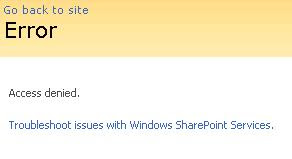
When attempting to activate the "Office SharePoint Server Publishing Infrastructure" Site Collection Feature, an "Access Denied" error is presented.

Solution:

* Start > Programs > Administrative Tools > IIS Manager
* Expand the Application Pools node, locate the application pool associated with the site collection that is experiencing an issue
* Right-Click the Application Pool and select "Properties"
* Select the "Identity" tab
* Note the user account

* Start > Programs > Microsoft Office Server > SharePoint 3.0 Central Administration
* Site Actions > Site Settings > Advanced Permissions
* Click "Groups"
* Click "Farm Administrators"
* New > Add Users
* Add Users: Type the name of the Application Pool Identity account
* Give Permission: Add users to a SharePoint group: Farm Administrators
* Add the Application Pool account to the Farm Administrators group
* Send E-Mail: Uncheck (you most likely do not want to send an email)
* Click OK

* Try again to activate the "Office SharePoint Server Publishing Infrastructure" Site Collection Feature


Reference:

SharePoint - Access Denied When Enabling The Publishing Infrastructure Site Collection Feature http://www.sharepointblogs.com/george/archive/2009/03/24/sharepoint-access-denied-when-enabling-the-publishing-infrastructure-site-collection-feature.aspx

Blog Archive

Followers