Home

Sunday, August 30, 2009

Migrating Internet Explorer Favorites and RSS Feeds

With Windows 7 releasing soon, it will be time to think about migrating user profile settings to a new operating system build.

Aside from file folders, and desktop files, you may have a bit of time invested in the Internet Explorer favorites and feeds. Even if it only saves a couple minutes of searching in the end, I thought it would be worthwhile to post locations of these items on a source Vista build.

Favorites:
C: (Operating System) \Documents and Settings\UserProfileName\Favorites

RSS Feeds:
C: (Operating System) \Documents and Settings\UserProfileName\AppData\Local\Microsoft\Feeds

Friday, August 21, 2009

SharePoint 3.0: Clarifying Check Out Status on Multiple Document Upload

I found a post on TechArchive.net, "Re: disabling check out on document library upload," in which the author was observing that multiple document uploads were resulting in status of "checked out" after uploading. The author cited a post of mine, "SharePoint V3: Achieving Checked-In Status When Uploading Mulitple Documents," and explained that the post didn't solve the issue.

So, I am posting the two possible reasons why, after uploading multiple documents to a document library, the uploaded documents have the status of "checked out."


1. Require check out is configured on the library

I did a test, configuring six document libraries, and then performed a multiple document upload. Here are the results:

a.
Document library configurations resulting in "checked out" status when multiple documents are uploaded:

Require Check out + No Versioning
Require Check out + Major Versioning
Require Check out + Major and Minor Versioning

b.
Document library configurations resulting in "checked in" status when multiple documents are uploaded:

No Require Checkout + No Versioning
No Require Check out + Major Versioning
No Require Check out + Major and Minor Versioning


2. The document library is configured with a required field. When the document upload completes, the field is not populated and the status for each of the uploaded documents is set to "checked out."

Monday, August 17, 2009

SharePoint 3.0: Custom Permission Levels

When planning site collection security models for SharePoint deployments, there is certainly a case for simplicity and sticking to the out of box permission levels. Doing this requires the least amount of thought, administrative effort, documentation, and training.


As an added benefit of sticking with the out of box, you can leverage many of the Web based training tutorials and end user, computer based training modules, that are available on the Web with since most of these instructional resources are based on out of box configurations.

Having said that, circumstances and business requirements can require something different than the out of box permission levels. For example, you might want to lock out SharePoint Designer from some users by configuring a permission level that excludes the "Use Remote Interfaces" permission. Or, you might want to prevent content contributors from being able to delete by excluding the "Delete Items" permission. In most cases, having thirty three distinct permissions allows enough flexibility to accommodate.

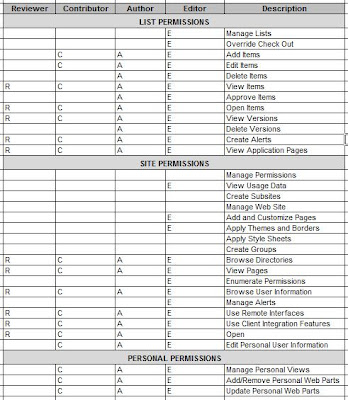
When I need to utilize custom permission levels, I put a good amount of effort into planning for these and ensure to be consistent with their names, descriptions, and definitions. Below is a sample matrix that I used for planning four custom permission levels, instead of using those which are out of box.


Friday, August 14, 2009

Publishing SharePoint Web Applications in ISA Server

Background:

This article assumes SharePoint Web applications are configured with NTLM Authentication, that multiple Web applications are being published outside a company's firewall, and ISA Server is being used as a firewall. The scenario described also assumes that a one set of Windows credentials has access to multiple SharePoint Web applications.


Description:

It is common for a SharePoint environment to include multiple Web Applications. Since each Web Application requires its own IIS Web site and may have its own IP address and host header, having mutliple Web applications does create some complexity and therefore requires some consideration.

It gets a bit more complicated when multiple Web applications need to be made accessible outside of a company's local network, such as an extranet or public internet scenario. In this case, firewall rules and NAT must be configured for each Web application to protect the organization and the application being published.

Then comes the user experience. Inside the network, client computers often times belong to the same domain as the SharePoint servers, or at least a trusted domain. Furthermore, the domain URLs are considered either "Local Intranet" or "Trusted" by the users' internet browser. In this environment, a user can navigate from Web application to Web application without receiving an authentication prompt. Life is good on the local network.

This all changes when Web applications are published outside the company's firewall. First, client computers accessing the sites no longer belong to the same domain as the SharePoint servers. Second, the users' browsers aren't configured to automatically log users into the Web applications. The challenge this creates for the user is if a contiguous user experience requires accessing multiple Web applications, the user is going to receive an authentication prompt for each application.


Solution:

ISA Server allows Rules to share Listeners. What this means is that you can create one Listener and add multiple Web applications to that Listener. Then, you can create a Rule for each unique Web application, associating these Rules with the Listener.

The result of this is that users can access multiple, externally facing SharePoint Web applications, without requiring to authenticate to each one.

Monday, August 10, 2009

MSDN: Enterprise Search URL Syntax Reference

One of the most simple, yet powerful features of Microsoft SharePoint Search is the URL syntax. Using URL syntax you can submit a query to a search results page without requiring the use of a SharePoint search box. This means that search results can be rendered on a search results page any way that the proper URL string can be built.

For example, search queries may be submitted implicitly throughout the user experience as a user is navigating a SharePoint Web site. Hyperlinks (dynamic or static) containing search query parameters do all of the work.

The MSDN article, "Enterprise Search URL Syntax Reference, http://msdn.microsoft.com/en-us/library/aa637082.aspx," explains the proper format for submitting keywords, scope, view, and start page information through the query string.

Thursday, August 06, 2009

Microsoft's Position on Changing SharePoint Databases

I caught a Twitter message from a colleague, Mauro, today passing along a Microsoft Help and Support article which discusses Microsoft's position on database modifications for SharePoint Products. In short, the article breaks down to Microsoft doesn't support changes to SharePoint databases.

The article, "Support for changes to the databases that are used by Office server products and by Windows SharePoint Services (http://support.microsoft.com/default.aspx?scid=kb;EN-US;841057 )" includes a list of unsupported database changes, shown below:

" Examples of such database changes include, but are not limited to, the following:
  • Adding database triggers
  • Adding new indexes or changing existing indexes within tables
  • Adding, changing, or deleting any primary or foreign key relationships
  • Changing or deleting existing stored procedures
  • Adding new stored procedures
  • Adding, changing, or deleting any data in any table of any of the databases for the products that are listed in the "Applies to" section unless Microsoft protocol documentation is followed exactly
  • Adding, changing, or deleting any columns in any table of any of the databases for the products that are listed in the "Applies to" section
  • Making any modification to the database schema
  • Adding tables to any of the databases for the products that are listed in the "Applies to" section Changing the database collation "

This subject comes up rather frequently during discussions and as a proponent of SQL Server in general and especially its Business Intelligence features such as Reporting Services for extending the capabilities of SharePoint solutions, I feel compelled to chime in.

I completely understand Microsoft's position. How could a software company possibly support custom, schema changes or functional modifications to their application? They cannot. Nor can Microsoft really ensure their software will function (optimally) with any type of foreign database object running on the live databses, even a view.

However, accepting Microsoft's position doesn't change two things:

1. SharePoint information is business intelligence information and often times needs to extract, transform, load, and display in other places than its native content database.
2. Where there's a will there's a way.

Exploring some scenarios...

If you need to add custom functionality to your SharePoint environment, then you might build your own custom database with triggers, functions, sprocs and all, and then use a programmatic methods to move the data you need out of the SharePoint content databases and into your custom database. Then, use Web Parts to deliver the data and functionality from the custom database throughout the SharePoint Web sites. This does not overstep any of the guidelines listed in the article.

Secondly, T-SQL queries are some times necessary for reports when using the Object Model as an XML data source reaches limitations. If you need to integrate SharePoint data with other systems or for reports you can:

1. Create a database snapshot of the SharePoint content datbase (if you have SQL 2005 / 2008 Enterprise Edition)
2. U
se programmatic methods to move the data from the SharePoint content database into an intermediary database for abstraction purposes.
3.
Move data into an existing data mart or data warehouse during regular intervals.

Any of these three approaches allows you to leverage Views. The benefits of compiling T-SQL queries as Views is that you can secure them, you can use them as data sources in SQL Reporting Services reports, and you can store them on the database where they are accessible, reusable, they get backed up with database backups, you can optimize query performance with Indexes, and querying Views performs better because you are not storing queries nor are you filtering or transforming data in the Web tier.

Tuesday, July 21, 2009

SharePoint 3.0: Unable to Activate SQL Server 2008 Reporting Services Add-in for SharePoint

Background:

The SQL Server 2008 Reporting Services Add-in for SharePoint is available for download at this location:

Microsoft SQL Server 2008 Reporting Services Add-in for Microsoft SharePoint Technologies
http://www.microsoft.com/downloads/details.aspx?displaylang=en&FamilyID=200fd7b5-db7c-4b8c-a7dc-5efee6e19005

The downloads include a readme_rsaddin.htm file, which contains complete instructions for installing and configuring the Add-in.


Description:

After running the rsSharePoint_x64.msi (installer) file, the setup appears to have finished. However, by following steps in the readme_rsaddin.htm file for activating the Add-in features, it is not possible to activate the features.

The reason it is not possible to activate the features is because setup experienced an error and the user does not have permission to add the feature to the site collection.

Navigate to:
C:\Documents and Settings\SetupUser\Local Settings\TempOpen the log file, RS_SP.0.log

Within the log file, look for an error; for example:Activating feature to root site collection: https://centraladmin.domain.com******* User does not have permission to add feature to site collection: https://centraladmin.domain.com


Solution:

To resolve this, either log in as a user that is a Site Collection Administrator on the Central Administration site collection or make the current user account a site collection Administrator by doing the following:

Navigate to Central Administration > Application Management > Site Collection Administrators.
Select the Central Administration site collection.

Add the desired user account as either primary or secondary site collection administrator for the site collection.

Once logged in as a Central Administration, Site Collection Administrator, run the rsSharePoint_x64.msi again, this time choosing the "Repair" option.

To verify the permission issue has been resolved, navigate to:
C:\Documents and Settings\nbisciotti\Local Settings\Temp

Open the log file, RS_SP.0.log

Within the log file, the entry should now read:
Activating feature to root site collection: https://centraladmin.domain.com
Activated feature for root site collection: https://centraladmin.domain.com

Next, navigate to Central Administration > Site Actions > Site Settings > Site Collection Administration > Site Collection Features

Activate the "Report Server Integration Feature"

Next, navigate to Central Administration > Application Management

The "Reporting Services" panel should now be available and visible. From here you can proceed with the SQL Server 2008 Reporting Services integration configuration.

Wednesday, July 01, 2009

SharePoint 3.0: Error: Access Denied When Activating Publishing Infrastructure, Site Collection Feature

Description:

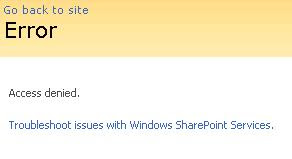
When attempting to activate the "Office SharePoint Server Publishing Infrastructure" Site Collection Feature, an "Access Denied" error is presented.

Solution:

* Start > Programs > Administrative Tools > IIS Manager
* Expand the Application Pools node, locate the application pool associated with the site collection that is experiencing an issue
* Right-Click the Application Pool and select "Properties"
* Select the "Identity" tab
* Note the user account

* Start > Programs > Microsoft Office Server > SharePoint 3.0 Central Administration
* Site Actions > Site Settings > Advanced Permissions
* Click "Groups"
* Click "Farm Administrators"
* New > Add Users
* Add Users: Type the name of the Application Pool Identity account
* Give Permission: Add users to a SharePoint group: Farm Administrators
* Add the Application Pool account to the Farm Administrators group
* Send E-Mail: Uncheck (you most likely do not want to send an email)
* Click OK

* Try again to activate the "Office SharePoint Server Publishing Infrastructure" Site Collection Feature


Reference:

SharePoint - Access Denied When Enabling The Publishing Infrastructure Site Collection Feature http://www.sharepointblogs.com/george/archive/2009/03/24/sharepoint-access-denied-when-enabling-the-publishing-infrastructure-site-collection-feature.aspx

Tuesday, June 30, 2009

Office Word 2007: Change Orientation on Page within Document

Description:

Instructions for changing page orientation (portrait vs. landscape) on a single page of a document (as opposed to the entire document), in Word 2007.


Solution:


Assuming for purposes of explanation that the entire Word document should be portrait, except one page within it should be landscape orientation:

1. Place cursor on the page prior to the one which will be formatted as landscape.
2. Along the ribbon, select "Page Layout," then "Breaks," then "Next Page."
3. Select "Page Layout," then "Orientation," then "Landscape." This will set all following pages to Landscape.
4. From here, set the following page back to portrait.


Reference:

Changing Page Orientation Within a Document
http://wordprocessing.about.com/od/wordprocessingsoftware/ss/pageorient.htm

SharePoint 3.0: Error: Your search cannot be completed...

Description:

Upon submitting a search query using an advanced search box, selecting more than one search scope checkbox from the advanced search web part, the corresponding search results page returns no results and instead returns the following errror:

"Your search cannot be completed because of a service error. Try your search again or contact your administrator for more information."

Further testing and attempts to isolate the issue resulted in finding out that one scope in particular seemed to be problematic. When this particular search scope was used in the search query, the results page would return an error. However, if this scope was not selected during the query, then the search results would display normally.


Solution:

The problem scope, called "All Content," initially had the following scope rules:

* All Content, Include
* ContentSource = People, Exclude

The steps to resolve the issue are as follows:

1. Remove all existing scope rules
2. Create new scope rules to explicitly define each content source such as:
* ContentSource = Content Source 1, Include
* ContentSource = Content Source 2, Include
* ContentSource = Content Source 3, Include
* ContentSource = People, Exclude
3. Update scopes

Tuesday, May 19, 2009

SharePoint 3.0: Overcoming Upload Limits and Timeouts

The following instructions are recommended for overcoming out of box limitations related to uploading documents. These configurations are done once per web application and are not global changes.


1. Central Administration > Application Management > SharePoint Web Application Management > Web Application General Settings > Maximum Upload Size: Change to 2047 MB (Maximum)


2. Internet Information Services Manager > Web Site > Right-Click > Properties > Connections: Change Setting (e.g. 600 seconds)


3. Windows Explorer > Program Files\Common Files\Microsoft Shared\Web Server Extensions\12\Template\Layouts\ > Web.Config

Replace This:

httpRuntime maxRequestLength="2097151"

With This:

httpRuntime executionTimeout="999999" maxRequestLength="2097151"


4. Web.Config Continued...

Replace This:

httpRuntime maxRequestLength="51200"

With This:

httpRuntime executionTimeout="999999" maxRequestLength="51200"


5. Windows Explorer > INET PUB\WWWRoot\VirtualDirectories\WebApplication\ > Web.Config

Add the snipet from http://support.microsoft.com/kb/944981%20BconfigSections between the "configSections" closing tag and the "SharePoint" opening tag (like Shane suggests in his post).


References:

You cannot upload files that are larger than 28 MB on a Windows Server 2008-based computer that is running Windows SharePoint Services 3.0
http://support.microsoft.com/kb/944981

Error message when you try to upload a large file to a document library on a Windows SharePoint Services 3.0 site: "Request timed out"
http://support.microsoft.com/kb/925083

Windows Server 2008 WFE will not allow large file uploads
http://msmvps.com/blogs/shane/archive/2008/12/17/windows-server-2008-wfe-will-not-allow-large-file-uploads.aspx

Monday, May 18, 2009

Got to love it...


SQL Server 2008: A Must Do Configuration for Resource Governor

Over the past few months, I have been upgrading numerous SharePoint environments to SQL Server 2008 and I have wrestled with system performance. Unless adjustments are made, SQL Server will attempt to consume more than its share of processor. I've seen this cause SharePoint web applications to freeze and become unusable.

A resource management measure for SQL Server 2008 which I consider to be crucial for SharePoint environments, is outlined below. These steps will limit SQL Server Management Studio and Query Analyzer to 25% processor utilization, and possibly preserve the usability of the SharePoint farm. I strongly recommend these steps for SharePoint environments using SQL Server 2008.


SQL Server 2008 Resource Governor

Steps take from TechNet article:
Integration of SQL Server 2008 and Office SharePoint Server 2007
http://technet.microsoft.com/en-us/library/cc990273.aspx


1. Create a resource pool to limit CPU usage to 25 percent

CREATE RESOURCE POOL poolAdhoc
WITH (MAX_CPU_PERCENT = 25);


2. Create a workload group for ad hoc queries and register it with the new resource pool

CREATE WORKLOAD GROUP groupAdhoc
USING poolAdhoc;


3. Create a function that classifies Management Studio and Query Analyzer as members of the ad hoc group

CREATE FUNCTION adhocQueryClassifier() RETURNS SYSNAME
WITH SCHEMABINDING
AS
BEGIN DECLARE @grp_name AS SYSNAME
IF (APP_NAME() LIKE '%MANAGEMENT STUDIO%')
OR (APP_NAME() LIKE '%QUERY ANALYZER%')
SET @grp_name = 'groupAdhoc'
RETURN @grp_name
END
GO


4. Register the new function with Resource Governor

ALTER RESOURCE GOVERNOR
WITH (CLASSIFIER_FUNCTION= dbo.adhocQueryClassifier);


5. Restart Resource Governor

ALTER RESOURCE GOVERNOR RECONFIGURE;

Monday, May 04, 2009

FAST ESP Videos on YouTube

Want to view a demonstration of current and future capabilities of FAST ESP? Here are a couple YouTube videos that provide a great overview.

Fast ESP for SharePoint - 1 of 2
http://www.youtube.com/watch?v=kTbcCNby8xE

Fast ESP for SharePoint - 2 of 2
http://www.youtube.com/watch?v=WjW6ZjX8Pyk

SharePoint 3.0: How to Crawl Case Sensitive URLs

By default, MOSS will not crawl URLs which are case sensitive. However, Microsoft Help and Support Article ID 932619 provides instructions for making a registry modification to the Index server which allows case sensitive URLs to be crawled.

Microsoft Help and Support Article ID 932619:
You cannot crawl case-sensitive Web content in SharePoint Server 2007
http://support.microsoft.com/kb/932619

It is important to note that a content index reset is required. For this reason, this modification may require a maintenance window for production environments, especially large environments with lots of items in the content index that will need to be crawled again.

Like most system changes, it is a good idea to test this first in Development or QA environments, record the change, and then schedule a time to deploy it to production. The instructions are straightforward, however, the first time that I made the modification, the search service didn't start properly so I had to stop it and start it a second time. Then it was fine. Running through the steps in Development or QA first will allow you to work the kinks out.

Thursday, April 16, 2009

Windows Server 2008: IPV4 Weak Host Configuration

It is very common to have a Microsoft Office SharePoint Server (MOSS) farm that includes mutliple web applications, each having its own host name and ip address.

In fact, when SSL certificates are installed on the web server directly (i.e. not offloaded to the hardware load balancer), then there is a requirement to assign unique ip addresses for each web application in order to ensure that the web site bindings (ip address + host name + port) remain unique on the web server.

When a web server is multihomed like this, it is very important to consider and configure the approprate strong or weak host model, in order to ensure that the web server will behave properly. If this configuration is neglected or set incorrectly, then it will cause Windows services to fail, IP packets to be disgarded, and the web server to "break."

Here is an excellent article describing the strong and week host models:

TechNet: The Cable Guy: Strong and Weak Host Models by Joseph Davies
http://technet.microsoft.com/en-us/magazine/2007.09.cableguy.aspx

Returning to the subject of the multihomed MOSS web server; here are steps that may be followed to configure the IPV4 interface as "weak":

1. netsh interface ipv4 show interface
2. See the IDX number
3. netsh interface ipv4 set interface [IDX number] weakhostsend=enabled
4. netsh interface ipv4 set interface [IDX number] weakhostreceive=enabled

Sunday, April 12, 2009

SharePoint 3.0: Error: The Backup/Restore Job Failed

Description:


In this scenario, a full farm backup failed because the backup of the "SharedSearchIndex" failed.

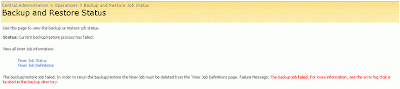
Error: The backup/restore job failed. In order to rerun the backup/restore the timer job must be deleted from the Timer Job Definitions page. Failure Message: The backup job failed. For more information, see the error log that is located in the backup directory.

Central Administration > Operations (Tab) > Backup and Restore (Heading) > Backup and restore job status


Error: Object Shared Search Index failed in event OnBackupComplete. For more information, see the error log located in the backup directory. WebException: The current operation timed-out after 3600 seconds.

Central Administration > Operations (Tab) > Backup and Restore (Heading) > Backup and restore job status


Error: The Backup/Restore job has the status of "Failed"

Central Administration > Operations (Tab) > Global Configuration (Heading) > Timer job status


Solution:


This issue may be caused by a timeout. To resolve this issue, there are a few steps. First, any time a SharePoint Backup/Restore job fails, you must delete the failed timer job definition, otherwise subsequent backup attempts will also fail.

Second, take an inventory of scheduled jobs that are running on the farm, including incremental crawl schedules, SharePoint backup scheduled tasks, and Enterprise Backup jobs (e.g. Symantec BackupExec, Networker, etc..). Measure how much time incremental crawls are taking to run. Also, measure how much time the backup is taking to run. Determine what time the backup job needs to start. Keep in mind that if an enterprise backup solution is backing up the SharePoint backup files, then the SharePoint backup should COMPLETE before the tape backup job begins.

If necessary, adjust the scheduled jobs so that the crawls are not interferring with the backup job.


Steps:

1. Delete the Backup/Restore timer job definition.

Central Administration > Operations (Tab) > Global Configuration (Heading) > Timer job definition


2. Adjust the start time of the incremental crawl. Make sure the schedule is set up in a way that the incremental crawls complete at a time that is earlier than the start time of the scheduled task that runs the backup job.

For example, if the incremental crawl takes less than an hour to run, and the the backup job is scheduled to run at 8:00 PM, then schedule the last incremental crawl to occur at 7:00PM.

SSP Administration > Search (Heading) > Search Settings > Content sources and crawl schedulesContent Source > Edit > Crawl schedules


3. If necessary, adjust the start time of the scheduled task that runs the backup

Start > Settings > Control Panel > Scheduled Tasks

CBT Clips


One of the most challenging aspects of a SharePoint rollout is user adoption and user education. Organizing training sessions and brown bag lunch demonstrations are good ways to inform and educate users about SharePoint and how it is used in the organization.

However, ramping up several users on SharePoint at once requires that each person has some context for what they are learning. You can't always force this on people; force them to imagine working a certain way, role play to a point where the instruction actually makes sense.

For this reason, a successful user education strategy should include reference material that is easy to locate, easy to use and relevant. It should be easily accessible at the point in time when a user has a specific question while performing a task. The reference material should address the specific question at hand, and only that. Otherwise, the user will not be able to find the answer to their question and they will lose interest.

I have found CBT Clips to be a great solution for fulfilling this need. CBT Clips offers collections of very brief, to-the-point, computer based instruction videos. These are perfect for new users who just want to know how to upload a document, how check in/check out works, or how to use Outlook with SharePoint.

The price for a company wide license is very reasonable and I think that depending on the size of the organization, an investment may easily pay for itself.

Monday, April 06, 2009

MSSQL RS: Reference Items for Creating Datasource that Queries SharePoint List Items

Here are a couple, useful reference items to have when creating MSSQL Reporting Services datasources for querying SharePoint list item information:


1. The URL location of the list web service:

http://sample1portal.domain.com/subsite/_vti_bin/Lists.asmx


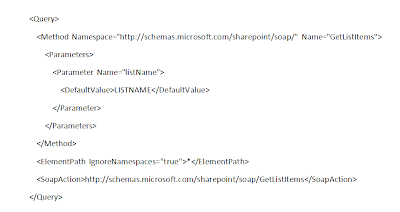
2. Sample syntax of an XML query to be used in the datasource:

SharePoint 3.0: Error: Access Denied, Search Crawl Log

Description:

You receive an error when attempting to run a crawl on a content source.

Shared Services Administration > Search Settings > Content Sources > Crawl Log:

Error:

"Access is denied. Check that the Default Content Access Account has access to this content, or add a crawl rule to crawl this content. (The item was deleted because it was either not found or the crawler was denied access to it.)"


Solution:

Aside from Alternate Access Mappings (AAM) issues, Content Access account permissions issues, and invalid credentials, this error may also appear if the "Loopback Check" is enabled.

Instructions for disabling the Loopback Check are included in Microsoft Support KB 89861.

KB 89681: You receive error 401.1 when you browse a Web site that uses Integrated Authentication and is hosted on IIS 5.1 or IIS 6
http://support.microsoft.com/kb/896861

Blog Archive

Followers