Description:
When you create an Organizational Unit (OU) or security group in Active Directory, there is checkbox titled, "Protect container from accidental deletion." If you create the object with this check box marked, then you have to follow special steps if you would like to delete that OU in the future.
If you attempt to delete the object while it is protected, then you will receive the error, "Active Directory Domain Services. You do not have sufficient privileges to delete object, or this object is protected from accidental deletion."
Solution:
1. Open Active Directory Users and Computers.
2. Select the root domain, "company.domain.com."
3. From the menu bar, select "View" and "Advanced Features."
4. Navigate to the OU you would like to delete.
5. Right-click, properties.
6. Select the "Object" tab.
7. Uncheck the option, "Protect object from accidental deletion."
8. Now the object is no longer protected. You can proceed with deleting the object.
Friday, November 20, 2009


Thursday, November 19, 2009
SharePoint 3.0: Allowing SharePoint RSS Viewer Web Part to Read SharePoint RSS Feeds
Description:
SharePoint RSS Viewer Web Part does not display RSS feed from SharePoint list or library.
After configuring a SharePoint RSS Viewer Web Part to display an RSS feed from a SharePoint RSS list, you receive the error, "The RSS webpart does not support authenticated feeds."
Solution:
Configure anonymous access on the list which is serving the RSS feed.
1.
Enable anonymous access for the Web Application containing the list which is serving the RSS feed.
- Central Administration > Application Management > Application Security > Authentication Providers > Edit Authentication
- Edit Authentication > Anonymous Access: Check "Enable anonymous access"
- Edit Authentication > Click "Save"
2.
Enable anonymous access for the site collection containing the list which is serving the RSS feed.
- Site Collection > Site Actions > Site Settings Site Collection Settings > Advanced Permissions
- Advanced Permissions > Settings > Anonymous Access
- Change Anonymous Access Settings > Anonymous Access: Select "Lists and Libraries"
3.
Enable anonymous access for the list which is serving the RSS feed.
- List > Settings > Permissions for this List > Settings > Anonymous Access
- Assign the "Read" or "View Only" permission level to the Anonymous User
References:
Holmes, T. (2008). Enabling Anonymous Access in SharePoint 2007. Retrieved November 19, 2009 from http://blog.tylerholmes.com/2008/01/enabling-anonymous-access-in-sharepoint.html.
Monday, October 26, 2009
Back from SharePoint Conference 2009
I have returned home from ten days in Las Vegas NV where I attended the Microsoft SharePoint Conference 2009 at Mandalay Bay. I cannot say that I am happy to be home, especially since I have to clean up after myself again. I love throwing wet towels on the floor and then going out for the day so that I can return to the hotel room at the end of the day and the towels are magically clean and put away.
There were many highlights of the conference. The cocktail reception, the keynote, the sessions, the Huey Lewis & the News concert, catching up with old friends and meeting new ones.
The bottom line is SharePoint 2010 delivers!! It is going to be an awesome, next three years working with this generation of products and technologies. Things are moving full steam ahead.
I especially enjoyed the governance planning session by my friends, Susan Hanley and Scott Jamison.
Friday's full day workshop on SharePoint Server 2010 Installation and Upgrade Training by Shane Young and Todd Klindt from SharePoint911 was fantastic and informative. It was more fun than hanging out at House of Blues Foundation Room until 3:00am...almost.
Most of all I love the fact that I won all of my gambling money back at the craps table after I checked out on Saturday morning, as I was killing some time before the cab ride to the airport. I hit three point numbers and several hard ways. Folks were happy to be winning and I received an applause for the good shooting.

Thursday, September 17, 2009
Links: CommonCraft: SharePoint in Plain English
I've seen this video posted on various blogs. I like it a lot. Its titled, "SharePoint in Plain English." It is by CommonCraft, http://www.commoncraft.com/. Brilliant!
View Here:
http://www.commoncraft.com/custom-video-sharepoint-plain-english
Download Here:
http://download.microsoft.com/download/A/5/6/A56BB856-74F5-4A6B-887B-876BAE88116F/SharePoint%20in%20Plain%20English.zip
Sunday, August 30, 2009
Migrating Internet Explorer Favorites and RSS Feeds
With Windows 7 releasing soon, it will be time to think about migrating user profile settings to a new operating system build.
Aside from file folders, and desktop files, you may have a bit of time invested in the Internet Explorer favorites and feeds. Even if it only saves a couple minutes of searching in the end, I thought it would be worthwhile to post locations of these items on a source Vista build.
Favorites:
C: (Operating System) \Documents and Settings\UserProfileName\Favorites
RSS Feeds:
C: (Operating System) \Documents and Settings\UserProfileName\AppData\Local\Microsoft\Feeds
Friday, August 21, 2009
SharePoint 3.0: Clarifying Check Out Status on Multiple Document Upload
I found a post on TechArchive.net, "Re: disabling check out on document library upload," in which the author was observing that multiple document uploads were resulting in status of "checked out" after uploading. The author cited a post of mine, "SharePoint V3: Achieving Checked-In Status When Uploading Mulitple Documents," and explained that the post didn't solve the issue.
So, I am posting the two possible reasons why, after uploading multiple documents to a document library, the uploaded documents have the status of "checked out."
1. Require check out is configured on the library
I did a test, configuring six document libraries, and then performed a multiple document upload. Here are the results:
a.
Document library configurations resulting in "checked out" status when multiple documents are uploaded:
Require Check out + No Versioning
Require Check out + Major Versioning
Require Check out + Major and Minor Versioning
b.
Document library configurations resulting in "checked in" status when multiple documents are uploaded:
No Require Checkout + No Versioning
No Require Check out + Major Versioning
No Require Check out + Major and Minor Versioning
2. The document library is configured with a required field. When the document upload completes, the field is not populated and the status for each of the uploaded documents is set to "checked out."
Monday, August 17, 2009
SharePoint 3.0: Custom Permission Levels
When planning site collection security models for SharePoint deployments, there is certainly a case for simplicity and sticking to the out of box permission levels. Doing this requires the least amount of thought, administrative effort, documentation, and training.
As an added benefit of sticking with the out of box, you can leverage many of the Web based training tutorials and end user, computer based training modules, that are available on the Web with since most of these instructional resources are based on out of box configurations.
Having said that, circumstances and business requirements can require something different than the out of box permission levels. For example, you might want to lock out SharePoint Designer from some users by configuring a permission level that excludes the "Use Remote Interfaces" permission. Or, you might want to prevent content contributors from being able to delete by excluding the "Delete Items" permission. In most cases, having thirty three distinct permissions allows enough flexibility to accommodate.
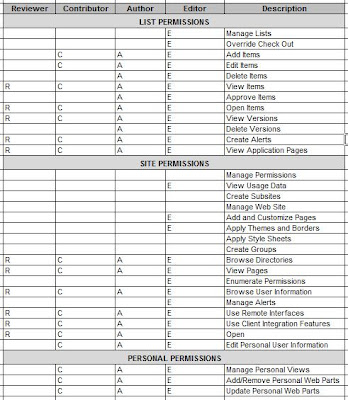
When I need to utilize custom permission levels, I put a good amount of effort into planning for these and ensure to be consistent with their names, descriptions, and definitions. Below is a sample matrix that I used for planning four custom permission levels, instead of using those which are out of box.
As an added benefit of sticking with the out of box, you can leverage many of the Web based training tutorials and end user, computer based training modules, that are available on the Web with since most of these instructional resources are based on out of box configurations.
Having said that, circumstances and business requirements can require something different than the out of box permission levels. For example, you might want to lock out SharePoint Designer from some users by configuring a permission level that excludes the "Use Remote Interfaces" permission. Or, you might want to prevent content contributors from being able to delete by excluding the "Delete Items" permission. In most cases, having thirty three distinct permissions allows enough flexibility to accommodate.
When I need to utilize custom permission levels, I put a good amount of effort into planning for these and ensure to be consistent with their names, descriptions, and definitions. Below is a sample matrix that I used for planning four custom permission levels, instead of using those which are out of box.
Friday, August 14, 2009
Publishing SharePoint Web Applications in ISA Server
Background:
This article assumes SharePoint Web applications are configured with NTLM Authentication, that multiple Web applications are being published outside a company's firewall, and ISA Server is being used as a firewall. The scenario described also assumes that a one set of Windows credentials has access to multiple SharePoint Web applications.
Description:
It is common for a SharePoint environment to include multiple Web Applications. Since each Web Application requires its own IIS Web site and may have its own IP address and host header, having mutliple Web applications does create some complexity and therefore requires some consideration.
It gets a bit more complicated when multiple Web applications need to be made accessible outside of a company's local network, such as an extranet or public internet scenario. In this case, firewall rules and NAT must be configured for each Web application to protect the organization and the application being published.
Then comes the user experience. Inside the network, client computers often times belong to the same domain as the SharePoint servers, or at least a trusted domain. Furthermore, the domain URLs are considered either "Local Intranet" or "Trusted" by the users' internet browser. In this environment, a user can navigate from Web application to Web application without receiving an authentication prompt. Life is good on the local network.
This all changes when Web applications are published outside the company's firewall. First, client computers accessing the sites no longer belong to the same domain as the SharePoint servers. Second, the users' browsers aren't configured to automatically log users into the Web applications. The challenge this creates for the user is if a contiguous user experience requires accessing multiple Web applications, the user is going to receive an authentication prompt for each application.
Solution:
ISA Server allows Rules to share Listeners. What this means is that you can create one Listener and add multiple Web applications to that Listener. Then, you can create a Rule for each unique Web application, associating these Rules with the Listener.
The result of this is that users can access multiple, externally facing SharePoint Web applications, without requiring to authenticate to each one.
This article assumes SharePoint Web applications are configured with NTLM Authentication, that multiple Web applications are being published outside a company's firewall, and ISA Server is being used as a firewall. The scenario described also assumes that a one set of Windows credentials has access to multiple SharePoint Web applications.
Description:
It is common for a SharePoint environment to include multiple Web Applications. Since each Web Application requires its own IIS Web site and may have its own IP address and host header, having mutliple Web applications does create some complexity and therefore requires some consideration.
It gets a bit more complicated when multiple Web applications need to be made accessible outside of a company's local network, such as an extranet or public internet scenario. In this case, firewall rules and NAT must be configured for each Web application to protect the organization and the application being published.
Then comes the user experience. Inside the network, client computers often times belong to the same domain as the SharePoint servers, or at least a trusted domain. Furthermore, the domain URLs are considered either "Local Intranet" or "Trusted" by the users' internet browser. In this environment, a user can navigate from Web application to Web application without receiving an authentication prompt. Life is good on the local network.
This all changes when Web applications are published outside the company's firewall. First, client computers accessing the sites no longer belong to the same domain as the SharePoint servers. Second, the users' browsers aren't configured to automatically log users into the Web applications. The challenge this creates for the user is if a contiguous user experience requires accessing multiple Web applications, the user is going to receive an authentication prompt for each application.
Solution:
ISA Server allows Rules to share Listeners. What this means is that you can create one Listener and add multiple Web applications to that Listener. Then, you can create a Rule for each unique Web application, associating these Rules with the Listener.
The result of this is that users can access multiple, externally facing SharePoint Web applications, without requiring to authenticate to each one.
Monday, August 10, 2009
MSDN: Enterprise Search URL Syntax Reference
One of the most simple, yet powerful features of Microsoft SharePoint Search is the URL syntax. Using URL syntax you can submit a query to a search results page without requiring the use of a SharePoint search box. This means that search results can be rendered on a search results page any way that the proper URL string can be built.
For example, search queries may be submitted implicitly throughout the user experience as a user is navigating a SharePoint Web site. Hyperlinks (dynamic or static) containing search query parameters do all of the work.
The MSDN article, "Enterprise Search URL Syntax Reference, http://msdn.microsoft.com/en-us/library/aa637082.aspx," explains the proper format for submitting keywords, scope, view, and start page information through the query string.
For example, search queries may be submitted implicitly throughout the user experience as a user is navigating a SharePoint Web site. Hyperlinks (dynamic or static) containing search query parameters do all of the work.
The MSDN article, "Enterprise Search URL Syntax Reference, http://msdn.microsoft.com/en-us/library/aa637082.aspx," explains the proper format for submitting keywords, scope, view, and start page information through the query string.
Thursday, August 06, 2009
Microsoft's Position on Changing SharePoint Databases
I caught a Twitter message from a colleague, Mauro, today passing along a Microsoft Help and Support article which discusses Microsoft's position on database modifications for SharePoint Products. In short, the article breaks down to Microsoft doesn't support changes to SharePoint databases.
The article, "Support for changes to the databases that are used by Office server products and by Windows SharePoint Services (http://support.microsoft.com/default.aspx?scid=kb;EN-US;841057 )" includes a list of unsupported database changes, shown below:
" Examples of such database changes include, but are not limited to, the following:
The article, "Support for changes to the databases that are used by Office server products and by Windows SharePoint Services (http://support.microsoft.com/default.aspx?scid=kb;EN-US;841057 )" includes a list of unsupported database changes, shown below:
" Examples of such database changes include, but are not limited to, the following:
- Adding database triggers
- Adding new indexes or changing existing indexes within tables
- Adding, changing, or deleting any primary or foreign key relationships
- Changing or deleting existing stored procedures
- Adding new stored procedures
- Adding, changing, or deleting any data in any table of any of the databases for the products that are listed in the "Applies to" section unless Microsoft protocol documentation is followed exactly
- Adding, changing, or deleting any columns in any table of any of the databases for the products that are listed in the "Applies to" section
- Making any modification to the database schema
- Adding tables to any of the databases for the products that are listed in the "Applies to" section Changing the database collation "
This subject comes up rather frequently during discussions and as a proponent of SQL Server in general and especially its Business Intelligence features such as Reporting Services for extending the capabilities of SharePoint solutions, I feel compelled to chime in.
I completely understand Microsoft's position. How could a software company possibly support custom, schema changes or functional modifications to their application? They cannot. Nor can Microsoft really ensure their software will function (optimally) with any type of foreign database object running on the live databses, even a view.
However, accepting Microsoft's position doesn't change two things:
1. SharePoint information is business intelligence information and often times needs to extract, transform, load, and display in other places than its native content database.
2. Where there's a will there's a way.
Exploring some scenarios...
If you need to add custom functionality to your SharePoint environment, then you might build your own custom database with triggers, functions, sprocs and all, and then use a programmatic methods to move the data you need out of the SharePoint content databases and into your custom database. Then, use Web Parts to deliver the data and functionality from the custom database throughout the SharePoint Web sites. This does not overstep any of the guidelines listed in the article.
Secondly, T-SQL queries are some times necessary for reports when using the Object Model as an XML data source reaches limitations. If you need to integrate SharePoint data with other systems or for reports you can:
1. Create a database snapshot of the SharePoint content datbase (if you have SQL 2005 / 2008 Enterprise Edition)
2. Use programmatic methods to move the data from the SharePoint content database into an intermediary database for abstraction purposes.
3. Move data into an existing data mart or data warehouse during regular intervals.
Any of these three approaches allows you to leverage Views. The benefits of compiling T-SQL queries as Views is that you can secure them, you can use them as data sources in SQL Reporting Services reports, and you can store them on the database where they are accessible, reusable, they get backed up with database backups, you can optimize query performance with Indexes, and querying Views performs better because you are not storing queries nor are you filtering or transforming data in the Web tier.
Tuesday, July 21, 2009
SharePoint 3.0: Unable to Activate SQL Server 2008 Reporting Services Add-in for SharePoint
Background:
The SQL Server 2008 Reporting Services Add-in for SharePoint is available for download at this location:
Microsoft SQL Server 2008 Reporting Services Add-in for Microsoft SharePoint Technologies
http://www.microsoft.com/downloads/details.aspx?displaylang=en&FamilyID=200fd7b5-db7c-4b8c-a7dc-5efee6e19005
The downloads include a readme_rsaddin.htm file, which contains complete instructions for installing and configuring the Add-in.
Description:
After running the rsSharePoint_x64.msi (installer) file, the setup appears to have finished. However, by following steps in the readme_rsaddin.htm file for activating the Add-in features, it is not possible to activate the features.
The reason it is not possible to activate the features is because setup experienced an error and the user does not have permission to add the feature to the site collection.
Navigate to:
C:\Documents and Settings\SetupUser\Local Settings\TempOpen the log file, RS_SP.0.log
Within the log file, look for an error; for example:Activating feature to root site collection: https://centraladmin.domain.com******* User does not have permission to add feature to site collection: https://centraladmin.domain.com
Solution:
To resolve this, either log in as a user that is a Site Collection Administrator on the Central Administration site collection or make the current user account a site collection Administrator by doing the following:
Navigate to Central Administration > Application Management > Site Collection Administrators.
Select the Central Administration site collection.
Add the desired user account as either primary or secondary site collection administrator for the site collection.
Once logged in as a Central Administration, Site Collection Administrator, run the rsSharePoint_x64.msi again, this time choosing the "Repair" option.
To verify the permission issue has been resolved, navigate to:
C:\Documents and Settings\nbisciotti\Local Settings\Temp
Open the log file, RS_SP.0.log
Within the log file, the entry should now read:
Activating feature to root site collection: https://centraladmin.domain.com
Activated feature for root site collection: https://centraladmin.domain.com
Next, navigate to Central Administration > Site Actions > Site Settings > Site Collection Administration > Site Collection Features
Activate the "Report Server Integration Feature"
Next, navigate to Central Administration > Application Management
The "Reporting Services" panel should now be available and visible. From here you can proceed with the SQL Server 2008 Reporting Services integration configuration.
The SQL Server 2008 Reporting Services Add-in for SharePoint is available for download at this location:
Microsoft SQL Server 2008 Reporting Services Add-in for Microsoft SharePoint Technologies
http://www.microsoft.com/downloads/details.aspx?displaylang=en&FamilyID=200fd7b5-db7c-4b8c-a7dc-5efee6e19005
The downloads include a readme_rsaddin.htm file, which contains complete instructions for installing and configuring the Add-in.
Description:
After running the rsSharePoint_x64.msi (installer) file, the setup appears to have finished. However, by following steps in the readme_rsaddin.htm file for activating the Add-in features, it is not possible to activate the features.
The reason it is not possible to activate the features is because setup experienced an error and the user does not have permission to add the feature to the site collection.
Navigate to:
C:\Documents and Settings\SetupUser\Local Settings\TempOpen the log file, RS_SP.0.log
Within the log file, look for an error; for example:Activating feature to root site collection: https://centraladmin.domain.com******* User does not have permission to add feature to site collection: https://centraladmin.domain.com
Solution:
To resolve this, either log in as a user that is a Site Collection Administrator on the Central Administration site collection or make the current user account a site collection Administrator by doing the following:
Navigate to Central Administration > Application Management > Site Collection Administrators.
Select the Central Administration site collection.
Add the desired user account as either primary or secondary site collection administrator for the site collection.
Once logged in as a Central Administration, Site Collection Administrator, run the rsSharePoint_x64.msi again, this time choosing the "Repair" option.
To verify the permission issue has been resolved, navigate to:
C:\Documents and Settings\nbisciotti\Local Settings\Temp
Open the log file, RS_SP.0.log
Within the log file, the entry should now read:
Activating feature to root site collection: https://centraladmin.domain.com
Activated feature for root site collection: https://centraladmin.domain.com
Next, navigate to Central Administration > Site Actions > Site Settings > Site Collection Administration > Site Collection Features
Activate the "Report Server Integration Feature"
Next, navigate to Central Administration > Application Management
The "Reporting Services" panel should now be available and visible. From here you can proceed with the SQL Server 2008 Reporting Services integration configuration.
Wednesday, July 01, 2009
SharePoint 3.0: Error: Access Denied When Activating Publishing Infrastructure, Site Collection Feature
Description:
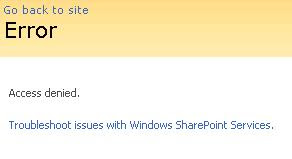
When attempting to activate the "Office SharePoint Server Publishing Infrastructure" Site Collection Feature, an "Access Denied" error is presented.
 Solution:
When attempting to activate the "Office SharePoint Server Publishing Infrastructure" Site Collection Feature, an "Access Denied" error is presented.
Solution:* Start > Programs > Administrative Tools > IIS Manager
* Expand the Application Pools node, locate the application pool associated with the site collection that is experiencing an issue
* Right-Click the Application Pool and select "Properties"
* Select the "Identity" tab
* Note the user account
* Start > Programs > Microsoft Office Server > SharePoint 3.0 Central Administration
* Site Actions > Site Settings > Advanced Permissions
* Click "Groups"
* Click "Farm Administrators"
* New > Add Users
* Add Users: Type the name of the Application Pool Identity account
* Give Permission: Add users to a SharePoint group: Farm Administrators
* Add the Application Pool account to the Farm Administrators group
* Send E-Mail: Uncheck (you most likely do not want to send an email)
* Click OK
* Try again to activate the "Office SharePoint Server Publishing Infrastructure" Site Collection Feature
Reference:
SharePoint - Access Denied When Enabling The Publishing Infrastructure Site Collection Feature http://www.sharepointblogs.com/george/archive/2009/03/24/sharepoint-access-denied-when-enabling-the-publishing-infrastructure-site-collection-feature.aspx
Tuesday, June 30, 2009
Office Word 2007: Change Orientation on Page within Document
Description:
Instructions for changing page orientation (portrait vs. landscape) on a single page of a document (as opposed to the entire document), in Word 2007.
Solution:
Assuming for purposes of explanation that the entire Word document should be portrait, except one page within it should be landscape orientation:
1. Place cursor on the page prior to the one which will be formatted as landscape.
2. Along the ribbon, select "Page Layout," then "Breaks," then "Next Page."
3. Select "Page Layout," then "Orientation," then "Landscape." This will set all following pages to Landscape.
4. From here, set the following page back to portrait.
Reference:
Changing Page Orientation Within a Document
http://wordprocessing.about.com/od/wordprocessingsoftware/ss/pageorient.htm
Instructions for changing page orientation (portrait vs. landscape) on a single page of a document (as opposed to the entire document), in Word 2007.
Solution:
Assuming for purposes of explanation that the entire Word document should be portrait, except one page within it should be landscape orientation:
1. Place cursor on the page prior to the one which will be formatted as landscape.
2. Along the ribbon, select "Page Layout," then "Breaks," then "Next Page."
3. Select "Page Layout," then "Orientation," then "Landscape." This will set all following pages to Landscape.
4. From here, set the following page back to portrait.
Reference:
Changing Page Orientation Within a Document
http://wordprocessing.about.com/od/wordprocessingsoftware/ss/pageorient.htm
SharePoint 3.0: Error: Your search cannot be completed...
Description:
Upon submitting a search query using an advanced search box, selecting more than one search scope checkbox from the advanced search web part, the corresponding search results page returns no results and instead returns the following errror:
"Your search cannot be completed because of a service error. Try your search again or contact your administrator for more information."
Further testing and attempts to isolate the issue resulted in finding out that one scope in particular seemed to be problematic. When this particular search scope was used in the search query, the results page would return an error. However, if this scope was not selected during the query, then the search results would display normally.
Solution:
The problem scope, called "All Content," initially had the following scope rules:
* All Content, Include
* ContentSource = People, Exclude
The steps to resolve the issue are as follows:
1. Remove all existing scope rules
2. Create new scope rules to explicitly define each content source such as:
* ContentSource = Content Source 1, Include
* ContentSource = Content Source 2, Include
* ContentSource = Content Source 3, Include
* ContentSource = People, Exclude
3. Update scopes
Upon submitting a search query using an advanced search box, selecting more than one search scope checkbox from the advanced search web part, the corresponding search results page returns no results and instead returns the following errror:
"Your search cannot be completed because of a service error. Try your search again or contact your administrator for more information."
Further testing and attempts to isolate the issue resulted in finding out that one scope in particular seemed to be problematic. When this particular search scope was used in the search query, the results page would return an error. However, if this scope was not selected during the query, then the search results would display normally.
Solution:
The problem scope, called "All Content," initially had the following scope rules:
* All Content, Include
* ContentSource = People, Exclude
The steps to resolve the issue are as follows:
1. Remove all existing scope rules
2. Create new scope rules to explicitly define each content source such as:
* ContentSource = Content Source 1, Include
* ContentSource = Content Source 2, Include
* ContentSource = Content Source 3, Include
* ContentSource = People, Exclude
3. Update scopes
Tuesday, May 19, 2009
SharePoint 3.0: Overcoming Upload Limits and Timeouts
The following instructions are recommended for overcoming out of box limitations related to uploading documents. These configurations are done once per web application and are not global changes.
1. Central Administration > Application Management > SharePoint Web Application Management > Web Application General Settings > Maximum Upload Size: Change to 2047 MB (Maximum)
2. Internet Information Services Manager > Web Site > Right-Click > Properties > Connections: Change Setting (e.g. 600 seconds)
3. Windows Explorer > Program Files\Common Files\Microsoft Shared\Web Server Extensions\12\Template\Layouts\ > Web.Config
Replace This:
httpRuntime maxRequestLength="2097151"
With This:
httpRuntime executionTimeout="999999" maxRequestLength="2097151"
4. Web.Config Continued...
Replace This:
httpRuntime maxRequestLength="51200"
With This:
httpRuntime executionTimeout="999999" maxRequestLength="51200"
5. Windows Explorer > INET PUB\WWWRoot\VirtualDirectories\WebApplication\ > Web.Config
Add the snipet from http://support.microsoft.com/kb/944981%20BconfigSections between the "configSections" closing tag and the "SharePoint" opening tag (like Shane suggests in his post).
References:
You cannot upload files that are larger than 28 MB on a Windows Server 2008-based computer that is running Windows SharePoint Services 3.0
http://support.microsoft.com/kb/944981
Error message when you try to upload a large file to a document library on a Windows SharePoint Services 3.0 site: "Request timed out"
http://support.microsoft.com/kb/925083
Windows Server 2008 WFE will not allow large file uploads
http://msmvps.com/blogs/shane/archive/2008/12/17/windows-server-2008-wfe-will-not-allow-large-file-uploads.aspx
1. Central Administration > Application Management > SharePoint Web Application Management > Web Application General Settings > Maximum Upload Size: Change to 2047 MB (Maximum)
2. Internet Information Services Manager > Web Site > Right-Click > Properties > Connections: Change Setting (e.g. 600 seconds)
3. Windows Explorer > Program Files\Common Files\Microsoft Shared\Web Server Extensions\12\Template\Layouts\ > Web.Config
Replace This:
httpRuntime maxRequestLength="2097151"
With This:
4. Web.Config Continued...
Replace This:
With This:
5. Windows Explorer > INET PUB\WWWRoot\VirtualDirectories\WebApplication\ > Web.Config
Add the snipet from http://support.microsoft.com/kb/944981%20BconfigSections between the "configSections" closing tag and the "SharePoint" opening tag (like Shane suggests in his post).
References:
You cannot upload files that are larger than 28 MB on a Windows Server 2008-based computer that is running Windows SharePoint Services 3.0
http://support.microsoft.com/kb/944981
Error message when you try to upload a large file to a document library on a Windows SharePoint Services 3.0 site: "Request timed out"
http://support.microsoft.com/kb/925083
Windows Server 2008 WFE will not allow large file uploads
http://msmvps.com/blogs/shane/archive/2008/12/17/windows-server-2008-wfe-will-not-allow-large-file-uploads.aspx
Monday, May 18, 2009

SQL Server 2008: A Must Do Configuration for Resource Governor
Over the past few months, I have been upgrading numerous SharePoint environments to SQL Server 2008 and I have wrestled with system performance. Unless adjustments are made, SQL Server will attempt to consume more than its share of processor. I've seen this cause SharePoint web applications to freeze and become unusable.
A resource management measure for SQL Server 2008 which I consider to be crucial for SharePoint environments, is outlined below. These steps will limit SQL Server Management Studio and Query Analyzer to 25% processor utilization, and possibly preserve the usability of the SharePoint farm. I strongly recommend these steps for SharePoint environments using SQL Server 2008.
SQL Server 2008 Resource Governor
Steps take from TechNet article:
Integration of SQL Server 2008 and Office SharePoint Server 2007
http://technet.microsoft.com/en-us/library/cc990273.aspx
1. Create a resource pool to limit CPU usage to 25 percent
CREATE RESOURCE POOL poolAdhoc
WITH (MAX_CPU_PERCENT = 25);
2. Create a workload group for ad hoc queries and register it with the new resource pool
CREATE WORKLOAD GROUP groupAdhoc
USING poolAdhoc;
3. Create a function that classifies Management Studio and Query Analyzer as members of the ad hoc group
CREATE FUNCTION adhocQueryClassifier() RETURNS SYSNAME
WITH SCHEMABINDING
AS
BEGIN DECLARE @grp_name AS SYSNAME
IF (APP_NAME() LIKE '%MANAGEMENT STUDIO%')
OR (APP_NAME() LIKE '%QUERY ANALYZER%')
SET @grp_name = 'groupAdhoc'
RETURN @grp_name
END
GO
4. Register the new function with Resource Governor
ALTER RESOURCE GOVERNOR
WITH (CLASSIFIER_FUNCTION= dbo.adhocQueryClassifier);
5. Restart Resource Governor
ALTER RESOURCE GOVERNOR RECONFIGURE;
A resource management measure for SQL Server 2008 which I consider to be crucial for SharePoint environments, is outlined below. These steps will limit SQL Server Management Studio and Query Analyzer to 25% processor utilization, and possibly preserve the usability of the SharePoint farm. I strongly recommend these steps for SharePoint environments using SQL Server 2008.
SQL Server 2008 Resource Governor
Steps take from TechNet article:
Integration of SQL Server 2008 and Office SharePoint Server 2007
http://technet.microsoft.com/en-us/library/cc990273.aspx
1. Create a resource pool to limit CPU usage to 25 percent
CREATE RESOURCE POOL poolAdhoc
WITH (MAX_CPU_PERCENT = 25);
2. Create a workload group for ad hoc queries and register it with the new resource pool
CREATE WORKLOAD GROUP groupAdhoc
USING poolAdhoc;
3. Create a function that classifies Management Studio and Query Analyzer as members of the ad hoc group
CREATE FUNCTION adhocQueryClassifier() RETURNS SYSNAME
WITH SCHEMABINDING
AS
BEGIN DECLARE @grp_name AS SYSNAME
IF (APP_NAME() LIKE '%MANAGEMENT STUDIO%')
OR (APP_NAME() LIKE '%QUERY ANALYZER%')
SET @grp_name = 'groupAdhoc'
RETURN @grp_name
END
GO
4. Register the new function with Resource Governor
ALTER RESOURCE GOVERNOR
WITH (CLASSIFIER_FUNCTION= dbo.adhocQueryClassifier);
5. Restart Resource Governor
ALTER RESOURCE GOVERNOR RECONFIGURE;
Monday, May 04, 2009
FAST ESP Videos on YouTube
Want to view a demonstration of current and future capabilities of FAST ESP? Here are a couple YouTube videos that provide a great overview.
Fast ESP for SharePoint - 1 of 2
http://www.youtube.com/watch?v=kTbcCNby8xE
Fast ESP for SharePoint - 2 of 2
http://www.youtube.com/watch?v=WjW6ZjX8Pyk
Fast ESP for SharePoint - 1 of 2
http://www.youtube.com/watch?v=kTbcCNby8xE
Fast ESP for SharePoint - 2 of 2
http://www.youtube.com/watch?v=WjW6ZjX8Pyk
SharePoint 3.0: How to Crawl Case Sensitive URLs
By default, MOSS will not crawl URLs which are case sensitive. However, Microsoft Help and Support Article ID 932619 provides instructions for making a registry modification to the Index server which allows case sensitive URLs to be crawled.
Microsoft Help and Support Article ID 932619:
You cannot crawl case-sensitive Web content in SharePoint Server 2007
http://support.microsoft.com/kb/932619
It is important to note that a content index reset is required. For this reason, this modification may require a maintenance window for production environments, especially large environments with lots of items in the content index that will need to be crawled again.
Like most system changes, it is a good idea to test this first in Development or QA environments, record the change, and then schedule a time to deploy it to production. The instructions are straightforward, however, the first time that I made the modification, the search service didn't start properly so I had to stop it and start it a second time. Then it was fine. Running through the steps in Development or QA first will allow you to work the kinks out.
Microsoft Help and Support Article ID 932619:
You cannot crawl case-sensitive Web content in SharePoint Server 2007
http://support.microsoft.com/kb/932619
It is important to note that a content index reset is required. For this reason, this modification may require a maintenance window for production environments, especially large environments with lots of items in the content index that will need to be crawled again.
Like most system changes, it is a good idea to test this first in Development or QA environments, record the change, and then schedule a time to deploy it to production. The instructions are straightforward, however, the first time that I made the modification, the search service didn't start properly so I had to stop it and start it a second time. Then it was fine. Running through the steps in Development or QA first will allow you to work the kinks out.
Thursday, April 16, 2009
Windows Server 2008: IPV4 Weak Host Configuration
It is very common to have a Microsoft Office SharePoint Server (MOSS) farm that includes mutliple web applications, each having its own host name and ip address.
In fact, when SSL certificates are installed on the web server directly (i.e. not offloaded to the hardware load balancer), then there is a requirement to assign unique ip addresses for each web application in order to ensure that the web site bindings (ip address + host name + port) remain unique on the web server.
When a web server is multihomed like this, it is very important to consider and configure the approprate strong or weak host model, in order to ensure that the web server will behave properly. If this configuration is neglected or set incorrectly, then it will cause Windows services to fail, IP packets to be disgarded, and the web server to "break."
Here is an excellent article describing the strong and week host models:
TechNet: The Cable Guy: Strong and Weak Host Models by Joseph Davies
http://technet.microsoft.com/en-us/magazine/2007.09.cableguy.aspx
Returning to the subject of the multihomed MOSS web server; here are steps that may be followed to configure the IPV4 interface as "weak":
1. netsh interface ipv4 show interface
2. See the IDX number
3. netsh interface ipv4 set interface [IDX number] weakhostsend=enabled
4. netsh interface ipv4 set interface [IDX number] weakhostreceive=enabled
In fact, when SSL certificates are installed on the web server directly (i.e. not offloaded to the hardware load balancer), then there is a requirement to assign unique ip addresses for each web application in order to ensure that the web site bindings (ip address + host name + port) remain unique on the web server.
When a web server is multihomed like this, it is very important to consider and configure the approprate strong or weak host model, in order to ensure that the web server will behave properly. If this configuration is neglected or set incorrectly, then it will cause Windows services to fail, IP packets to be disgarded, and the web server to "break."
Here is an excellent article describing the strong and week host models:
TechNet: The Cable Guy: Strong and Weak Host Models by Joseph Davies
http://technet.microsoft.com/en-us/magazine/2007.09.cableguy.aspx
Returning to the subject of the multihomed MOSS web server; here are steps that may be followed to configure the IPV4 interface as "weak":
1. netsh interface ipv4 show interface
2. See the IDX number
3. netsh interface ipv4 set interface [IDX number] weakhostsend=enabled
4. netsh interface ipv4 set interface [IDX number] weakhostreceive=enabled
Subscribe to:
Posts (Atom)

