Home

Showing posts with label SharePoint. Show all posts

Wednesday, October 25, 2017

SharePoint Saturday New England: BI and Productivity Tools for IT Project Management featuring SharePoint and SQL Server


Event:
SharePoint Saturday New England
Saturday, October 28, 2017

Session Title:
BI and Productivity Tools for IT Project Management Featuring SharePoint and SQL Server

Abstract:
IT organizations are responsible for delivering and maintaining technology solutions and capabilities for their customers and throughout their organizations. Resource constraints and business uncertainty is common and barriers often deter IT organizations from investing the time and attention necessary for measurable process improvement, resulting in a reactive approach to problem solving and execution. Now is the time to empower IT project teams with reports, dashboards, and notifications.

This presentation demonstrates how to create business intelligence and automation tools for IT project management using SharePoint Server, SQL Server Integration Services (SSIS), and SQL Server Reporting Services (SSRS). This session covers high-level concepts as well as practical, hands-on instructions based on real-life solutions.

Slides:
Presentation Slides

Monday, January 30, 2017

MeetUp Granite State SP UG: BI and Productivity Tools for IT Project Management featuring SharePoint and SQL Server


Event:
Granite State SharePoint User Group
Thursday, February 2, 2017

Session Title:
BI and Productivity Tools for IT Project Management Featuring SharePoint and SQL Server

Abstract:
IT organizations are responsible for delivering and maintaining technology solutions and capabilities for their customers and throughout their organizations. Resource constraints and business uncertainty is common and barriers often deter IT organizations from investing the time and attention necessary for measurable process improvement, resulting in a reactive approach to problem solving and execution. Now is the time to empower IT project teams with reports, dashboards, and notifications.

This presentation demonstrates how to create business intelligence and automation tools for IT project management using SharePoint Server, SQL Server Integration Services (SSIS), and SQL Server Reporting Services (SSRS). This session covers high-level concepts as well as practical, hands-on instructions based on real-life solutions.

Slides:
Presentation Slides

Monday, August 08, 2016

SPS Boston: BI and Productivity Tools for IT Project Management featuring SharePoint and SQL Server


Event:
SharePoint Saturday Boston
Saturday, September 10, 2016

Session Title:
BI and Productivity Tools for IT Project Management Featuring SharePoint and SQL Server

Abstract:
IT organizations are responsible for delivering and maintaining technology solutions and capabilities for their customers and throughout their organizations. Resource constraints and business uncertainty is common and barriers often deter IT organizations from investing the time and attention necessary for measurable process improvement, resulting in a reactive approach to problem solving and execution. Now is the time to empower IT project teams with reports, dashboards, and notifications.

This presentation demonstrates how to create business intelligence and automation tools for IT project management using SharePoint Server, SQL Server Integration Services (SSIS), and SQL Server Reporting Services (SSRS). This session covers high-level concepts as well as practical, hands-on instructions based on real-life solutions.

Slides:
Presentation Slides

Monday, January 27, 2014

Solution for Site Collection Lock, Missing Site Settings Menu in SharePoint 2007


Description

Logged into a SharePoint 2007 Site Collection as a Site Collection Administrator with Full Control permission level, the Site Actions, Site Collection Settings menu is not present.  The reason for this is that the Site Collection has a lock on it and is in a "Read-Only" state.  In a case observed, this lock occured because a disk partition lacked adequate free space to complete a backup when new Site Collection backup process began.

Once the disk space and backup issues are corrected, an STSADM.exe command can be run from the Command Line that will put the Site Collection in a "Not Locked" state.  This will make the Site Collection Settings menu appear.

As explained below, the desired state is "Not Locked" but problem state is "Read-only":
  • Read-only - Blocks additions, updates, and deletions to the site collection.
  • Not Locked - Sets the site collection to an unlock status. This is the default setting.
(TechNet, 2008)


Solution

1) Open the CMD line (Start, Run, CMD)

2) Change Directory to Program Files\Common Files\Microsoft Shared\Web Server Extensions\12\Bin directory

3) Run this command to unlock the Site Collection:
stsadm -o setsitelock -url http://hostname.domainname.com -lock none

4)  Run this command to verify the Site Collection is Not Locked (None):
stsadm -o getsitelock -url http://hostname.domainname.com

(Aquino, 2009)


Key Words
Site Settings missing, Site Collection Settings menu missing, Site Collection lock, Backup ran out of space. 


References

Aquino, F. (November, 2009).  Moss 2007 Site Action -> Site Settings have disappeared.  Retrieved January, 2014 from http://stackoverflow.com/questions/1809512/moss-2007-site-action-site-settings-have-disappeared

Microsoft TechNet (May, 2008).  Lock site collections (Office SharePoint Server).  Retrieved January 27, 2014 from http://technet.microsoft.com/en-us/library/cc508855(v=office.12).aspx

Monday, December 02, 2013

PowerShell, New-AdUser Cmdlet for Creating SQL/SharePoint Service Accounts


Description

I think the degree to which you seek to automate various administrative tasks during a SQL Server / SharePoint deployment depends on a variety of things; of which your immediate time and value of reuse-ability in time invested are certainly at the top of the list.  I recently needed to create about ten AD service accounts for a new deployment.  While I could have fully automated the process with a PowerShell script that would read from an Excel file (Microsoft Script Center, 2013), all I really wanted to do was simplify the process of creating AD users, inline, using PowerShell.

Solution

The New-ADUser cmdlet has several parameters.  The example below creates one AD User Account called SvcSampleUser01 with parameters values that make sense for my purposes.  Of course, each environment will differ and so this example may need to be modified accordingly.

New-ADUser –SamAccountName “SvcSampleUser01” -UserPrincipalName "SvcSampleUser01@domain.com” -GivenName “” -Surname “” -Name "SvcSampleUser01" -DisplayName “SvcSampleUser01” -Description "Service Account, SharePoint Farm 01, SharePoint Sample Service Account." -Enabled $true -PasswordNeverExpires $true -CannotChangePassword $true -ChangePasswordAtLogon $false -path “OU=LowOU, OU=MidOU, OU=HighOU, DC=DOMAINNAME, DC=com” -AccountPassword (Read-Host -AsSecureString "Specify Account Password, Enter")

One thing to take note of is the -path parameter.  Most of the examples on the Web only have a single OU listed.  In cases where the target OU is nested, then you list the OU's sequentially from the lowest to the highest as shown in the example.

Also, note that this cmldet will prompt for the password to be typed in.

Using this cmdlet inline in a PowerShell window will be faster than using the AD user interface.  However, this may be slower than using a fully automated approach with an Excel input, depending on how many accounts need to be created.


References

Microsoft Script Center (2013).  PowerShell: Create Active Directory Users Based On Excel Input.  Retrieved December 2, 2013 from http://gallery.technet.microsoft.com/scriptcenter/PowerShell-Create-Active-7e6a3978.

Microsoft TechNet (2013).  Active Directory Cmdlets in Windows PowerShell.  Retrieved December 2, 2013 from http://technet.microsoft.com/en-us/library/ee617195.aspx.

Microsoft TechNet (2013).  New-ADUser.  Retrieved December 2, 2013 from http://technet.microsoft.com/en-us/library/ee617253.aspx.

Thursday, October 27, 2011

Error: "Unable to display this Web Part"

Description

A Data View Web Part (DVWP) is configured to display data from a Microsoft SQL Server datasource.  However, instead of data from the datasource, the Data View Web Part displays the following error message:

"Unable to display this Web Part.  To troubleshoot the problem, open this Web page in a Micrsofot SharePoint Foundation-compatible HTML editor such as Microsoft SharePoint Designer.  If the problem persists, contact your Web server administrator."


Solution *

1.  Using SharePoint Designer, test the datasource for the DVWP.  One possible cause for this error is that the credentials for the datasource are expired, as indicated in the SharePoint Designer dialog box.


2.  Open SQL Server Management Studio, expand Security, expand Logins, right-click on the Login and click Properties.  Uncheck the "Enforce Password Expiration" checkbox and click OK.


3.  Test the Data View Web Part, datasource again in SharePoint Designer.  If the issue is resolved, test the DVWP also in the Web browser.

* Disclaimer:  This solution represents only one of many possible solutions and may or may not be applicable in your environment.

Sunday, September 25, 2011

SharePoint 4.0: How to Set the "Enable Client Integration" Setting on a Web Application

Description

How to set the "Enable Client Integration" setting for a Web Application in SharePoint Server 2010.


Solution

1.  Navigate to Central Administration, Application Management, Web Applications, Manage Web Applications.

2.  Click to highlight the Web application for which you would like to disable client integration.

3.  Click "Authentication Providers"


4.  Click on the Zone name.


5.  In the "Edit Authentication" dialog, "Client Integration" section, configure the "Enable Client Integration?" setting.  Click Save.

Thursday, May 26, 2011

SharePoint 4.0: Content Type Hub Synchronization Steps (Publish/Subscribe)

Description

In a SharePoint Server 2010 environment, custom content types have been created on a Content Type Syndication Hub site collection (Content Type Publisher).  However, the Content Type Subscriber site collection does not contain published content types in its Site Content Types Gallery.

Assumptions

The following configurations have already been verified:

1) The service account permissions are correct
2) The Managed Metadata Service Application is configured properly
3) The Managed Metadata Service Connection is configured properly and the setting for "This service application is the default storage location for Keywords" is checked off.
4) The Subscriber site collection has the following Site Collection Features enabled: 
SharePoint Server Publishing Infrastructure5) The Publisher site collection has the following Site Collection Features enabled: 
SharePoint Server Publishing Infrastructure, Content Type Syndication Hub


Solution

The following steps may be required to synchronize the content types between the publisher and the subscriber.
1) Publish the Content Types
  • Content Type Hub Publisher site collection > Site Actions > Site Settings > Galleries > Site Content Types
  • Click on Content Type
  • Click on "Manage publishing for this content type"
  • Click OK
  • Repeat this step for all content types that requiring publishing
2) Run the Timer Jobs
  • Central Administration > Monitoring > Timer Jobs > Review Timer Job Definitions
2a) Run the Content Type Hub Timer Job
  • Set the View to "All"
  • Click on the Timer Job, "Content Type Hub" Timer Job
  • Click "Run Now"
2b)  Run the Content Type Subscriber Timer Job
  • Set the View to "Web Application"
  • Select the Web Application that contains the subscriber site collection
  • Click on the Timer Job, "Content Type Subscriber"
  • Click "Run Now" 
3) Verify
  • Content Type Hub Subscriber site collection > Site Actions > Site Settings > Galleries > Site Content Types
  • Verify that the subscriber has received the published content type from the Content Type Hub 

Reference

Microsoft TechNet (May, 2010). Content type and workflow planning (SharePoint Server 2010). Retrieved May 26, 2011 from http://technet.microsoft.com/en-us/library/cc262735.aspx.

Share-n-dipity (October, 2009). Publish and Subscribe to Content Types in SharePoint 2010. Retrieved May 26, 2011 from
http://blogs.technet.com/b/speschka/archive/2009/10/30/publish-and-subscribe-to-content-types-in-sharepoint-2010.aspx

Tuesday, March 01, 2011

Naming Convention for SharePoint Databases

Naming conventions are obviously important to SharePoint farms.  Having a naming convention drastically improves efficiency related to configuration tasks, troubleshooting, documentation, and knowledge transfer.  While I use naming conventions for various aspects of a SharePoint farm, this post explains a naming convention I use for SharePoint databases.

Here it is:
FarmAbbreviation_DatabaseCategory_Component_InstanceNumber_DatabaseType_InstanceNumber

Farm Abbreviation:  A consistent abbreviation used to prefix all objects in a farm including IIS Application Pool, IIS Web Site, IIS Web Site directory, and databases.
Database Category:  WebApp for Web Application and SvcApp for Service Application.
Component:  Name of the Web Application or name of the Service Application.
Instance Number:  Two digit, incremental number of component instance.
Database Type:  For Web Applications, this is ContentDB.  Some service applications use multiple databases so Database Type describes which one it is.
Instance Number:  Two digit, incremental number of Database Type.

Examples:

The first content database for a Web Application named "Intranet", in a Farm abbreviated as "SPF01" would read as follows:
SPF01_WebApp_Intranet_01_ContentDB_01

An additional content database added to the "Intranet" Web Application would be incremented by 1, as follows:
SPF01_WebApp_Intranet_01_ContentDB_02

The Reporting database of a Web Analytics Service Application would read like this:
SPF01_SvcApp_WebAnalytics_01_ReportingDB_01

Thursday, January 20, 2011

Error: SharePoint Server 2010 Installation, SharePoint Configuration Failed

Description:

After configuring the operating systems and SQL Server instance in a multi-tiered server farm, I installed the SharePoint Server 2010 prerequisites and server binaries on the first Web front end.  Next, I opened PowerShell and began creating a new farm from the command line.  After only the first step, I received the error shown below.

Windows PowerShell
Copyright (C) 2009 Microsoft Corporation. All rights reserved.

PS C:\Windows\system32> New-SPConfigurationDatabase -DatabaseName "FarmName_Configuration_Database_01" -DatabaseServer "FarmDBSQLAlias" -A
dministrationContentDatabaseName "FarmName_Content_Database_01" -Passphrase (ConvertTo-SecureString "FarmPassPhrase" -AsPlaintext -Force) -FarmCredentials (Get-Credential)
...
New-SPConfigurationDatabase : CREATE FILE encountered operating system error 3(The system cannot find the path specifie
d.) while attempting to open or create the physical file 'I:\Program Files\Microsoft SQL Server\MSSQL10_50.MSSQLSERVER\
MSSQL\Data\FarmName_Configuration_Database_01_log.LDF'.
CREATE DATABASE failed. Some file names listed could not be created. Check related errors.
At line:1 char:28
...

So, I navigated to the log directory: C:\Program Files\Common Files\Microsoft Shared\Web Server Extensions\14\LOGS and opened up the current PSCDiagnostics log file.


CTRL + F "error" brought me to this error:

...
01/20/2011 17:46:26 10 ERR Exception: System.Data.SqlClient.SqlException: CREATE FILE encountered operating system error 3(The system cannot find the path specified.) while attempting to open or create the physical file 'I:\Program Files\Microsoft SQL Server\MSSQL10_50.MSSQLSERVER\MSSQL\Data\FarmName_Configuration_Database_01_log.LDF'.
CREATE DATABASE failed. Some file names listed could not be created. Check related errors.
...

Solution:

After viewing the log file message, I immediately knew what the cause of the error was.  The SQL Server default path for LDF was not accessible because it hadn't been created yet.  During the SQL Server 2008 R2 installation, I specified a particular default drive letter for MDF and LDF.  After the installation, I changed the default path location for LDF's to a different drive letter, however, the new folder path (I:\Program Files\Microsoft SQL Server\MSSQL10_50.MSSQLSERVER\MSSQL\Data) didn't exist yet!

The fix was simply to go to the I: drive letter and create the necessary folder paths that I had set as the default LDF location for the SQL instance.

Note:  When you install SQL Server 2008 R2 and you encounter the screen that asks for the default locations, be sure to set the MDF first and then the LDF second.  The reason is that if you do the MDF path second, the installation wizard will reset your LDF location back to the MDF setting.  It's just one of those things!

Wednesday, January 19, 2011

Error: SharePoint Server 2010 Setup Errors, Prerequisites Needed

Description:

After running SharePoint Server 2010 setup.exe, Setup Errors occur.


Setup is unable to proceed due to the following error(s):

This product requires the Windows Identity Foundation.
This product requires Microsoft Sync Framework Runtime v1.0 (x64).
This product requires Microsoft SQL Server 2008 Native Client. Install SQL Server 2008 Native Client and re-run setup.
Windows Server Features or Role Services required by this product are not enabled. For a complete list, refer to the link below.
This product requires Microsoft Filter Pack 2.0.
This product requires Internet Information Services (IIS) 7.0 or higher, with ASP.NET v2.0 set to 'Allow' in the list of IIS Web Server Extensions.
This product requires the IIS 6 Management Compatibility component to install.
This product requires Hotfix for Microsoft Windows (KB976462) or above.

For the list of pre-requisites needed to install the product please refer to:
http://go.microsoft.com/fwlink/?LinkId=106209


Solution:

1. Windows Identity Foundation
http://www.microsoft.com/downloads/details.aspx?FamilyID=eb9c345f-e830-40b8-a5fe-ae7a864c4d76&displaylang=en

2. Microsoft Sync Framework Runtime v1.0 (x64)
http://www.microsoft.com/downloads/en/details.aspx?FamilyId=C88BA2D1-CEF3-4149-B301-9B056E7FB1E6&displaylang=en

3. Microsoft SQL Server 2008 Native Client
Installing SQL Server Native Client
http://msdn.microsoft.com/en-us/library/ms131321.aspx

4. Windows Server Features or Role Services
Start > All Programs > Administrative Tools > Server Manager
Add Roles and Features:
i. Application Server
ii. File Services
iii. Web Server (IIS)

5. Microsoft Office 2010 Filter Packs
http://www.microsoft.com/downloads/en/details.aspx?FamilyID=5CD4DCD7-D3E6-4970-875E-ABA93459FBEE&displaylang=en

6. Internet Information Services (IIS) 7.0 or higher, with ASP.NET v2.0 set to 'Allow' in the list of IIS Web Server Extensions.
i. Start > All Programs > Administrative Tools > IIS Manager
ii. ISAPI and CGI Restrictions
iii. Confirm that ASP.NET V2.0 is set to "Allow"

7. Hotfix for Microsoft Windows (KB976462) or above.
A hotfix for the.NET Framework 3.5 Service Pack 1 is available for Windows 7 and for Windows Server 2008 R2 as a prerequisite for Microsoft Office SharePoint Server 2010
http://support.microsoft.com/kb/976462


Reference

Microsoft TechNet (July, 2010). Hardware and software requirements (SharePoint Server 2010). Retrieved January 20, 2011 from http://technet.microsoft.com/en-us/library/cc262485.aspx.

Sunday, January 09, 2011

SharePoint 4.0: Search Core Results Web Part Internal Error

Description:

Search results page error caused by Core Results Web Part after modifying the Fetched Properties.

Error:
"Internal server error exception:
Troubleshoot issues with Microsoft SharePoint Foundation
Correlation ID: aba98106-d203-48bf-bdc9-bf2f8dd15bcd"


Solution:

In addition to the Column Name tags, the Fetched Properties must be properly opened and closed with Columns and /Columns tags, respectively. One possible cause for this error is that thet Fetched Properties XML is missing the opening and closing tags.

Monday, January 03, 2011

Windows Server: ADO.NET Data Services Update for .NET Framework 3.5 SP1

This update is required in order to install SharePoint Server 2010 on Windows Server 2008 R2.

"The ADO.NET Data Services framework consists of patterns and libraries that enable the creation and consumption of REST-based data services for the web. This update to the Microsoft .NET Framework 3.5 SP1 provides additional features which extend the functionality provided in version 1.0 of the ADO.NET Data Services framework."
(Microsoft, 2010)

Reference

Microsoft (2010). ADO.NET Data Services Update for .NET Framework 3.5 SP1 for Windows 7 and Windows Server 2008 R2. Retrieved January 3, 2011 from http://www.microsoft.com/downloads/details.aspx?FamilyID=79D7F6F8-D6E9-4B8C-8640-17F89452148E&displaylang=fi&displaylang=en.

Microsoft (2010). A hotfix for the.NET Framework 3.5 Service Pack 1 is available for Windows 7 and for Windows Server 2008 R2 as a prerequisite for Microsoft Office SharePoint Server 2010. Retrieved January 3, 2011 from http://support.microsoft.com/kb/976462.

Monday, December 13, 2010

SharePoint 4.0: Locating or Verifying Farm Version Number

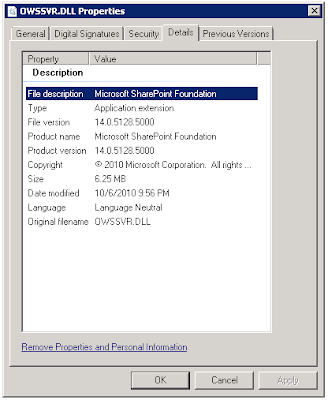
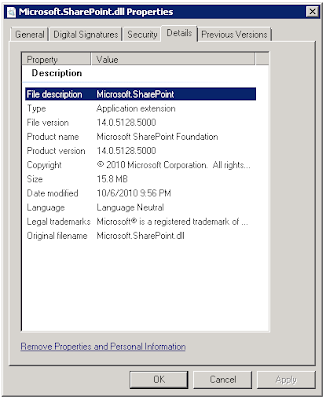
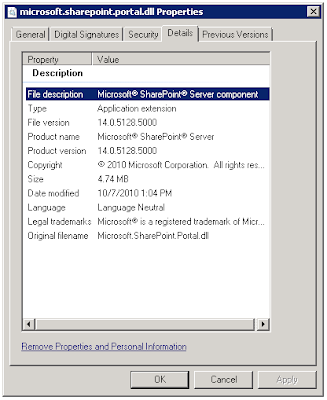
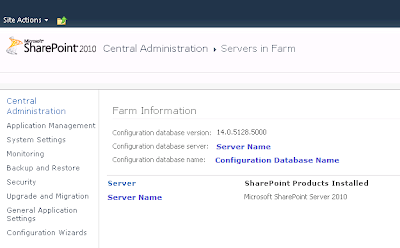
This post explains how to tell the version of a SharePoint 2010 server farm. In order to verify the complete farm, it is necessary to verify the version of DLLs as well as the Configuration Database.

A. Verify the version of DLLs.
Steps:
On each server where SharePoint 2010 is installed:
1. Open Windows Explorer.
2. Navigate to \Program Files\Common Files\Microsoft Shared\Web Server Extensions\14\ISAPI
3. For each of the following DLLs, locate the file. Right-click the file > Properties > Details.
4. Note the version

OWSSVR.DLL (SharePoint Foundation)


Microsoft.SharePoint.dll (SharePoint Foundation)


Microsoft.SharePoint.Portal.dll (SharePoint Server)
B. Verify the version of the Configuration Database
Steps:
From SharePoint 2010 Central Administration:
1. Navigate to SharePoint 2010 Central Administration > System Settings > Manage servers in this farm.
2. Note the "Configuration database version."

SharePoint 4.0: Records Center Behaviors? or Bugs!


I have been busy developing a proof-of-concept (POC) environment based on some design patterns involving SharePoint 2010 Records Center and Search. In this POC, Records Center is acting as a top level site collection and is storing quite a bit of content. There are numerous content types and site columns, carefully planned and configured on the site collection, to support tagging Records Center documents with lots of metadata.

In this POC environment, I have dedicated a Web application to Records Center and for discussion purposes, the URL of the site collection can be http://recordscenter.domain.com. As I write this blog post, it is December 13, 2010. My SharePoint 2010 environment is running at version 14.0.5128.5000, which reflects RTM with the October 2010 Cumulative Updates. The SharePoint Foundation and SharePoint Server DLLs, and SharePoint Database are all current with the same version. I have tested with Site Collection Publishing and Site Publishing features enabled and disabled.

During the testing process, I have discovered some unexpected behaviors related to Records Center. Microsoft Support may stamp these with the trusty "By Design" label, but since I am currently in the process of pushing these issues through the Microsoft Support channels, I cannot speak to their response at this time. I do know that these behaviors are inconvenient and troublesome. Below is a list.

A. Cannot template a sub-site beneath a Records Center site collection.
To recreate the issue, follow these steps:
1. Start from a Records Center site collection.
2. Create a sub-site using the blank site template.
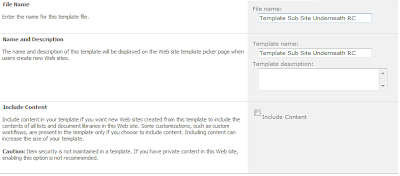
3. Attempt to save the site as a template.


Problem: Error: An unexpected error has occurred.


B. Cannot export a document library and then import it as a different name, in a Records Center site collection.
To recreate the issue, follow these steps:
1. Start from a Records Center site collection.
2. Create a sub-site using the blank site template.
3. Create a document library in the blank sub-site.
4. Using STSADM, export the document library to a .cmp file.
E.g.
C:\Program Files\Common Files\Microsoft Shared\Web Server Extensions\14\BIN>
stsadm.exe -o export -url
http://webapplication/subsite/library -filename \\server\fileshare\templatelibrary.cmp -includeusersecurity -nologfile

5. Using STSADM, import the document library .cmp file, as a different name.
E.g.
C:\Program Files\Common Files\Microsoft Shared\Web Server Extensions\14\BIN>
stsadm.exe -o export -url http://webapplication/subsite/library -filename file://server/fileshare/templatelibrary.cmp -includeusersecurity -nologfile
...
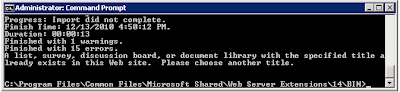
Finished with 15 errors.A list, survey, discussion board, or document library with the specified title already exists in this Web site. Please choose another title.

Problem: Error: The .cmp file cannot be imported because an existing document library having the same title (different than name, which affects the document library URL) already exists.
This behavior might make sense in a Records Center given the Content Organizer and its functionality which routes documents, based on content type, to appropriate document libraries using the Title of the document library. Still, templating document libraries in a Records Center is especially important, since Records Center typically have well defined site columns. It is only natural that we will want to template document libraries efficiently in a Records Center.

References
Microsoft SharePoint Team Blog (2010, December). October 2010 Cumulative Updates for SharePoint & Project Server 2010 Republished. Retrieved December 13, 2010 from http://sharepoint.microsoft.com/blog/Pages/BlogPost.aspx?pID=957.

Microsoft Support (2010, October). Description of the SharePoint Server 2010 Cumulative Update Server Hotfix Package (MOSS server-package): October 26, 2010. Retrieved December 13, 2010 from http://support.microsoft.com/default.aspx?scid=kb;EN-US;2394320.

Microsoft Support (2010, December). Hotfix Request. Retrieved December 13, 2010 from http://support.microsoft.com/hotfix/KBHotfix.aspx?kbln=en-us&kbnum=2394320.

Tuesday, December 07, 2010

SharePoint 4.0: Where to Locate Details for Errors with Correlation ID

The Correlation ID error seemed to be especially common in Beta versions of SharePoint Server 2010. However, I have managed to surface this one a few times in RTM. The screen print below illustrates what the error looks like on the Web page.

The error doesn't provide much information about the root cause. So, to uncover the details, it makes sense to investigate further by examining the log files. Here is how to do that:

1. Note the date and time of the error message.
2. Open a local console or RDP session to a SharePoint server in the farm.
3. From Windows Explorer, navigate to Program Files > Common Files > Microsoft Shared > Web Server Extensions > 14 > Logs.
4. Sort the log files by Date Modified, Descending. Then, open the file containing the event using a text editor, such as Notepad.
5. CTRL +F to locate instances of the word "Error." Then match the date/time stamp.

It isn't likely that this information will provide a direct answer, but at least you have more words to work with while researching.

Monday, October 25, 2010

Use SharePoint Worfklow Like Robots on a Conveyor Belt

The idea of automating a business process with SharePoint workflow to make things more efficient and consistent sounds like a novel concept and a way leverage a technology investment. However, if you examine any major business process from the top down, what you will find is that it is made up of several tasks (some linear, some not) as well as decisions which are based on a constantly changing environment and context. These decisions are not only in support of executing the process, but often times the process itself is being evaluated real time.

Take for instance, the beginning portion of a new hire process that a company might have. This might involve a series of human interactions between candidate and recruiter. An application is submitted and the recruiter would evaluate the application, comparing it to an open requisition. The recruiter would interpret the information on the application and ask for clarification. If a match is made, then an interview might occur, and so on.

When the people involved are attempting to execute a process such as this, it is only natural that the changing conditions of the work environment will prompt questions about what tasks need to be completed, who should complete the tasks, what information should be gathered, how should that information be evaluated, what laws exist, etc.

Although, it is possible to automate certain tasks in this process, SharePoint workflow is not designed for automating the entire business process. Where SharePoint workflow really comes in is making discrete tasks more efficient. For example, the workflow technology may be used to transfer an applicant's information into a database where it can be easily compared with open requisition criteria.

The technology is not going to do a human's work, though, and it is not practical to even try to make it. No, instead, a more appropriate approach to leveraging SharePoint workflow is for efficiency gains which target small steps or tasks; ones that are completely black and white, like modifying and loading records into a custom list or database, moving documents, or sending out an e-mail when a specific event occurs.

Portal site designs which help guide the human through a series of steps is essential to a workflow solution. The portal provides the framework to guide the user, while the workflow elements provide automation for specific tasks that occur during the process.

Whatever the application, the goal is usually to provide tools that allow the human to logically string each step together, flowing as if the site is a virtual conveyor belt and the workflow elements (conditions/actions) are specific robots that do stuff at each stage. The overall solution should help guide and progress the overall process in a consistent direction so that humans can participate, contribute, and derive the needed results.

Still, in an ever changing environment, it is only natural that the conveyor belt will need to be stopped and participants will ask each other whether the process is effective and efficient enough, and what might need to happen differently. The simple fact is, every business process is a work in progress.

Wednesday, August 04, 2010

Missing the Point on Spirit of Governance

Over a short period of time in the SharePoint community, the term "governance" has evolved to describe a class of software products or features. Yet, IT governance has nothing to do with what tools a SharePoint administrator has. Instead, IT governance has everything to do with the people and processes side of things; and the decision making framework that, when in play, can be used to determine that a portal should exist, who should manage it, who it should serve, how decisions will be made affecting it. Governance is really about policies, processes, roles, responsibilities, and priorities (Ross, 2004).

The scope of an effective Information Management Governance Model spans beyond a specific solution, such as SharePoint Intranet or collaboration portal, and encompasses the Information Management practices occurring throughout the organization. A SharePoint governance model should be a subset to that. Putting this in the context of documentation, an overarching Information Management Statement of Governance document should exist and define the framework at the global level, while specific statement of governance documents should be maintained for each Information Management system within the organization; SharePoint being one of those.

The IT project management framework is another significant and relevant topic to governance. The project management framework established the processes followed to initiate, plan, and execute IT projects. These processes should include such activities as the evaluation of new SharePoint projects in the context of the organization's overall information architecture. Aligning the project management decision making with Information Management, business, and IT decision making results in solutions that have backing, are sustainable, and actually provide business value.

The spirit of governance is really about defining what the processes should be, and if generous enough, explaining why to some extent. In the end, governance models maintain decision making integrity amongst people...that is not something a portal administrator can do by running a report or recovering a deleted site.

Reference

Ross, J., Weill, P. (2004). Recipe for Good Governance. Retrieved August 4, 2010 from http://www.cio.com/article/29162/Recipe_for_Good_Governance.

Friday, July 30, 2010

Three SQL Server Settings for SharePoint Environments: Autogrowth Option, Auto Shrink Option, Shrink Database Task

As I was tuning a SharePoint environment today, I thought it would be a good opportunity to post a brief message about three SQL Server settings: Autogrowth, Auto Shrink, and the Shrink Database Task.

1. Autogrowth - Fixed Amount:

This setting applies to data files (.mdf) and transaction log files (.ldf). Autogrowth allows or prevents SQL Server from automatically increasing the size of the files when the need arises. In SharePoint environments, it is best to do capacity planning in advance and set the intial database sizes appropriately. Then, set the Autogrowth value for both the data files and the log files to a fixed amount. This ensures that the files grow in consistent increments. The fixed amount should be somewhat substantial, relative to the size of the database. This ensures that the growth does not occur too frequently.


2. Auto Shrink - Turn it Off:

Auto Shrink is an option that allows or prevents SQL Server from automatically reducing the size of database files. By default, the SQL Server Model database has the Auto Shrink option off. As Paul Randal points out, enabling Auto Shrink can lead to Auto-Grow, Auto-Shrink loops as well as database fragmentation, and other performance issues (Randal, 2007). As a general rule of thumb for most SharePoint environments, this option should remain off for system and content databases.


3. Shrink Database Task - Don't Schedule It:


The Shrink Database Task is an available Maintenance Plan Task. If set, this operation will reduce the size of a database according to a schedule, leaving a specified amount of free space. As with the Auto Shrink option, the Shrink Database Task leads to performance issues and is not recommend in SharePoint environments.

So, if an existing SharePoint environment does have a scheduled Shrink Database Task, then a suggested action would be to remove the Shrink Database Task and then plan to monitor and manage database size using a manual approach. When determining a plan for managing database size, it is important to keep Database Recovery Models in mind.

Reference

Randal, P. (August, 2008). Top Tips for Effective Database Maintenance. Retrieved July 30, 2010 from http://technet.microsoft.com/en-us/magazine/2008.08.database.aspx?pr=blog.

Randal, P. (March, 2007). Turn AUTO_SHRINK off!! Retrieved July 30, 2010 from http://blogs.msdn.com/b/sqlserverstorageengine/archive/2007/03/28/turn-auto-shrink-off.aspx.

Thursday, July 22, 2010

SharePoint 4.0: Summary Links Data Column Type

In SharePoint, there is a column type called, "Summary Links Data." Microsoft desribes this column type as "Columns that represent summary links for a page. Summary Links include a title, description, image, and URL and are used on publishing pages to present grouped links by using a set of shared styles" (Microsoft, 2010).

This column type is brilliant in theory, but unfortunately they don't appear to work as expected. Here is my assessment of the Summary Links Data column type.


In SharePoint 2010, if I add a Summary Links Data column to document library, then add a new document, the new or edit document properties page looks correct. The Summary Links Data column is represented by an editable summary links control.


However, after the links have been added and the document uploaded, you return to the document properties using the "View Properties" page. The result of this is that the links are not visible. Huh?


OK, so let's try a custom list. Added the column to a custom list. Adding or editing an item results in a non-editable field. So, the Summary Data List story just got even worse in custom lists...


Reference

Microsoft (2010). Create a site column. Retrieved July 22, 2010 from http://office.microsoft.com/en-us/sharepoint-server-help/create-a-site-column-HA010177759.aspx.

Blog Archive

Followers