Home

Showing posts with label SQL Server 2012. Show all posts

Wednesday, January 08, 2014

SQL Server 2012: SELECT Machine Name, Server Name, Edition, Product Level, Product Version, Licence Type


Description

This post shows how to SELECT property information for a SQL Server.


Solution

The SELECT statement below retrieves Machine Name, Server Name, Edition, Product Level, Product Version, and License Type.


SELECT
SERVERPROPERTY('MACHINENAME') as [Machine Name],
SERVERPROPERTY('SERVERNAME') as [Server Name],
SERVERPROPERTY('EDITION') as [Edition],
SERVERPROPERTY('PRODUCTLEVEL') as [Product Level] ,
SERVERPROPERTY('PRODUCTVERSION') as [Product Version],
SERVERPROPERTY('LICENSETYPE') as [License Type]


The results of the query are shown below.


References

MSDN (2014).  SERVERPROPERTY (Transact-SQL).  Retrieved January 8, 2014 from http://msdn.microsoft.com/en-us/library/ms174396.aspx

Tuesday, January 07, 2014

How to Associate SQL Server Login with Existing Database User


Description

Sometimes a SQL Server Login  is created and corresponding Database User is created at the same time.  However, sometimes the Database User is not associated with a SQL Server Login and needs to be.  For example, this could happen during an database environment migration or if when the Active Directory User Account associated with SQL Server Login is deleted and a new one is created.


Solution

The steps below can be used to lookup database principals and then associate a Login with a User.

1.  Run the SELECT query below to view all database principals, including:
- DATABASE_ROLE
- SQL_USER
- WINDOWS_USER

SELECT * FROM sys.database_principals


2.  Run  ALTER USER query below to alter the database user and associate a login with it.  In the example below, a Windows Login is being associated with a database user.

ALTER USER "DOMAIN\Username"
WITH
LOGIN = "DOMAIN\Username"

(Microsoft TechNet, 2014)


References

Bertrand, A. (November, 2013).  Script to Set the SQL Server Database Default Schema For All Users.  Retrieved January 7, 2014 from
http://www.mssqltips.com/sqlservertip/3098/script-to-set-the-sql-server-database-default-schema-for-all-users/

Microsoft TechNet (2014).  ALTER USER (Transact-SQL).  Retrieved January 7, 2014 from http://technet.microsoft.com/en-us/library/ms176060.aspx

Tharaka MTR (May, 2013).  How to Fix Orphaned SQL Users.  Retrieved January 7, 2014 from http://www.codeproject.com/Articles/594134/How-to-Fix-Orphaned-SQL-Users

Tuesday, December 17, 2013

SQL Server, Configure Database Mail


Description

This post shows how to configure SQL Server Database Mail in SQL Server 2012.

Solution

Open SQL Server Management Studio.  Expand Management.  Right-click on Database Mail and select Configure Database Mail.

Click Next on the Database Mail Configuration Wizard Welcome Screen.

Choose "Set up Database Mail" and click Next.

Database Mail is disabled by default.  When prompted, click "Yes" to enable the Database Mail feature.

Create a new Database Mail Account.

Complete the "New Profile" screen and click Next.

Mark the Profile "Public" and click Next.

Complete the "Configure System Parameters" screen and click Next.

Click Finish to complete the Database Mail Configuration Wizard.


Verify all configurations are successful and click Close.


References

Microsoft TechNet (2008).  Database Mail.  Retrieved December 17, 2013 from http://technet.microsoft.com/en-us/library/ms175887%28v=sql.105%29.aspx

Friday, November 29, 2013

SQL Server Reporting Services (SSRS) Report Pagination InteractiveSize


Description


When viewing a deployed, SQL Server Reporting Services (SSRS) report, the default pagination does not provide a pleasant user experience because viewing more than a handful of rows of report data requires that the user page right and page left.

This characteristic is a result of the default InteractiveSize Properties of the report.  TechNet describes InteractiveSize Properties as, "InteractiveHeight and InteractiveWidth are used by the HTML rendering extension to provide the equivalent of PageHeight and PageWidth. Because the HTML rendering extension dynamically resizes a report to accommodate drilldown, drillthrough, and show/hide features, the report server uses different properties to support pagination on dynamic pages." (Microsoft TechNet, 2013)


Solution

To display all rows of data on the first page of the SSRS report, set InteractiveSize properties (Width and Height) to 0.


After updating the properties, Save the report, then Deploy the report.


Refresh the report in the browser and now all of the report data will display on the page. If viewing the report in SharePoint using a Report Viewer Web Part, then you may need to adjust the Height and Width of the Report Viewer Web Part to eliminate any scroll bars that appear as a result of the data being displayed on one page.


References

Microsoft TechNet (2013).  Controlling Report Pagination.  Retrieved November 29, 2013 from http://technet.microsoft.com/en-us/library/ms156282%28v=sql.90%29.aspx

Sunday, August 11, 2013

Error: SQL Server: Unable to Shrink Transaction Log, "Could not locate file for database..."


Description

You attempt to shrink a transaction log file associated with a SQL Server database, but you receive in error:

"Could not locate file 'Transaction Log Name' for database
'Database Name' in sys.database_files. The file either does not exist, or was dropped."


Solution


1)  Run SP_HelpFile to get the correct name of the transaction log file.

USE Database Name
EXEC sp_helpfile

(TechNet, 2013)

This will return the following information about the database files, including the associated transation log(s):  Name, FileId, FileName, FileGroup, Size, MaxSize, Growth, Usage


2)  Run the Transact-SQL statement again, using the correct Transaction Log Name.  You can find this in the Name column of the SP_HelpFile query results set.

USE [Database Name]
 GO
ALTER DATABASE Database Name SET RECOVERY SIMPLE WITH NO_WAIT
DBCC SHRINKFILE(Transaction Log Name, 1)
ALTER DATABASE Database Name SET RECOVERY FULL WITH NO_WAIT
 GO

(TechNet, 2013)


3)  Verify that there are configured, scheduled, and enabled SQL Server Backup jobs in place for:

a) Full Database Backup
b) Transaction Log Backup *Important for Full Recovery Model*


Reference

TechNet (2013).  Backup Under the Full Recovery Model.  Retrieved August 11, 2013 from http://technet.microsoft.com/en-us/library/ms190217%28v=sql.105%29.aspx

TechNet (2013).  DBCC SHRINKFILE (Transact-SQL).  Retrieved August 11, 2013 from http://technet.microsoft.com/en-us/library/ms189493.aspx

TechNet (2013).  Recovery Models and Transaction Log Management.  Retrieved August 11, 2013 from http://technet.microsoft.com/en-us/library/ms366344%28v=sql.105%29.aspx

TechNet (2013).  sp_helpfile.  Retrieved August 11, 2013 from http://technet.microsoft.com/en-us/library/aa933456%28v=sql.80%29.aspx

Monday, July 29, 2013

Installing .NET framework (Netfx3) on Windows Server 2012 using PowerShell


Description

The purpose of this post is to provide instructions for installing .NET framework (NetFx3) on Windows Server 2012 using PowerShell.

.NET Framework is a requirement for SQL Server 2012.  If this has not been installed prior to a SQL Server 2012 installation, then an error message will surface during the installation process.  It is recommended to run the PowerShell command for installing Netfx3 prior to beginning the SQL Server installation.


Solution

1.  Make the Windows Server 2012 media (DVD) available.  For this example, I mounted a DVD drive on drive letter Z.

2.  Open Windows PowerShell as an Administrator.

3.  Run the following PowerShell command, replacing the source details with those specific to your environment.


PS C:\Windows\system32> dism /online /enable-feature /all /featurename:NetFx3 /source:z:\sources\sxs


Reference

Microsoft TechNet (February, 2012).  DISM - Deployment Image Servicing and Management Technical Reference.  Retrieved July 29, 2013 from http://technet.microsoft.com/en-us/library/hh824821.aspx

Microsoft TechNet (February, 2012).  Use DISM in Windows PowerShell.  Retrieved July 29, 2013 from http://technet.microsoft.com/en-us/library/hh825010.aspx

Verbeeck, K. (April, 2013).  Error while enabling Windows Feature: Netfx3.  Retrieved July 29, 2013 from http://www.sqlservercentral.com/blogs/koen-verbeeck/2013/04/29/error-while-enabling-windows-feature-netfx3

Thursday, July 18, 2013

SQL Server 2012: Find SQL Server Collation


Description

How to retrieve collation information for SQL Server 2012.


Solution

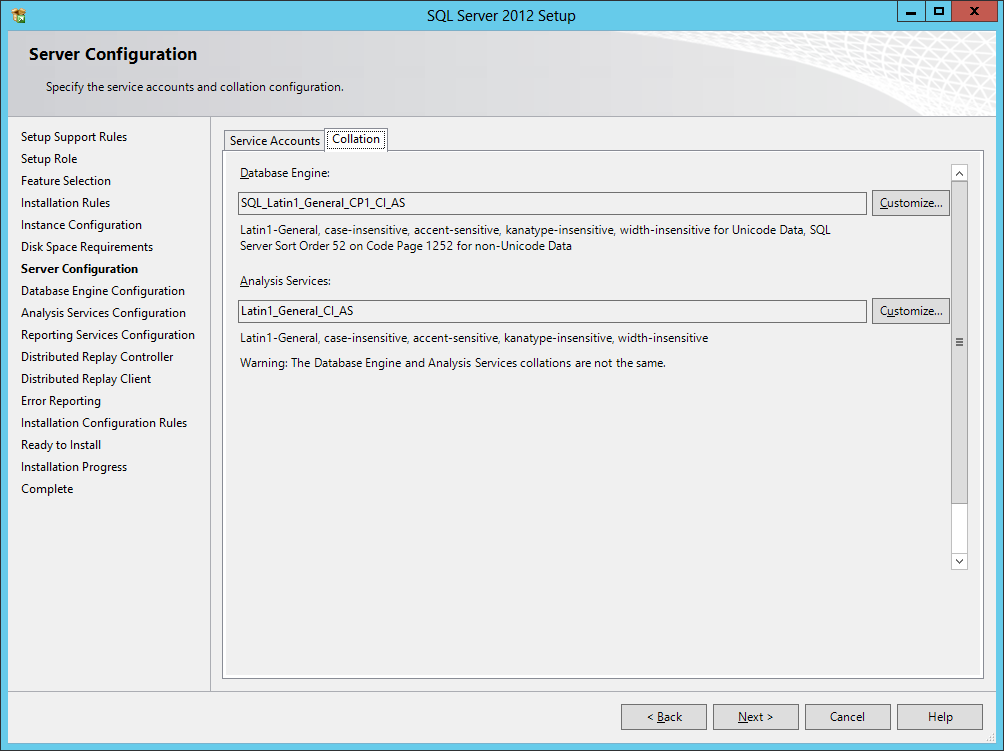
During the set up of SQL Server 2012, the default collations are as follows (as shown below):


Database Engine:  SQL_Latin1_General_CP1_CI_AS

Analysis Services:  Latin1_General_CI_AS


To retrieve the collation of the Database Engine for an existing SQL Server instance:

SELECT CONVERT (varchar, SERVERPROPERTY('collation'));

 
To retrieve  the collation of databases attached to the SQL Server instance:

SELECT name, collation_name FROM sys.databases;

(MSDN, 2012)


Reference

MSDN (2012).  View Collation Information.  Retrieved July 18, 2013 from http://msdn.microsoft.com/en-us/library/hh230914.aspx

Blog Archive

Followers