Background:
The SQL Server 2008 Reporting Services Add-in for SharePoint is available for download at this location:
Microsoft SQL Server 2008 Reporting Services Add-in for Microsoft SharePoint Technologies
http://www.microsoft.com/downloads/details.aspx?displaylang=en&FamilyID=200fd7b5-db7c-4b8c-a7dc-5efee6e19005
The downloads include a readme_rsaddin.htm file, which contains complete instructions for installing and configuring the Add-in.
Description:
After running the rsSharePoint_x64.msi (installer) file, the setup appears to have finished. However, by following steps in the readme_rsaddin.htm file for activating the Add-in features, it is not possible to activate the features.
The reason it is not possible to activate the features is because setup experienced an error and the user does not have permission to add the feature to the site collection.
Navigate to:
C:\Documents and Settings\SetupUser\Local Settings\TempOpen the log file, RS_SP.0.log
Within the log file, look for an error; for example:Activating feature to root site collection: https://centraladmin.domain.com******* User does not have permission to add feature to site collection: https://centraladmin.domain.com
Solution:
To resolve this, either log in as a user that is a Site Collection Administrator on the Central Administration site collection or make the current user account a site collection Administrator by doing the following:
Navigate to Central Administration > Application Management > Site Collection Administrators.
Select the Central Administration site collection.
Add the desired user account as either primary or secondary site collection administrator for the site collection.
Once logged in as a Central Administration, Site Collection Administrator, run the rsSharePoint_x64.msi again, this time choosing the "Repair" option.
To verify the permission issue has been resolved, navigate to:
C:\Documents and Settings\nbisciotti\Local Settings\Temp
Open the log file, RS_SP.0.log
Within the log file, the entry should now read:
Activating feature to root site collection: https://centraladmin.domain.com
Activated feature for root site collection: https://centraladmin.domain.com
Next, navigate to Central Administration > Site Actions > Site Settings > Site Collection Administration > Site Collection Features
Activate the "Report Server Integration Feature"
Next, navigate to Central Administration > Application Management
The "Reporting Services" panel should now be available and visible. From here you can proceed with the SQL Server 2008 Reporting Services integration configuration.
Tuesday, July 21, 2009


Wednesday, July 01, 2009
SharePoint 3.0: Error: Access Denied When Activating Publishing Infrastructure, Site Collection Feature
Description:
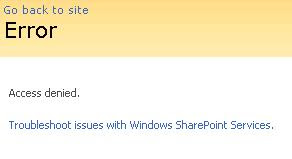
When attempting to activate the "Office SharePoint Server Publishing Infrastructure" Site Collection Feature, an "Access Denied" error is presented.
 Solution:
When attempting to activate the "Office SharePoint Server Publishing Infrastructure" Site Collection Feature, an "Access Denied" error is presented.
Solution:* Start > Programs > Administrative Tools > IIS Manager
* Expand the Application Pools node, locate the application pool associated with the site collection that is experiencing an issue
* Right-Click the Application Pool and select "Properties"
* Select the "Identity" tab
* Note the user account
* Start > Programs > Microsoft Office Server > SharePoint 3.0 Central Administration
* Site Actions > Site Settings > Advanced Permissions
* Click "Groups"
* Click "Farm Administrators"
* New > Add Users
* Add Users: Type the name of the Application Pool Identity account
* Give Permission: Add users to a SharePoint group: Farm Administrators
* Add the Application Pool account to the Farm Administrators group
* Send E-Mail: Uncheck (you most likely do not want to send an email)
* Click OK
* Try again to activate the "Office SharePoint Server Publishing Infrastructure" Site Collection Feature
Reference:
SharePoint - Access Denied When Enabling The Publishing Infrastructure Site Collection Feature http://www.sharepointblogs.com/george/archive/2009/03/24/sharepoint-access-denied-when-enabling-the-publishing-infrastructure-site-collection-feature.aspx
Tuesday, June 30, 2009
Office Word 2007: Change Orientation on Page within Document
Description:
Instructions for changing page orientation (portrait vs. landscape) on a single page of a document (as opposed to the entire document), in Word 2007.
Solution:
Assuming for purposes of explanation that the entire Word document should be portrait, except one page within it should be landscape orientation:
1. Place cursor on the page prior to the one which will be formatted as landscape.
2. Along the ribbon, select "Page Layout," then "Breaks," then "Next Page."
3. Select "Page Layout," then "Orientation," then "Landscape." This will set all following pages to Landscape.
4. From here, set the following page back to portrait.
Reference:
Changing Page Orientation Within a Document
http://wordprocessing.about.com/od/wordprocessingsoftware/ss/pageorient.htm
Instructions for changing page orientation (portrait vs. landscape) on a single page of a document (as opposed to the entire document), in Word 2007.
Solution:
Assuming for purposes of explanation that the entire Word document should be portrait, except one page within it should be landscape orientation:
1. Place cursor on the page prior to the one which will be formatted as landscape.
2. Along the ribbon, select "Page Layout," then "Breaks," then "Next Page."
3. Select "Page Layout," then "Orientation," then "Landscape." This will set all following pages to Landscape.
4. From here, set the following page back to portrait.
Reference:
Changing Page Orientation Within a Document
http://wordprocessing.about.com/od/wordprocessingsoftware/ss/pageorient.htm
SharePoint 3.0: Error: Your search cannot be completed...
Description:
Upon submitting a search query using an advanced search box, selecting more than one search scope checkbox from the advanced search web part, the corresponding search results page returns no results and instead returns the following errror:
"Your search cannot be completed because of a service error. Try your search again or contact your administrator for more information."
Further testing and attempts to isolate the issue resulted in finding out that one scope in particular seemed to be problematic. When this particular search scope was used in the search query, the results page would return an error. However, if this scope was not selected during the query, then the search results would display normally.
Solution:
The problem scope, called "All Content," initially had the following scope rules:
* All Content, Include
* ContentSource = People, Exclude
The steps to resolve the issue are as follows:
1. Remove all existing scope rules
2. Create new scope rules to explicitly define each content source such as:
* ContentSource = Content Source 1, Include
* ContentSource = Content Source 2, Include
* ContentSource = Content Source 3, Include
* ContentSource = People, Exclude
3. Update scopes
Upon submitting a search query using an advanced search box, selecting more than one search scope checkbox from the advanced search web part, the corresponding search results page returns no results and instead returns the following errror:
"Your search cannot be completed because of a service error. Try your search again or contact your administrator for more information."
Further testing and attempts to isolate the issue resulted in finding out that one scope in particular seemed to be problematic. When this particular search scope was used in the search query, the results page would return an error. However, if this scope was not selected during the query, then the search results would display normally.
Solution:
The problem scope, called "All Content," initially had the following scope rules:
* All Content, Include
* ContentSource = People, Exclude
The steps to resolve the issue are as follows:
1. Remove all existing scope rules
2. Create new scope rules to explicitly define each content source such as:
* ContentSource = Content Source 1, Include
* ContentSource = Content Source 2, Include
* ContentSource = Content Source 3, Include
* ContentSource = People, Exclude
3. Update scopes
Tuesday, May 19, 2009
SharePoint 3.0: Overcoming Upload Limits and Timeouts
The following instructions are recommended for overcoming out of box limitations related to uploading documents. These configurations are done once per web application and are not global changes.
1. Central Administration > Application Management > SharePoint Web Application Management > Web Application General Settings > Maximum Upload Size: Change to 2047 MB (Maximum)
2. Internet Information Services Manager > Web Site > Right-Click > Properties > Connections: Change Setting (e.g. 600 seconds)
3. Windows Explorer > Program Files\Common Files\Microsoft Shared\Web Server Extensions\12\Template\Layouts\ > Web.Config
Replace This:
httpRuntime maxRequestLength="2097151"
With This:
httpRuntime executionTimeout="999999" maxRequestLength="2097151"
4. Web.Config Continued...
Replace This:
httpRuntime maxRequestLength="51200"
With This:
httpRuntime executionTimeout="999999" maxRequestLength="51200"
5. Windows Explorer > INET PUB\WWWRoot\VirtualDirectories\WebApplication\ > Web.Config
Add the snipet from http://support.microsoft.com/kb/944981%20BconfigSections between the "configSections" closing tag and the "SharePoint" opening tag (like Shane suggests in his post).
References:
You cannot upload files that are larger than 28 MB on a Windows Server 2008-based computer that is running Windows SharePoint Services 3.0
http://support.microsoft.com/kb/944981
Error message when you try to upload a large file to a document library on a Windows SharePoint Services 3.0 site: "Request timed out"
http://support.microsoft.com/kb/925083
Windows Server 2008 WFE will not allow large file uploads
http://msmvps.com/blogs/shane/archive/2008/12/17/windows-server-2008-wfe-will-not-allow-large-file-uploads.aspx
1. Central Administration > Application Management > SharePoint Web Application Management > Web Application General Settings > Maximum Upload Size: Change to 2047 MB (Maximum)
2. Internet Information Services Manager > Web Site > Right-Click > Properties > Connections: Change Setting (e.g. 600 seconds)
3. Windows Explorer > Program Files\Common Files\Microsoft Shared\Web Server Extensions\12\Template\Layouts\ > Web.Config
Replace This:
httpRuntime maxRequestLength="2097151"
With This:
4. Web.Config Continued...
Replace This:
With This:
5. Windows Explorer > INET PUB\WWWRoot\VirtualDirectories\WebApplication\ > Web.Config
Add the snipet from http://support.microsoft.com/kb/944981%20BconfigSections between the "configSections" closing tag and the "SharePoint" opening tag (like Shane suggests in his post).
References:
You cannot upload files that are larger than 28 MB on a Windows Server 2008-based computer that is running Windows SharePoint Services 3.0
http://support.microsoft.com/kb/944981
Error message when you try to upload a large file to a document library on a Windows SharePoint Services 3.0 site: "Request timed out"
http://support.microsoft.com/kb/925083
Windows Server 2008 WFE will not allow large file uploads
http://msmvps.com/blogs/shane/archive/2008/12/17/windows-server-2008-wfe-will-not-allow-large-file-uploads.aspx
Monday, May 18, 2009

SQL Server 2008: A Must Do Configuration for Resource Governor
Over the past few months, I have been upgrading numerous SharePoint environments to SQL Server 2008 and I have wrestled with system performance. Unless adjustments are made, SQL Server will attempt to consume more than its share of processor. I've seen this cause SharePoint web applications to freeze and become unusable.
A resource management measure for SQL Server 2008 which I consider to be crucial for SharePoint environments, is outlined below. These steps will limit SQL Server Management Studio and Query Analyzer to 25% processor utilization, and possibly preserve the usability of the SharePoint farm. I strongly recommend these steps for SharePoint environments using SQL Server 2008.
SQL Server 2008 Resource Governor
Steps take from TechNet article:
Integration of SQL Server 2008 and Office SharePoint Server 2007
http://technet.microsoft.com/en-us/library/cc990273.aspx
1. Create a resource pool to limit CPU usage to 25 percent
CREATE RESOURCE POOL poolAdhoc
WITH (MAX_CPU_PERCENT = 25);
2. Create a workload group for ad hoc queries and register it with the new resource pool
CREATE WORKLOAD GROUP groupAdhoc
USING poolAdhoc;
3. Create a function that classifies Management Studio and Query Analyzer as members of the ad hoc group
CREATE FUNCTION adhocQueryClassifier() RETURNS SYSNAME
WITH SCHEMABINDING
AS
BEGIN DECLARE @grp_name AS SYSNAME
IF (APP_NAME() LIKE '%MANAGEMENT STUDIO%')
OR (APP_NAME() LIKE '%QUERY ANALYZER%')
SET @grp_name = 'groupAdhoc'
RETURN @grp_name
END
GO
4. Register the new function with Resource Governor
ALTER RESOURCE GOVERNOR
WITH (CLASSIFIER_FUNCTION= dbo.adhocQueryClassifier);
5. Restart Resource Governor
ALTER RESOURCE GOVERNOR RECONFIGURE;
A resource management measure for SQL Server 2008 which I consider to be crucial for SharePoint environments, is outlined below. These steps will limit SQL Server Management Studio and Query Analyzer to 25% processor utilization, and possibly preserve the usability of the SharePoint farm. I strongly recommend these steps for SharePoint environments using SQL Server 2008.
SQL Server 2008 Resource Governor
Steps take from TechNet article:
Integration of SQL Server 2008 and Office SharePoint Server 2007
http://technet.microsoft.com/en-us/library/cc990273.aspx
1. Create a resource pool to limit CPU usage to 25 percent
CREATE RESOURCE POOL poolAdhoc
WITH (MAX_CPU_PERCENT = 25);
2. Create a workload group for ad hoc queries and register it with the new resource pool
CREATE WORKLOAD GROUP groupAdhoc
USING poolAdhoc;
3. Create a function that classifies Management Studio and Query Analyzer as members of the ad hoc group
CREATE FUNCTION adhocQueryClassifier() RETURNS SYSNAME
WITH SCHEMABINDING
AS
BEGIN DECLARE @grp_name AS SYSNAME
IF (APP_NAME() LIKE '%MANAGEMENT STUDIO%')
OR (APP_NAME() LIKE '%QUERY ANALYZER%')
SET @grp_name = 'groupAdhoc'
RETURN @grp_name
END
GO
4. Register the new function with Resource Governor
ALTER RESOURCE GOVERNOR
WITH (CLASSIFIER_FUNCTION= dbo.adhocQueryClassifier);
5. Restart Resource Governor
ALTER RESOURCE GOVERNOR RECONFIGURE;
Monday, May 04, 2009
FAST ESP Videos on YouTube
Want to view a demonstration of current and future capabilities of FAST ESP? Here are a couple YouTube videos that provide a great overview.
Fast ESP for SharePoint - 1 of 2
http://www.youtube.com/watch?v=kTbcCNby8xE
Fast ESP for SharePoint - 2 of 2
http://www.youtube.com/watch?v=WjW6ZjX8Pyk
Fast ESP for SharePoint - 1 of 2
http://www.youtube.com/watch?v=kTbcCNby8xE
Fast ESP for SharePoint - 2 of 2
http://www.youtube.com/watch?v=WjW6ZjX8Pyk
SharePoint 3.0: How to Crawl Case Sensitive URLs
By default, MOSS will not crawl URLs which are case sensitive. However, Microsoft Help and Support Article ID 932619 provides instructions for making a registry modification to the Index server which allows case sensitive URLs to be crawled.
Microsoft Help and Support Article ID 932619:
You cannot crawl case-sensitive Web content in SharePoint Server 2007
http://support.microsoft.com/kb/932619
It is important to note that a content index reset is required. For this reason, this modification may require a maintenance window for production environments, especially large environments with lots of items in the content index that will need to be crawled again.
Like most system changes, it is a good idea to test this first in Development or QA environments, record the change, and then schedule a time to deploy it to production. The instructions are straightforward, however, the first time that I made the modification, the search service didn't start properly so I had to stop it and start it a second time. Then it was fine. Running through the steps in Development or QA first will allow you to work the kinks out.
Microsoft Help and Support Article ID 932619:
You cannot crawl case-sensitive Web content in SharePoint Server 2007
http://support.microsoft.com/kb/932619
It is important to note that a content index reset is required. For this reason, this modification may require a maintenance window for production environments, especially large environments with lots of items in the content index that will need to be crawled again.
Like most system changes, it is a good idea to test this first in Development or QA environments, record the change, and then schedule a time to deploy it to production. The instructions are straightforward, however, the first time that I made the modification, the search service didn't start properly so I had to stop it and start it a second time. Then it was fine. Running through the steps in Development or QA first will allow you to work the kinks out.
Thursday, April 16, 2009
Windows Server 2008: IPV4 Weak Host Configuration
It is very common to have a Microsoft Office SharePoint Server (MOSS) farm that includes mutliple web applications, each having its own host name and ip address.
In fact, when SSL certificates are installed on the web server directly (i.e. not offloaded to the hardware load balancer), then there is a requirement to assign unique ip addresses for each web application in order to ensure that the web site bindings (ip address + host name + port) remain unique on the web server.
When a web server is multihomed like this, it is very important to consider and configure the approprate strong or weak host model, in order to ensure that the web server will behave properly. If this configuration is neglected or set incorrectly, then it will cause Windows services to fail, IP packets to be disgarded, and the web server to "break."
Here is an excellent article describing the strong and week host models:
TechNet: The Cable Guy: Strong and Weak Host Models by Joseph Davies
http://technet.microsoft.com/en-us/magazine/2007.09.cableguy.aspx
Returning to the subject of the multihomed MOSS web server; here are steps that may be followed to configure the IPV4 interface as "weak":
1. netsh interface ipv4 show interface
2. See the IDX number
3. netsh interface ipv4 set interface [IDX number] weakhostsend=enabled
4. netsh interface ipv4 set interface [IDX number] weakhostreceive=enabled
In fact, when SSL certificates are installed on the web server directly (i.e. not offloaded to the hardware load balancer), then there is a requirement to assign unique ip addresses for each web application in order to ensure that the web site bindings (ip address + host name + port) remain unique on the web server.
When a web server is multihomed like this, it is very important to consider and configure the approprate strong or weak host model, in order to ensure that the web server will behave properly. If this configuration is neglected or set incorrectly, then it will cause Windows services to fail, IP packets to be disgarded, and the web server to "break."
Here is an excellent article describing the strong and week host models:
TechNet: The Cable Guy: Strong and Weak Host Models by Joseph Davies
http://technet.microsoft.com/en-us/magazine/2007.09.cableguy.aspx
Returning to the subject of the multihomed MOSS web server; here are steps that may be followed to configure the IPV4 interface as "weak":
1. netsh interface ipv4 show interface
2. See the IDX number
3. netsh interface ipv4 set interface [IDX number] weakhostsend=enabled
4. netsh interface ipv4 set interface [IDX number] weakhostreceive=enabled
Sunday, April 12, 2009
SharePoint 3.0: Error: The Backup/Restore Job Failed
Description:
In this scenario, a full farm backup failed because the backup of the "SharedSearchIndex" failed.
Error: The backup/restore job failed. In order to rerun the backup/restore the timer job must be deleted from the Timer Job Definitions page. Failure Message: The backup job failed. For more information, see the error log that is located in the backup directory.
Central Administration > Operations (Tab) > Backup and Restore (Heading) > Backup and restore job status
2. Adjust the start time of the incremental crawl. Make sure the schedule is set up in a way that the incremental crawls complete at a time that is earlier than the start time of the scheduled task that runs the backup job.
For example, if the incremental crawl takes less than an hour to run, and the the backup job is scheduled to run at 8:00 PM, then schedule the last incremental crawl to occur at 7:00PM.
SSP Administration > Search (Heading) > Search Settings > Content sources and crawl schedulesContent Source > Edit > Crawl schedules
3. If necessary, adjust the start time of the scheduled task that runs the backup
Start > Settings > Control Panel > Scheduled Tasks
In this scenario, a full farm backup failed because the backup of the "SharedSearchIndex" failed.
Error: The backup/restore job failed. In order to rerun the backup/restore the timer job must be deleted from the Timer Job Definitions page. Failure Message: The backup job failed. For more information, see the error log that is located in the backup directory.
Central Administration > Operations (Tab) > Backup and Restore (Heading) > Backup and restore job status
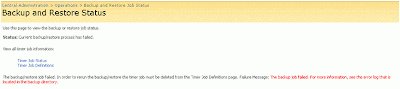
Error: Object Shared Search Index failed in event OnBackupComplete. For more information, see the error log located in the backup directory. WebException: The current operation timed-out after 3600 seconds.
Central Administration > Operations (Tab) > Backup and Restore (Heading) > Backup and restore job status
Error: The Backup/Restore job has the status of "Failed"
Central Administration > Operations (Tab) > Global Configuration (Heading) > Timer job status
Solution:
This issue may be caused by a timeout. To resolve this issue, there are a few steps. First, any time a SharePoint Backup/Restore job fails, you must delete the failed timer job definition, otherwise subsequent backup attempts will also fail.
Second, take an inventory of scheduled jobs that are running on the farm, including incremental crawl schedules, SharePoint backup scheduled tasks, and Enterprise Backup jobs (e.g. Symantec BackupExec, Networker, etc..). Measure how much time incremental crawls are taking to run. Also, measure how much time the backup is taking to run. Determine what time the backup job needs to start. Keep in mind that if an enterprise backup solution is backing up the SharePoint backup files, then the SharePoint backup should COMPLETE before the tape backup job begins.
If necessary, adjust the scheduled jobs so that the crawls are not interferring with the backup job.
Steps:
1. Delete the Backup/Restore timer job definition.
Central Administration > Operations (Tab) > Global Configuration (Heading) > Timer job definition

2. Adjust the start time of the incremental crawl. Make sure the schedule is set up in a way that the incremental crawls complete at a time that is earlier than the start time of the scheduled task that runs the backup job.
For example, if the incremental crawl takes less than an hour to run, and the the backup job is scheduled to run at 8:00 PM, then schedule the last incremental crawl to occur at 7:00PM.
SSP Administration > Search (Heading) > Search Settings > Content sources and crawl schedulesContent Source > Edit > Crawl schedules
3. If necessary, adjust the start time of the scheduled task that runs the backup
Start > Settings > Control Panel > Scheduled Tasks
CBT Clips

One of the most challenging aspects of a SharePoint rollout is user adoption and user education. Organizing training sessions and brown bag lunch demonstrations are good ways to inform and educate users about SharePoint and how it is used in the organization.
However, ramping up several users on SharePoint at once requires that each person has some context for what they are learning. You can't always force this on people; force them to imagine working a certain way, role play to a point where the instruction actually makes sense.
For this reason, a successful user education strategy should include reference material that is easy to locate, easy to use and relevant. It should be easily accessible at the point in time when a user has a specific question while performing a task. The reference material should address the specific question at hand, and only that. Otherwise, the user will not be able to find the answer to their question and they will lose interest.
I have found CBT Clips to be a great solution for fulfilling this need. CBT Clips offers collections of very brief, to-the-point, computer based instruction videos. These are perfect for new users who just want to know how to upload a document, how check in/check out works, or how to use Outlook with SharePoint.
The price for a company wide license is very reasonable and I think that depending on the size of the organization, an investment may easily pay for itself.
Monday, April 06, 2009
MSSQL RS: Reference Items for Creating Datasource that Queries SharePoint List Items
Here are a couple, useful reference items to have when creating MSSQL Reporting Services datasources for querying SharePoint list item information:
1. The URL location of the list web service:
http://sample1portal.domain.com/subsite/_vti_bin/Lists.asmx
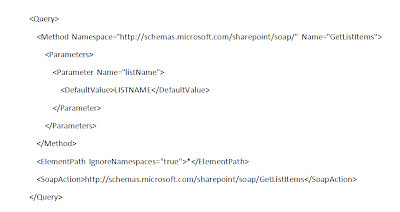
2. Sample syntax of an XML query to be used in the datasource:
1. The URL location of the list web service:
http://sample1portal.domain.com/subsite/_vti_bin/Lists.asmx
2. Sample syntax of an XML query to be used in the datasource:
SharePoint 3.0: Error: Access Denied, Search Crawl Log
Description:
You receive an error when attempting to run a crawl on a content source.
Shared Services Administration > Search Settings > Content Sources > Crawl Log:
Error:
"Access is denied. Check that the Default Content Access Account has access to this content, or add a crawl rule to crawl this content. (The item was deleted because it was either not found or the crawler was denied access to it.)"
Solution:
Aside from Alternate Access Mappings (AAM) issues, Content Access account permissions issues, and invalid credentials, this error may also appear if the "Loopback Check" is enabled.
Instructions for disabling the Loopback Check are included in Microsoft Support KB 89861.
KB 89681: You receive error 401.1 when you browse a Web site that uses Integrated Authentication and is hosted on IIS 5.1 or IIS 6
http://support.microsoft.com/kb/896861
You receive an error when attempting to run a crawl on a content source.
Shared Services Administration > Search Settings > Content Sources > Crawl Log:
Error:
"Access is denied. Check that the Default Content Access Account has access to this content, or add a crawl rule to crawl this content. (The item was deleted because it was either not found or the crawler was denied access to it.)"
Solution:
Aside from Alternate Access Mappings (AAM) issues, Content Access account permissions issues, and invalid credentials, this error may also appear if the "Loopback Check" is enabled.
Instructions for disabling the Loopback Check are included in Microsoft Support KB 89861.
KB 89681: You receive error 401.1 when you browse a Web site that uses Integrated Authentication and is hosted on IIS 5.1 or IIS 6
http://support.microsoft.com/kb/896861
SharePoint 3.0: Error: Access Denied, Excel Web Access Web Part
Description:
Excel Web Access Web Part: Error:
"Access Denied. You do not have permission to open this file on Excel Services. Make sure that the file is in an Excel Services trusted location and that you have access to the file."

Solution:
Besides permissions related issues, this error may also appear if you are attempting to display an Excel file that is stored in a separate web application where you have not enabled cross domain access.To enable cross domain access for Excel Services, run the following command:
stsadm.exe -o set-ecssecurity -ssp SSPNAME -allowcrossdomainaccess true
SharePoint 3.0: Pointing Excel Web Access at a Separate Web Application
There is an additional, configuration step required to display an Excel file stored in a different SharePoint web applications from the location where the Excel Web Access web part is being used. The instructions below explain how to set this up.
1.
Locate an Excel file you would like to display in Excel Web Access. For this example, the Excel file is called, stoplight.xlsx. It is stored in a document library at http://sample1portal.domain.com/excelfiles_site/excelfiles_library/

2.
Verify that the intended audience has permission to view the file.
3.
Verify that Excel File location is trusted by Excel Services.

4.
If you have not done so previously, run the following command:
5.
Add the Excel Web Access web part to a page to display stoplight.xslx. Since you have enabled cross domain access, it will now display regardless if the Excel file is part of the same web application as the Excel file, or in a different web application.
In this example, I am displaying the Excel Web Access Web Part on a sub site of http://sample2portal.domain.com although the Excel file is being stored on http://sample1portal.domain.com.

1.
Locate an Excel file you would like to display in Excel Web Access. For this example, the Excel file is called, stoplight.xlsx. It is stored in a document library at http://sample1portal.domain.com/excelfiles_site/excelfiles_library/

2.
Verify that the intended audience has permission to view the file.
3.
Verify that Excel File location is trusted by Excel Services.

4.
If you have not done so previously, run the following command:
stsadm.exe -o set-ecssecurity -ssp -SSPNAME -allowcrossdomainaccess true
5.
Add the Excel Web Access web part to a page to display stoplight.xslx. Since you have enabled cross domain access, it will now display regardless if the Excel file is part of the same web application as the Excel file, or in a different web application.
In this example, I am displaying the Excel Web Access Web Part on a sub site of http://sample2portal.domain.com although the Excel file is being stored on http://sample1portal.domain.com.

Tuesday, March 31, 2009
FAST ESP: Fast ESP 5.3 for Windows, 32 Bit Only
FAST ESP 5.3 for Windows is only available in 32 bit. However, the software can be installed on either 32 Bit or 64 Bit versions of the Windows operating system.
Consequently, prior to installing FAST ESP, you must install the 32 Bit versions of Java SE Runtime (JRE) and Java SE Development Kit (JDK): http://java.sun.com/javase/downloads/index.jsp.
Consequently, prior to installing FAST ESP, you must install the 32 Bit versions of Java SE Runtime (JRE) and Java SE Development Kit (JDK): http://java.sun.com/javase/downloads/index.jsp.
Saturday, March 28, 2009
Links: MS SQL Server Reporting Services Add-In for MOSS
Here are the links for downloading:
Microsoft SQL Server 2008 Reporting Services Add-in for Microsoft SharePoint Technologies:
http://www.microsoft.com/downloads/details.aspx?displaylang=en&FamilyID=200fd7b5-db7c-4b8c-a7dc-5efee6e19005
Microsoft SQL Server 2005 Reporting Services Add-in for Microsoft SharePoint Technologies:
http://www.microsoft.com/downloads/details.aspx?familyid=1E53F882-0C16-4847-B331-132274AE8C84&displaylang=en
Microsoft SQL Server 2008 Reporting Services Add-in for Microsoft SharePoint Technologies:
http://www.microsoft.com/downloads/details.aspx?displaylang=en&FamilyID=200fd7b5-db7c-4b8c-a7dc-5efee6e19005
Microsoft SQL Server 2005 Reporting Services Add-in for Microsoft SharePoint Technologies:
http://www.microsoft.com/downloads/details.aspx?familyid=1E53F882-0C16-4847-B331-132274AE8C84&displaylang=en
Friday, March 27, 2009
Taking Cloud Platform Services Seriously
(Perspective from early 2009)
Based on conversations with colleagues and clients, I still don't think that the majority of long term, enterprise architecture strategies even consider Cloud Platform Services (referring to PAAS)...but I think this strategy may eventually become mainstream.
Despite the fact that the cost of hosting systems on-premises is reducing with time due to improved virtualization and management technologies, I think that in the not too distant future, there will be a point when the costs and risks of serving up certain types of applications in house will actually be greater than any compromise made by moving the same systems to a PAAS, cloud based platform.
The biggest drawbacks I see with PAAS are:
1. Perceived loss of security controls at the infrastructure level.
2. Perceived loss of control over infrastructure configurations.
3. Vendor lock-in.
4. Vendor price gouging.
5. WAN/Bandwidth limitations.
Despite the risks, I do think that visionaries are beginning to consider PAAS for certain aspects of their computing environment road map. I'm just not sure how much longer it will take before this approach is generally accepted and considered mainstream.
Based on conversations with colleagues and clients, I still don't think that the majority of long term, enterprise architecture strategies even consider Cloud Platform Services (referring to PAAS)...but I think this strategy may eventually become mainstream.
Despite the fact that the cost of hosting systems on-premises is reducing with time due to improved virtualization and management technologies, I think that in the not too distant future, there will be a point when the costs and risks of serving up certain types of applications in house will actually be greater than any compromise made by moving the same systems to a PAAS, cloud based platform.
The biggest drawbacks I see with PAAS are:
1. Perceived loss of security controls at the infrastructure level.
2. Perceived loss of control over infrastructure configurations.
3. Vendor lock-in.
4. Vendor price gouging.
5. WAN/Bandwidth limitations.
Despite the risks, I do think that visionaries are beginning to consider PAAS for certain aspects of their computing environment road map. I'm just not sure how much longer it will take before this approach is generally accepted and considered mainstream.
Where is the FAST Search Community?

Prior to becoming proficient in MOSS Search, and prior to doing numerous Search Proof of Concepts on behalf of Microsoft, I spent quite a bit of time locked inside of a small office in the North End of Boston, researching, building and testing MOSS Search on a Microsoft VM. My primary sources of information included TechNet webcasts, blogs, Codeplex, MSDN articles, and the Microsoft Partner Support contacts. I've come to really appreciate the abundance of free flowing ideas and information that exists on the Web related to MOSS. The community is fantastic.
As I embark on new and exciting adventures working with FAST ESP, I am certain that the MOSS community will continue to contribute high quality information and will eventually expand to cover more topics related to FAST ESP. As of now, I don't see the same level of knowledge sharing occurring with FAST as I have seen with MOSS. I only hope that in response to Microsoft's acquisition of FAST as well as their reasonable product licensing model, that FAST will become more widely adopted and that a FAST Search community will flourish on the Web.
Subscribe to:
Posts (Atom)

