Here are the steps to follow if you need to migrate (SQL upgrade would be a different approach from this) a SharePoint content database from one farm which has SQL Server Express 2005 to a separate farm which has SQL Server SE or EE 2005.
* Verify the number of site collections in the content database you are planning to migrate
- Launch SharePoint Central Adminsitration from the SQL Express Farm
- SharePoint Central Administration > Application Management > Content Databases > contentdb_old > Current Number of Sites >
The number of site collections will appear. Note this number.
* If the SQL Express Farm is active, notify the users of maintenance
* Stop services
- Control Panel > Services > Stop the following services:
WWW Publishing Service
SQL Server Service
* Copy the data and log files from the source database server's data directory to destination database server's data directory
E.g.
Program Files\Microsoft SQL Server\MSSQL.1\MSSQL\Data\contentdb_old.mdf
Program Files\Microsoft SQL Server\MSSQL.1\MSSQL\Data\contentdb_old_log.ldf
* Rename the data and log files
E.g.
Program Files\Microsoft SQL Server\MSSQL.1\MSSQL\Data\contentdb_new.mdf
Program Files\Microsoft SQL Server\MSSQL.1\MSSQL\Data\contentdb_new_log.ldf
* Attach the databaseSQL Server Management Studio > right click databases node > select "Attach"
-Attach a Database > Click "Add"Browse to the SQL data file > Select contentdb_new.mdf
-Attach Databases > Databases to Attach > Attach As column> Modify the "Attach As" name to contentdb_new
-Attach Databases > Databases to Attach > Owner column > Modify the "Owner" name
-Attach Databases > Database Details > Current File Path > Modify the data file location and name (contentdb_new.mdf)
-Attach Databases > Database Details > Current File Path > Modify the log file location and name (contentdb_new_log.ldf)
-Click "OK"
* Create a new SharePoint web application on SQL Server SE or EE farm
- SharePoint Central Administration > Application Management > Create or Extend Web Application
- Configure the web application directory location and IIS application pool names according to naming convention
- Name the default content database "deleteme" as it will be deleted in the next step
* Delete the default content database
-SharePoint Central Administration > Application Management > Content Databases > Click the "deleteme" content databaseManage Content Database Settings for "deleteme" > Click "Remove Content Database" > Click "OK"
-SQL Server Management Studio > Databases > right click "deleteme" database > Click "Delete"
-Check "Delete backup and restore history information for databases"
-Check "Close existing connections"
-Click "OK"
* Configure alternate access mappings for the new web application
- SharePoint Central Administration > Operations > Alternate Access Mappings > Add all of the necessary AAM's to the new web application, make sure the default URL is fully qualified
* Configure DNS
- Active Directory > DNS > Configure the necessary host (a) records or alias records
* Configure IIS Host Headers
-IIS Management > Right Click Web Site > Properties > Web Site Tab > Click "Advanced"
-Add the appropriate host headers to match the alternate access mappings
* Attach migrated content database to the new web application
- Start > Run > CMD > Type the following:
C:\Program Files\Common Files\Microsoft Shared\web server extensions\12\BIN> Stsadm.exe -o addcontentdb -url http://webapplication -databasename contentdb_new -databaseserver servername
* Run IISReset
- Start > Run > CMD > Type the following:
iisreset /restart
* Verify the number of site collections in the content database that has been migrated
- Launch SharePoint Central Adminsitration from the SQL Express Farm
- SharePoint Central Administration > Application Management > Content Databases > contentdb_new > Current Number of Sites
You will now see the content database you migrated. The number of sites should match the number of sites in the source content database.
* Perform follow up tasks
- Since the migration is now complete, it is ok to start the WWW Publishing and SQL Server services on the SQL Express farm
- Verify the new web application by navigating the its URL
- Recreate audiences on the new farm's SSP and then re-configure audiences accordingly on web parts used throughout the migrated site collection
- Verify and update hyperlinks throughout the migrated site collection
- Notify users that the web application has been migrated and that it has a new URL
Wednesday, July 23, 2008


Monday, July 14, 2008
SharePoint V3: Disk Cache
One performance configuration available in MOSS 2007 is BlobCache. Consider caching files on the front end web servers to improve performance. Open the web.config for the web application and review the BlobCache settings.
BlobCache location="C:\blobCache" ...
References:
Configure disk-based cache settings
http://office.microsoft.com/en-us/sharepointserver/HA101762841033.aspx
Custom Caching Overview
http://msdn.microsoft.com/en-us/library/aa589700.aspx
BlobCache location="C:\blobCache" ...
References:
Configure disk-based cache settings
http://office.microsoft.com/en-us/sharepointserver/HA101762841033.aspx
Custom Caching Overview
http://msdn.microsoft.com/en-us/library/aa589700.aspx
SharePoint V3: Error: The path specified cannot be used at this time.
Description:
When attempting to create a web application, receiving error:
"Error: The path specified cannot be used at this time."
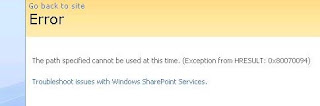
When attempting to create a web application, receiving error:
"Error: The path specified cannot be used at this time."

Solution:
1. Central Administration > Application Management > Delete a Web Application: Delete the web application that errored upon creation
2. Start > Run > iisreset /restart
3. Attempt creating the web application again
3. Attempt creating the web application again
Wednesday, July 09, 2008
Links: Microsoft TechNet: White papers for MOSS 2007
Microsoft TechNet: White papers for Office SharePoint Server 2007
http://technet.microsoft.com/en-us/library/cc262733(TechNet.10).aspx
http://technet.microsoft.com/en-us/library/cc262733(TechNet.10).aspx
Tuesday, July 08, 2008
SharePoint 3.0: Default Search Relevance by File Type
The Search engine in SharePoint 3.0 considers certain file types more relevant than others. Below is a list of file types in sequence of most relevant to least relevant.
- Web Pages
- PowerPoint Presentations
- Word Documents
- Emails
- XML Files
- Excel Files
- Text Files
- SharePoint List Items
Thursday, July 03, 2008
SharePoint V3: Error: No results matching your search were found
Description:
When performing a contextual search (WSS Search) from a SharePoint 3.0 site, no results are returned. Error: No results matching your search were found.
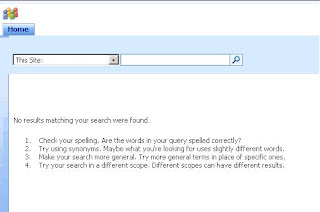
Are you using SSL?
Are you using a network load balancer?
Are there multiple domains in the environment?
Are the web applications accessible from outside the organization?
Solution:
Central Administration > Operations > Alternate Access Mappings
* Ensure that the Pubic URL for the web application if fully qualified
* Ensure that all possible URLs for the web application are configured in the default (or appropriate) zone
e.g.
https://sharepoint.domain.com
http://sharepoint.domain.com
https://sharepoint
http://sharepoint
When performing a contextual search (WSS Search) from a SharePoint 3.0 site, no results are returned. Error: No results matching your search were found.

Are you using SSL?
Are you using a network load balancer?
Are there multiple domains in the environment?
Are the web applications accessible from outside the organization?
Solution:
Central Administration > Operations > Alternate Access Mappings
* Ensure that the Pubic URL for the web application if fully qualified
* Ensure that all possible URLs for the web application are configured in the default (or appropriate) zone
e.g.
https://sharepoint.domain.com
http://sharepoint.domain.com
https://sharepoint
http://sharepoint
Wednesday, July 02, 2008
SharePoint V3 Error: Absolute path information required
Description:
When attempting to create a new web application from Central Administration, Error: Absolute path information required
When attempting to create a new web application from Central Administration, Error: Absolute path information required

Solution:
Jai's SharePoint Blog: The dreaded ‘Absolute path information required’ - Some light in the darkness http://sharepoint.jai-world.com/archives/6
Download and run the utility. It is intuitive and effective.Tuesday, July 01, 2008
SharePoint V3: How to Delete a Master Page from Master Page Gallery
Description:
When attempting to delete a master page from the master page gallery, error: "This item cannot be deleted because it is still referenced by other pages"
Error from browser
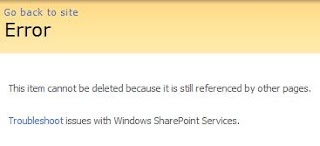
Error from SharePoint Designer
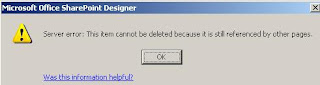
Solution:
When attempting to delete a master page from the master page gallery, error: "This item cannot be deleted because it is still referenced by other pages"
Error from browser

Error from SharePoint Designer

Solution:
* Site Actions > Site Settings > Master Page Gallery
* Windows Explorer
* File > New > Folder > Name Folder
* Copy master page to folder
* Right Click on Folder > Delete Folder
* Delete folder from Recycle Bin
Fundamental Productivity through Cultural and Technical Progress
A decent information taxonomy (referring to the concept of classifying and organizing content such as web site structure, web content, documents, etc.) aligned with the proper technology, in an adaptive culture breeds some real value. When information is consistently produced, named, categorized, and published throughout a work place, workers naturally become more adept at sharing, using, and reusing information.
Research based activities are the most obvious targets for streamlining because there are often lengthy windows of unproductive time associated with research. Consider a technical support analyst's work as an example. Here is a person who spends his or her day solving problems for other people. The job includes receiving and interpreting a problem, communicating and clarifying the symptoms, assessing the potential cause, and applying and testing solutions. Each forward thought process towards a resolution is linked and in some cases limited to the analyst's own prior knowledge and previous experiences.
Imagine if the analyst has access to a knowledge base and colleagues regularly publish solutions to their problems to the knowledge base. Day in and day out analysts are solving problems and taking time to write up detailed articles describing the cause of the problem and the solution. Articles in the knowledge base are all formatted a similar way, with an id number, a title, an author, keywords, a description, and a solution. The knowledge base tool provides search functionality which is tuned to allow filtering on a these structured fields of information. With this type of tool available, the analyst is able to quickly parse through an abundance of prior knowledge and past experiences to find answers quickly.
The idea of being organized and productive is not limited to support analysts. This ideal can be applied to a wide range of occupations and business scenarios.
What does it take to achieve hyper productivity?
Vision; a big picture strategy with an underlying grasp of an organization's detailed business processes.
Leadership; dynamic thought leaders empowered to make decisions about how to manage other people's content.
Acceptance; an acceptance of a the current work place culture as it relates to collaboration.
Inclusion; motivating employees to be excited about being productive can also be challenging, which is why it necessary practice inclusion. Ideas that derive from within and grow organically are far more inspirational than any mandate received via corporate email blast.
Balance; what will work best for all stakeholders vs what each individual stakeholder holds important.
Technology; essential, yes, but most companies who are realizing benefits from a corporate portal, knowledge management system, or collaboration web site may already know that the technology deployment is often times the easiest part.
Research based activities are the most obvious targets for streamlining because there are often lengthy windows of unproductive time associated with research. Consider a technical support analyst's work as an example. Here is a person who spends his or her day solving problems for other people. The job includes receiving and interpreting a problem, communicating and clarifying the symptoms, assessing the potential cause, and applying and testing solutions. Each forward thought process towards a resolution is linked and in some cases limited to the analyst's own prior knowledge and previous experiences.
Imagine if the analyst has access to a knowledge base and colleagues regularly publish solutions to their problems to the knowledge base. Day in and day out analysts are solving problems and taking time to write up detailed articles describing the cause of the problem and the solution. Articles in the knowledge base are all formatted a similar way, with an id number, a title, an author, keywords, a description, and a solution. The knowledge base tool provides search functionality which is tuned to allow filtering on a these structured fields of information. With this type of tool available, the analyst is able to quickly parse through an abundance of prior knowledge and past experiences to find answers quickly.
The idea of being organized and productive is not limited to support analysts. This ideal can be applied to a wide range of occupations and business scenarios.
What does it take to achieve hyper productivity?
Vision; a big picture strategy with an underlying grasp of an organization's detailed business processes.
Leadership; dynamic thought leaders empowered to make decisions about how to manage other people's content.
Acceptance; an acceptance of a the current work place culture as it relates to collaboration.
Inclusion; motivating employees to be excited about being productive can also be challenging, which is why it necessary practice inclusion. Ideas that derive from within and grow organically are far more inspirational than any mandate received via corporate email blast.
Balance; what will work best for all stakeholders vs what each individual stakeholder holds important.
Technology; essential, yes, but most companies who are realizing benefits from a corporate portal, knowledge management system, or collaboration web site may already know that the technology deployment is often times the easiest part.
Wednesday, May 28, 2008
SharePoint V3: Administrator Reports; Utility
I often get asked about how to obtain useful administrator reports for SharePoint. Here is one inexpensive utility to evaluate:
Admin Report Kit for SharePoint 2007
http://www.vyapin.com/products/enterprisenetworktools/arksp2007.htm
Pros:
- Low cost
- Hierarchical reports
- Can export reports to several different formats
- Reports can save you a lot of time if you try to write in TSQL
Cons:
- Doesn't support rdl publishing to Reporting Services
- Doesn't provide join to AD object enumeration (expand AD members per securable)
Admin Report Kit for SharePoint 2007
http://www.vyapin.com/products/enterprisenetworktools/arksp2007.htm
Pros:
- Low cost
- Hierarchical reports
- Can export reports to several different formats
- Reports can save you a lot of time if you try to write in TSQL
Cons:
- Doesn't support rdl publishing to Reporting Services
- Doesn't provide join to AD object enumeration (expand AD members per securable)
Friday, May 23, 2008
SharePoint V3: Search Considerations for Choosing Yes No Column Type
I was working on a search customization a while back, displaying search results in a grid view. I encountered a design decision that required that I step back and change the column type I was using for some of the Yes/No columns in the site collection.
One lesson I learned is that when you are deciding on a which column types to use, especially Yes/No columns, keep search close at mind because it will impact search downstream. Ideally, if your columns will be leveraged by managed properties and used in search scopes to help users fine tune their queries, then keep in mind how users think.
For example, I had some Yes/No columns that I originally set up as Yes/No Checkboxes. I created managed properties for these columns but then realized...nobody is going to search on 0 and 1, they are going to search on yes and no. E.g. Give me all my ice cream sundae options where vanilla ice cream = yes...not where vanilla ice cream = 1.
Anyway, there are at least four common ways to achieve Yes/No in a SharePoint column:
Choice Radio
Choice Drop Down
Choice Checkbox
Yes/No Checkbox
The table below compares each of these:

As a result of doing this comparison, I have been using choice drop down more often than not in lists and libraries where Yes/No values are required for metadata. Even though the Yes/No checkbox may more appealing to users filling out the metadata, I think the drop down wins when you weigh in the search considerations.
One lesson I learned is that when you are deciding on a which column types to use, especially Yes/No columns, keep search close at mind because it will impact search downstream. Ideally, if your columns will be leveraged by managed properties and used in search scopes to help users fine tune their queries, then keep in mind how users think.
For example, I had some Yes/No columns that I originally set up as Yes/No Checkboxes. I created managed properties for these columns but then realized...nobody is going to search on 0 and 1, they are going to search on yes and no. E.g. Give me all my ice cream sundae options where vanilla ice cream = yes...not where vanilla ice cream = 1.
Anyway, there are at least four common ways to achieve Yes/No in a SharePoint column:
Choice Radio
Choice Drop Down
Choice Checkbox
Yes/No Checkbox
The table below compares each of these:

As a result of doing this comparison, I have been using choice drop down more often than not in lists and libraries where Yes/No values are required for metadata. Even though the Yes/No checkbox may more appealing to users filling out the metadata, I think the drop down wins when you weigh in the search considerations.
Thursday, May 22, 2008
Windows Live SkyDrive
I was playing around with my Hotmail account and I stumbled on Windows Live Sky Drive. I have been subscribing to a paid, online file share service because these days it is necessary to keep certain files up there in the clouds for easy access at all times or to always have a place to share photos with other people. SkyDrive is one useful, free tool that I will be definitely using. Maybe I can even phase out my paid service.
MSSQL 2005: Example BCP Query to Text File
Prerequisites:
- MSSQL 2005
- AdventureWorks DW
Steps:
1. Enable xp_cmdshell on the SQL instance
- Start > Programs > Microsoft SQL Server 2005 > Configuration Tools > SQL Server 2005 Surface Area Configuration
- Surface Area Configuration for Features > MSSQLSERVER > Database Engine > xp_cmdshell
- Enable xp_cmdshell: Check
2. Prepare your query
- Start > Programs > Microsoft SQL Server 2005 Management Studio
- New Query
3. Execute your query using BCP
- Start, Run, CMD
- Change Directory: C:\Program Files\Microsoft SQL Server\90\Tools\Binn
- bcp "select firstname, lastname from dbo.dimcustomer" queryout c:\awdwcustomer.txt -T -C RAW -t ","
4. Review your output
- C:\awdwcustomer.txt
e.g.
Jon,Yang
Eugene,Huang
Ruben,Torres
Christy,Zhu
Elizabeth,Johnson
Julio,Ruiz
Janet,Alvarez
Marco,Mehta
- MSSQL 2005
- AdventureWorks DW
Steps:
1. Enable xp_cmdshell on the SQL instance
- Start > Programs > Microsoft SQL Server 2005 > Configuration Tools > SQL Server 2005 Surface Area Configuration
- Surface Area Configuration for Features > MSSQLSERVER > Database Engine > xp_cmdshell
- Enable xp_cmdshell: Check
2. Prepare your query
- Start > Programs > Microsoft SQL Server 2005 Management Studio
- New Query
3. Execute your query using BCP
- Start, Run, CMD
- Change Directory: C:\Program Files\Microsoft SQL Server\90\Tools\Binn
- bcp "select firstname, lastname from dbo.dimcustomer" queryout c:\awdwcustomer.txt -T -C RAW -t ","
4. Review your output
- C:\awdwcustomer.txt
e.g.
Jon,Yang
Eugene,Huang
Ruben,Torres
Christy,Zhu
Elizabeth,Johnson
Julio,Ruiz
Janet,Alvarez
Marco,Mehta
Monday, April 28, 2008
SharePoint V3: Error: There has been an error creating the personal site
Description:
When attempting to create a new My Site in MOSS 2007, you receive the error:
"There has been an error creating the personal site. Contact your site administrator for more information."

Solution:
Set a Personal Site Location for the SSP
* Shared Services Administration > User Profiles and My Sites > My Site Settings
* Personal Site Location > Location: personal (e.g. http://portal.domain.com/personal/personal_site/)
When attempting to create a new My Site in MOSS 2007, you receive the error:
"There has been an error creating the personal site. Contact your site administrator for more information."

Solution:
Set a Personal Site Location for the SSP
* Shared Services Administration > User Profiles and My Sites > My Site Settings
* Personal Site Location > Location: personal (e.g. http://portal.domain.com/personal/personal_site/)
Saturday, April 26, 2008
SharePoint V3: Terminology Related to URLs
Web Application: http://portal.domain.com
Site Collection: http://portal.domain.com
Top Level Site Collection: http://portal.domain.com/sites/site
Top Level Site: http://portal.domain.com/sites/site
First Level Sub-Site: http://portal.domain.com/site/subsite
Site Collection: http://portal.domain.com
Top Level Site Collection: http://portal.domain.com/sites/site
Top Level Site: http://portal.domain.com/sites/site
First Level Sub-Site: http://portal.domain.com/site/subsite
Wednesday, April 23, 2008
SharePoint V3: Site Features: Error: A duplicate name "Report" was found.
Description:
Unable to activate the "Office SharePoint Server Enterprise Site Features."


A work around to this to rename the existing, custom content type from Report to something different, such as "Report Document."
* Site Actions > Site Settings > Site Content Types > Report > Name, Description, and Group
Unable to activate the "Office SharePoint Server Enterprise Site Features."

The following error is returned, " Error. A duplicate "Report" was found."

Solution:
There was a custom content type on the site collection called, "Report." When the Enterprise Features are enabled, a system generated content type called "Report" is created. Since the custom content type was present, this created a conflict and prevented the Enterprise Features from activating.
A work around to this to rename the existing, custom content type from Report to something different, such as "Report Document."
* Site Actions > Site Settings > Site Content Types > Report > Name, Description, and Group
* Edit Name: e.g. Report Document
* Click OK
SharePoint V3: Error: Excel Services: Excel Web Access: An Error Has Occurred.
Description:
After adding an Excel Web Access Web Part to a SharePoint page, you receive the following error message:
"Excel Web Access. An error has occurred. Please contact your system administrator if this problem persists."
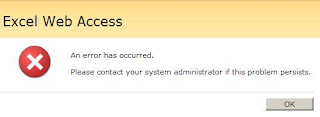
Solution:
* SharePoint Central Administration > Operations > Services on Server > Excel Calculation Services
* Start the service
After adding an Excel Web Access Web Part to a SharePoint page, you receive the following error message:
"Excel Web Access. An error has occurred. Please contact your system administrator if this problem persists."

Solution:
* SharePoint Central Administration > Operations > Services on Server > Excel Calculation Services
* Start the service
Thursday, April 10, 2008
Links: SharePoint GearUp
A very good resource to examine during initiation of a SharePoint project:
SharePoint GearUp
http://sharepoint.microsoft.com/gearup/Pages/default.aspx
SharePoint GearUp
http://sharepoint.microsoft.com/gearup/Pages/default.aspx
SharePoint V3: Business Data Catalog, Setting Up Application Definition
Business Data Catalog, Setting Up Application Definition (Not Creating Application Definitions)
Service Accounts
Microsoft Single Sign-On & SharePoint Single Sign-On Service Account
* Minimum:
-Domain account -Central Administration, Farm Administrators Group
-SQL Server, Security Administrators Role
-SQL Server, DB_Creator Role
Enterprise Appliction Administrator Account
* Minimum:
-Domain Account
-Central Administration, Read Permissions
Microsoft Single Sign-On
Control Panel > Administrative Tools > Computer Management > Services and Applications > Services
* Microsoft Single Sign-On Service > Properties
-General, Startup type: Automatic
-General, Service Status: Start
-Log On, This Account: SSO Service Account
SharePoint Single Sign-On
Central Administration > Operations > Security Configuration > Manage Settings for Single Sign-On
* Server Settings > Manage Server Settings
-Account Name: SSO Service Account
* Server Settings > Enterprise Application Definition Settings > Manage settings for enterprise applciation definitions
-Account: SSO Service Account
SSP Permissions
SSP Administration Site > Site Actions > Site Settings > Users and Permissions
* Site Collection Administrators
-Site Collection Administrators: SSP Service Account
* Advanced Permissions > New > Add Users
-Users/Groups: SSP Service Account
-Give Permission: Full Control
Business Data Catalog Permissions
SSP Administration Site > Business Data Catalog > Business Data Catalog Permissions
* Manage Permissions > Add Users/Groups
-Choose Users: SSP Service Account
-Choose Permissions: Edit, Execute, Select in Clients, Set Permissions
* Manage Permissions > Add Users/Groups
-Choose Users: (add users as needed)
-Choose Permissions: (use permissions below, as appropriate)
Permissions
Edit: Select this permission to enable users to import application definitions and add, edit, or delete application definitions, business data types, and data fields for business data types.
Execute: Select this permission to enable users to change the properties of business data.
Select in Clients: Select this permission to enable the user to refer to business data types and fields in SharePoint lists, Web Parts, sites, and client applications.
Set permissions: Select this permission to enable the user to configure permissions for other users.
(Taken from Microsoft TechNet)
Register Enterprise Application Definitions
* Create application definition
* Import application definition
* Configure application definitino for Single Sign-On
SharePoint Single Sign-On for Application Definition
Central Administration > Operations > Security Configuration > Manage Settings for enterprise application definitions
* Server Settings > Enterprise Application Definition Settings > Manage account information enterprise applciation definitions
-Enterprise Application Definition, Account Information:
-Group Account Name: Group having Read Access to Application
-Enterprise Application Definition, Update account information: SSO Service Account
References:
Configure access to business data
http://technet2.microsoft.com/Office/en-us/library/a0d973ae-038d-491b-b76d-25dbf745d8931033.mspx
Configure single sign-on (Office SharePoint Server)
http://technet.microsoft.com/en-us/library/cc262932.aspx
Register business applications in the Business Data Catalog
http://technet2.microsoft.com/Office/en-us/library/97d1a614-84e7-45c2-9327-5749d5fc50111033.mspx
Service Accounts
Microsoft Single Sign-On & SharePoint Single Sign-On Service Account
* Minimum:
-Domain account -Central Administration, Farm Administrators Group
-SQL Server, Security Administrators Role
-SQL Server, DB_Creator Role
Enterprise Appliction Administrator Account
* Minimum:
-Domain Account
-Central Administration, Read Permissions
Microsoft Single Sign-On
Control Panel > Administrative Tools > Computer Management > Services and Applications > Services
* Microsoft Single Sign-On Service > Properties
-General, Startup type: Automatic
-General, Service Status: Start
-Log On, This Account: SSO Service Account
SharePoint Single Sign-On
Central Administration > Operations > Security Configuration > Manage Settings for Single Sign-On
* Server Settings > Manage Server Settings
-Account Name: SSO Service Account
* Server Settings > Enterprise Application Definition Settings > Manage settings for enterprise applciation definitions
-Account: SSO Service Account
SSP Permissions
SSP Administration Site > Site Actions > Site Settings > Users and Permissions
* Site Collection Administrators
-Site Collection Administrators: SSP Service Account
* Advanced Permissions > New > Add Users
-Users/Groups: SSP Service Account
-Give Permission: Full Control
Business Data Catalog Permissions
SSP Administration Site > Business Data Catalog > Business Data Catalog Permissions
* Manage Permissions > Add Users/Groups
-Choose Users: SSP Service Account
-Choose Permissions: Edit, Execute, Select in Clients, Set Permissions
* Manage Permissions > Add Users/Groups
-Choose Users: (add users as needed)
-Choose Permissions: (use permissions below, as appropriate)
Permissions
Edit: Select this permission to enable users to import application definitions and add, edit, or delete application definitions, business data types, and data fields for business data types.
Execute: Select this permission to enable users to change the properties of business data.
Select in Clients: Select this permission to enable the user to refer to business data types and fields in SharePoint lists, Web Parts, sites, and client applications.
Set permissions: Select this permission to enable the user to configure permissions for other users.
(Taken from Microsoft TechNet)
Register Enterprise Application Definitions
* Create application definition
* Import application definition
* Configure application definitino for Single Sign-On
SharePoint Single Sign-On for Application Definition
Central Administration > Operations > Security Configuration > Manage Settings for enterprise application definitions
* Server Settings > Enterprise Application Definition Settings > Manage account information enterprise applciation definitions
-Enterprise Application Definition, Account Information:
-Group Account Name: Group having Read Access to Application
-Enterprise Application Definition, Update account information: SSO Service Account
References:
Configure access to business data
http://technet2.microsoft.com/Office/en-us/library/a0d973ae-038d-491b-b76d-25dbf745d8931033.mspx
Configure single sign-on (Office SharePoint Server)
http://technet.microsoft.com/en-us/library/cc262932.aspx
Register business applications in the Business Data Catalog
http://technet2.microsoft.com/Office/en-us/library/97d1a614-84e7-45c2-9327-5749d5fc50111033.mspx
Saturday, March 15, 2008
Keyboard Shortcuts
LOCAL SYSTEM
ALT + Space Bar : Display Windows menu
ALT + F : Display file menu
Alt + Tab : Toggle between open windows
ALT + Underlined Letter : Display the corresponding menu
CTRL + A : Select all
CTRL + C : Copy
CTRL + ESC : Display Start menu
CTRL + P : Print
CTRL + S : Save
CTRL + V : Paste
CTRL + X : Cut
CTRL + Z : Undo
CTRL + Shift + Arrow Key : Select a block of text
CTRL + Shift + ESC : Display Task Manager
Shift + Delete : Delete files permanently
Shift + End : Highlight from current cursor position to the end of the line
Shift + Home : Highlight from current cursor position to beginning of the line
CTRL + Home : Put cursor at beginning of the document
Windows Key + E : Display My Computer folder
Windows Key + F : Find files or folders
Windows Key + F1 : Display Help and Support
Windows Key + L : Lock the keyboard
Windows Key + M : Minimize window
Windows Key + Shift + M : Restore minimized window
Windows Key + R : Display user command line
REMOTE DESKTOP
CTRL + ALT + END : Task Manager
ALT + Page Up or ALT + Page Down : Toggle Windows
CTRL + ALT + "+" : Screen Print of Remote Desktop (Local Clipboard)
CTRL + ALT + "-" : Screen Print of Remote Desktop (Remote Desktop Clipboard)
ALT + Space Bar : Display Windows menu
ALT + F : Display file menu
Alt + Tab : Toggle between open windows
ALT + Underlined Letter : Display the corresponding menu
CTRL + A : Select all
CTRL + C : Copy
CTRL + ESC : Display Start menu
CTRL + P : Print
CTRL + S : Save
CTRL + V : Paste
CTRL + X : Cut
CTRL + Z : Undo
CTRL + Shift + Arrow Key : Select a block of text
CTRL + Shift + ESC : Display Task Manager
Shift + Delete : Delete files permanently
Shift + End : Highlight from current cursor position to the end of the line
Shift + Home : Highlight from current cursor position to beginning of the line
CTRL + Home : Put cursor at beginning of the document
Windows Key + E : Display My Computer folder
Windows Key + F : Find files or folders
Windows Key + F1 : Display Help and Support
Windows Key + L : Lock the keyboard
Windows Key + M : Minimize window
Windows Key + Shift + M : Restore minimized window
Windows Key + R : Display user command line
REMOTE DESKTOP
CTRL + ALT + END : Task Manager
ALT + Page Up or ALT + Page Down : Toggle Windows
CTRL + ALT + "+" : Screen Print of Remote Desktop (Local Clipboard)
CTRL + ALT + "-" : Screen Print of Remote Desktop (Remote Desktop Clipboard)
Subscribe to:
Posts (Atom)


