The SharePoint Saturday Boston #3 Webinar Series schedule was recently announced. As part of this series, I will be presenting "Implementing SharePoint for Enterprise Search: Methodology and Mechanics" on Friday, December 10, 2010 at 11:45 AM.
Click Here to Register
Agenda
11:45 AM EST – 11:55 AM EST Welcome and Sign-In
11:55 AM EST – 12:00 PM EST Speaker Introduction
12:00 PM EST – 1:00 PM EST Presentation
For more information or to register for other Webinars, visit the SharePoint Saturday Web site, SharePoint Saturday Boston #3 Webinar Series: http://www.sharepointsaturday.org/boston/Pages/SPSBos3WebinarSeries.aspx
Friday, October 15, 2010


Thursday, October 14, 2010
Reference: Location Codes
I was doing some ETL work today and needed to translate location codes from one system to another. These resources were helpful in creating a reference table.
Official USPS Abbreviations
List of U.S. States by Time Zone
Reference
United States Postal Service (2010). Official USPS Abbreviations. Retrieved October 14, 2010 from http://www.usps.com/ncsc/lookups/usps_abbreviations.html.
Wikipedia (2010). List of U.S. States by Time Zone. Retrieved October 14, 2010 from http://en.wikipedia.org/wiki/List_of_U.S._states_by_time_zone.
Official USPS Abbreviations
List of U.S. States by Time Zone
Reference
United States Postal Service (2010). Official USPS Abbreviations. Retrieved October 14, 2010 from http://www.usps.com/ncsc/lookups/usps_abbreviations.html.
Wikipedia (2010). List of U.S. States by Time Zone. Retrieved October 14, 2010 from http://en.wikipedia.org/wiki/List_of_U.S._states_by_time_zone.
Tuesday, October 05, 2010
SharePoint 4.0: How Search Indexing Works
The crawl process is essential to the Indexing side of SharePoint 2010 Search. Exploring the Search Service Application screens provides some insight to the configurable components that make up Search in SharePoint 2010, but you may actually have to dive deep into the system documentation and other resources to gain an understanding for the steps that occur within the subsystems, when SharePoint is instructed to crawl content.
The crawl process goes something like this:
1. Full crawl started
2. Start address moved to queue
3. Protocol determined
4.Connector selected
5. iFilter opens files
6. Content index created on crawl server
7. Index moved in batches to query server
8. Data written to Crawl and Property databases
(Microsoft, 2010)
The crawl process goes something like this:
1. Full crawl started
2. Start address moved to queue
3. Protocol determined
4.Connector selected
5. iFilter opens files
6. Content index created on crawl server
7. Index moved in batches to query server
8. Data written to Crawl and Property databases
(Microsoft, 2010)

One myth about SharePoint 2010 crawl process is that when content is crawled it never touches the file system of the Crawl Server and goes directly to Query Server...this isn't true. The way it works in environments that have crawler and query roles on separate servers is; a content index is built on the crawl server initially, but is moved in batches to the query server(s). The point when all batches have propogated to the query server, then it may appear as if there is no foot print on the Crawl server's file system...this is because all the batches have been moved up.
From a server topology perspective, Search requires three different server roles. These include Crawl Server, Query Server, and Database Server. Each of these roles plays a role in the crawl process. For scalability and availability, the architecture supports configurations that include one or many of each of the server roles. Determining the best topology is a balancing act of capacity requirements with available resources.
Reference
Microsoft (2010). Microsoft SharePoint 2010 Product Information Capabilities Search. Retrieved September 22, 2010 from
http://sharepoint.microsoft.com/en-us/product/capabilities/search/Pages/default.aspx.
Friday, October 01, 2010
Enterprise Search Summit Fall 2010

There will be an Enterprise Search Summit in Washington D.C. November 16-18, 2010. The event is taking place at the Renaissance Washington, DC Hotel.
For more information, click here.
Thursday, September 30, 2010
SPS Boston: Implementing SharePoint for Enterprise Search: Methodology and Mechanics
 On Saturday, September 25, 2010 I presented a session at SharePoint Saturday Boston.
Title:
Implementing SharePoint for Enterprise Search: Methodology and Mechanics
Abstract:This session explains how following a proven approach and using certain configuration techniques can ensure the success of a SharePoint Search implementation. The prevalence of search technologies available on the World Wide Web has caused stakeholder expectations to remain high. Yet, an Enterprise Search solution is an excellent opportunity to introduce exciting capabilities and productivity gains for a business. Included in the presentation is a walk-through of project phases, a review of key design considerations, and examples of recommended configurations.
Click HERE to access slides.
In the near future, I do intend to create individual blog posts from some of the presentation slides so that I can expand on some of the topics in greater detail. If you would like to request that I write a blog post explaining a particular Search topic, please submit a request using the comments feature of this post.
Wednesday, September 08, 2010
Microsoft Project 2010: Outline Number and Fill Down
I was recently updating a Microsoft Project file and encountered a couple items worth mentioning.
First, by inserting a column called "Outline Number," Project automatically populates the Work Breakdown Structure (WBS) task ID (WBS column does the same thing). This is much better than doing it manually.

Secondly, Microsoft Project doesn't let you paste a value into a range of cells like Excel. So, instead of manually typing in durations or pasting one at a time, there is a "Fill Down" menu option. Select the cell that contains the value you want, select the range, right-click, and select "Fill Down."
First, by inserting a column called "Outline Number," Project automatically populates the Work Breakdown Structure (WBS) task ID (WBS column does the same thing). This is much better than doing it manually.

Secondly, Microsoft Project doesn't let you paste a value into a range of cells like Excel. So, instead of manually typing in durations or pasting one at a time, there is a "Fill Down" menu option. Select the cell that contains the value you want, select the range, right-click, and select "Fill Down."


Thursday, August 05, 2010
Why Move to SharePoint 2010?
From a technology road map perspective, I think it makes sense to migrate to the SharePoint 2010 platform to be current with technology. Doing so extends the lifespan of platform support and work efforts by three years (typical product cycle). The 2010 platform provides a more stable and scalable architecture too. Furthermore, innovation in the community occurs with the most current version, so to participate in the knowledge sharing on the Web, at events, and conferences, it requires remaining current.
Beyond these reasons, business needs continue to evolve and mature. The product features of the latest version enable the delivery of better solutions, with less effort, with less customization. Aggregating information from different systems is easier now (Search, BCS). It is easier to provide end user conveniences, such as Outlook calendar integration or multi-select actions in document libraries. Branding is easier with the themes engine. There are more Search tools (e.g. navigators) available, allowing search experiences to be more like what people expect from using Web. In fact, the 2010 Search technology is rich enough to use as a development tool. Taxonomy and Folksonomy features help make organizing and navigating through content easier, while Managed Metadata Services help ensure consistency.
Different scenarios require different thought processes and approaches to 2010. For example, existing SharePoint Web sites which are flat and primarily exist to push Web content to many consumers, may benefit from a straight software upgrade. On the other hand, redesign opportunities exist for other types of SharePoint applications which are more interactive; which support business processes or facilitate workflows.
At this point, it makes sense to design and develop anything new directly in 2010, to take advantage of the technology and community benefits. Doing so also reduces duplication in efforts since there will not be a future need to upgrade the new solutions to 2010; they will already be there. That, by itself, is a legitimate reason to go 2010.
Reference
Microsoft (2010). SharePoint 2010 Product Information Overview. Retrieved August 5, 2010 from http://sharepoint.microsoft.com/en-us/product/capabilities/Pages/default.aspx.
Beyond these reasons, business needs continue to evolve and mature. The product features of the latest version enable the delivery of better solutions, with less effort, with less customization. Aggregating information from different systems is easier now (Search, BCS). It is easier to provide end user conveniences, such as Outlook calendar integration or multi-select actions in document libraries. Branding is easier with the themes engine. There are more Search tools (e.g. navigators) available, allowing search experiences to be more like what people expect from using Web. In fact, the 2010 Search technology is rich enough to use as a development tool. Taxonomy and Folksonomy features help make organizing and navigating through content easier, while Managed Metadata Services help ensure consistency.
Different scenarios require different thought processes and approaches to 2010. For example, existing SharePoint Web sites which are flat and primarily exist to push Web content to many consumers, may benefit from a straight software upgrade. On the other hand, redesign opportunities exist for other types of SharePoint applications which are more interactive; which support business processes or facilitate workflows.
At this point, it makes sense to design and develop anything new directly in 2010, to take advantage of the technology and community benefits. Doing so also reduces duplication in efforts since there will not be a future need to upgrade the new solutions to 2010; they will already be there. That, by itself, is a legitimate reason to go 2010.
Reference
Microsoft (2010). SharePoint 2010 Product Information Overview. Retrieved August 5, 2010 from http://sharepoint.microsoft.com/en-us/product/capabilities/Pages/default.aspx.
Wednesday, August 04, 2010
Missing the Point on Spirit of Governance
Over a short period of time in the SharePoint community, the term "governance" has evolved to describe a class of software products or features. Yet, IT governance has nothing to do with what tools a SharePoint administrator has. Instead, IT governance has everything to do with the people and processes side of things; and the decision making framework that, when in play, can be used to determine that a portal should exist, who should manage it, who it should serve, how decisions will be made affecting it. Governance is really about policies, processes, roles, responsibilities, and priorities (Ross, 2004).
The scope of an effective Information Management Governance Model spans beyond a specific solution, such as SharePoint Intranet or collaboration portal, and encompasses the Information Management practices occurring throughout the organization. A SharePoint governance model should be a subset to that. Putting this in the context of documentation, an overarching Information Management Statement of Governance document should exist and define the framework at the global level, while specific statement of governance documents should be maintained for each Information Management system within the organization; SharePoint being one of those.
The IT project management framework is another significant and relevant topic to governance. The project management framework established the processes followed to initiate, plan, and execute IT projects. These processes should include such activities as the evaluation of new SharePoint projects in the context of the organization's overall information architecture. Aligning the project management decision making with Information Management, business, and IT decision making results in solutions that have backing, are sustainable, and actually provide business value.
The spirit of governance is really about defining what the processes should be, and if generous enough, explaining why to some extent. In the end, governance models maintain decision making integrity amongst people...that is not something a portal administrator can do by running a report or recovering a deleted site.
Reference
Ross, J., Weill, P. (2004). Recipe for Good Governance. Retrieved August 4, 2010 from http://www.cio.com/article/29162/Recipe_for_Good_Governance.
The scope of an effective Information Management Governance Model spans beyond a specific solution, such as SharePoint Intranet or collaboration portal, and encompasses the Information Management practices occurring throughout the organization. A SharePoint governance model should be a subset to that. Putting this in the context of documentation, an overarching Information Management Statement of Governance document should exist and define the framework at the global level, while specific statement of governance documents should be maintained for each Information Management system within the organization; SharePoint being one of those.
The IT project management framework is another significant and relevant topic to governance. The project management framework established the processes followed to initiate, plan, and execute IT projects. These processes should include such activities as the evaluation of new SharePoint projects in the context of the organization's overall information architecture. Aligning the project management decision making with Information Management, business, and IT decision making results in solutions that have backing, are sustainable, and actually provide business value.
The spirit of governance is really about defining what the processes should be, and if generous enough, explaining why to some extent. In the end, governance models maintain decision making integrity amongst people...that is not something a portal administrator can do by running a report or recovering a deleted site.
Reference
Ross, J., Weill, P. (2004). Recipe for Good Governance. Retrieved August 4, 2010 from http://www.cio.com/article/29162/Recipe_for_Good_Governance.
Friday, July 30, 2010
Event: SharePoint Saturday Boston 2010
SharePoint Saturday Boston, 2010 (#3)
When:
Saturday, September 25th, 2010
Where:
Microsoft Corporation
When:
Saturday, September 25th, 2010
Where:
Microsoft Corporation
201 Jones Road
6th Floor
Waltham, MA 02451
Three SQL Server Settings for SharePoint Environments: Autogrowth Option, Auto Shrink Option, Shrink Database Task
As I was tuning a SharePoint environment today, I thought it would be a good opportunity to post a brief message about three SQL Server settings: Autogrowth, Auto Shrink, and the Shrink Database Task.
1. Autogrowth - Fixed Amount:
This setting applies to data files (.mdf) and transaction log files (.ldf). Autogrowth allows or prevents SQL Server from automatically increasing the size of the files when the need arises. In SharePoint environments, it is best to do capacity planning in advance and set the intial database sizes appropriately. Then, set the Autogrowth value for both the data files and the log files to a fixed amount. This ensures that the files grow in consistent increments. The fixed amount should be somewhat substantial, relative to the size of the database. This ensures that the growth does not occur too frequently.

2. Auto Shrink - Turn it Off:
Auto Shrink is an option that allows or prevents SQL Server from automatically reducing the size of database files. By default, the SQL Server Model database has the Auto Shrink option off. As Paul Randal points out, enabling Auto Shrink can lead to Auto-Grow, Auto-Shrink loops as well as database fragmentation, and other performance issues (Randal, 2007). As a general rule of thumb for most SharePoint environments, this option should remain off for system and content databases.

3. Shrink Database Task - Don't Schedule It:
The Shrink Database Task is an available Maintenance Plan Task. If set, this operation will reduce the size of a database according to a schedule, leaving a specified amount of free space. As with the Auto Shrink option, the Shrink Database Task leads to performance issues and is not recommend in SharePoint environments.
So, if an existing SharePoint environment does have a scheduled Shrink Database Task, then a suggested action would be to remove the Shrink Database Task and then plan to monitor and manage database size using a manual approach. When determining a plan for managing database size, it is important to keep Database Recovery Models in mind.

Reference
Randal, P. (August, 2008). Top Tips for Effective Database Maintenance. Retrieved July 30, 2010 from http://technet.microsoft.com/en-us/magazine/2008.08.database.aspx?pr=blog.
Randal, P. (March, 2007). Turn AUTO_SHRINK off!! Retrieved July 30, 2010 from http://blogs.msdn.com/b/sqlserverstorageengine/archive/2007/03/28/turn-auto-shrink-off.aspx.
1. Autogrowth - Fixed Amount:
This setting applies to data files (.mdf) and transaction log files (.ldf). Autogrowth allows or prevents SQL Server from automatically increasing the size of the files when the need arises. In SharePoint environments, it is best to do capacity planning in advance and set the intial database sizes appropriately. Then, set the Autogrowth value for both the data files and the log files to a fixed amount. This ensures that the files grow in consistent increments. The fixed amount should be somewhat substantial, relative to the size of the database. This ensures that the growth does not occur too frequently.

2. Auto Shrink - Turn it Off:
Auto Shrink is an option that allows or prevents SQL Server from automatically reducing the size of database files. By default, the SQL Server Model database has the Auto Shrink option off. As Paul Randal points out, enabling Auto Shrink can lead to Auto-Grow, Auto-Shrink loops as well as database fragmentation, and other performance issues (Randal, 2007). As a general rule of thumb for most SharePoint environments, this option should remain off for system and content databases.

3. Shrink Database Task - Don't Schedule It:
The Shrink Database Task is an available Maintenance Plan Task. If set, this operation will reduce the size of a database according to a schedule, leaving a specified amount of free space. As with the Auto Shrink option, the Shrink Database Task leads to performance issues and is not recommend in SharePoint environments.
So, if an existing SharePoint environment does have a scheduled Shrink Database Task, then a suggested action would be to remove the Shrink Database Task and then plan to monitor and manage database size using a manual approach. When determining a plan for managing database size, it is important to keep Database Recovery Models in mind.

Reference
Randal, P. (August, 2008). Top Tips for Effective Database Maintenance. Retrieved July 30, 2010 from http://technet.microsoft.com/en-us/magazine/2008.08.database.aspx?pr=blog.
Randal, P. (March, 2007). Turn AUTO_SHRINK off!! Retrieved July 30, 2010 from http://blogs.msdn.com/b/sqlserverstorageengine/archive/2007/03/28/turn-auto-shrink-off.aspx.
Tuesday, July 27, 2010
Why Information Silos Are So Persistent
Information silos are disparate entities that exist as rogue systems, utilities, spreadsheets and Access databases. Actually, an information silo might be anything that is not centrally managed or does not conform to existing design patterns. Silos may or may not be considered an official part of the enterprise...awareness about the silo doesn't change its definition.
Most of the time, these tools were developed to fill a gap. A gap between what the enterprise offers and what certain areas of the business actually need to function. They serve a purpose; and in many cases they are significant to the processes that they support.
Considering where technology is today, why are are information silos so persistent, more prevalent than ever? Why can't IT just build something into the enterprise architecture?
One reason (or cause) is because of the technology, which has become easier to work with and more accessible to people inside and outside of IT Departments. A person of any role can go on the Internet and figure out how to set up an Access database. In many cases, this is much easier than approaching a centralized IT department with their requirements. The Internet isn't going to say "no." By circumventing IT, nobody asks for funding, tries to minimize or question the need, or compromise the intention in any way. But, if the request did go to the IT department might, there might be resistance.
Secondly, a rogue solution is much less risky for a business person in terms of exposure and process transparency. By setting up a tool of their own, a business person may struggle a bit with configuration, but at no point is their process going to be visible to other people for criticism. If the person was to bring their requirements to the table and ask for help, then a lot of questions might be asked, putting guarded knowledge at risk. Unfortunately, for protective types, this means that the process would, in fact, become more transparent. The original process owner would become a "stakeholder" with influence rather than an "owner" with full control.
Beyond that, information silos also exist when an organization's methodologies and practices for providing holistic solutions are not mature enough to truly help. For example, IT organizations which are disorganized and reactive, might not be capable of helping the business person with their needs. There's no process, no authority, no plan to handle this sort of thing.
All of these situations challenge a centralized Information Management strategy.
Most of the time, these tools were developed to fill a gap. A gap between what the enterprise offers and what certain areas of the business actually need to function. They serve a purpose; and in many cases they are significant to the processes that they support.
Considering where technology is today, why are are information silos so persistent, more prevalent than ever? Why can't IT just build something into the enterprise architecture?
One reason (or cause) is because of the technology, which has become easier to work with and more accessible to people inside and outside of IT Departments. A person of any role can go on the Internet and figure out how to set up an Access database. In many cases, this is much easier than approaching a centralized IT department with their requirements. The Internet isn't going to say "no." By circumventing IT, nobody asks for funding, tries to minimize or question the need, or compromise the intention in any way. But, if the request did go to the IT department might, there might be resistance.
Secondly, a rogue solution is much less risky for a business person in terms of exposure and process transparency. By setting up a tool of their own, a business person may struggle a bit with configuration, but at no point is their process going to be visible to other people for criticism. If the person was to bring their requirements to the table and ask for help, then a lot of questions might be asked, putting guarded knowledge at risk. Unfortunately, for protective types, this means that the process would, in fact, become more transparent. The original process owner would become a "stakeholder" with influence rather than an "owner" with full control.
Beyond that, information silos also exist when an organization's methodologies and practices for providing holistic solutions are not mature enough to truly help. For example, IT organizations which are disorganized and reactive, might not be capable of helping the business person with their needs. There's no process, no authority, no plan to handle this sort of thing.
All of these situations challenge a centralized Information Management strategy.
Saturday, July 24, 2010
General Business Requirements vs. Solution Requirements
What came first, the solution or the need? Let's hope the need, but we all know that is not always (often not) the case. With the great technologies available to us today, rapid application development enables us to solve problems. But, does the ease of development actually create a new set of problems? Yes, it does.
When the software development process is lengthy and drawn out, it forces many planning activities such as requirements analysis, design specifications, and planning. Not doing these things leads to costly adjustments later. The lengthy process also forces organizations to really think about what solutions they are developing and how these solutions fit into the big picture. We've got it pretty easy today. With portals, collaboration, search, BI, content management, and workflow platforms today, some times doing it "wrong", undoing it, and doing it again is actually less expensive than the cost of planning and documenting.
Yes, I am familiar with the twelve principles of the Agile Manifesto (Agile Alliance, 2001). I like agile development when it follows some organized processes and produces artifacts that can be used for reference later. You still need documentation for future development, disaster recovery, and repair.
However, what I don't like is "premature solutioning" or the practice of directly jumping from a problem to a solution design without any sort of further questioning, analysis, thought, or sanity checks. When you encounter a problem, and immediately form a solution and begin developing it, a lot is lost. You are not considering what other stakeholder needs are, what other colleagues are already working on, and how this "fly by the seat of your pants" solution actually fits in (or doesn't) into your overall information architecture.
Working with my colleagues, we recently began formalizing our thoughts around the solutioning process. One of the first roadblocks we encountered had to do with semantics. We began observing that our push for "requirements" was being misunderstood. When a problem-solution situation arose, we would explain that we needed to analyze requirements. The response to this typically included design specifications. We would then stop and say, no, we don't want detailed design specifications, what we want is to understand the problem better and understand how it impacts other people, so we can create a solution that will fit into our information architecture in a way that adds value and doesn't undermine anything else we are doing.
After a few more of these scenarios we decided that we had to make others aware of our solutioning process and how we think, so that everybody would be able to communicate with each other better. The first thing we did was make a distinction between the types of requirements that we would discuss in the course of solutioning.
We decided on the following:
General Business Requirements - Facts and opinions that help understand the problem better. These are not design specifications and do not explain a solution. Instead, this information explains what the business needs are.
Solution Requirements - Facts and opinions that define how a solution is supposed to look, feel, or act. This information directly dictates the design specifications.
So, now when a new request arises, we start by gathering "general business requirements." We then consult with stakeholders, policies, procedures, standards, goals, etc. and analyze the information. Once we have all the facts, we begin to design a solution. At that time, we ask stakeholders to help us define the "solution requirements." The result of the latter activity is a design specifications document. Next, we schedule and plan the development activities and proceed from there.
Reference
Agile Alliance (2001). Principles Behind the Agile Manifesto. Retrieved July 24, 2010 from http://agilemanifesto.org/principles.html.
When the software development process is lengthy and drawn out, it forces many planning activities such as requirements analysis, design specifications, and planning. Not doing these things leads to costly adjustments later. The lengthy process also forces organizations to really think about what solutions they are developing and how these solutions fit into the big picture. We've got it pretty easy today. With portals, collaboration, search, BI, content management, and workflow platforms today, some times doing it "wrong", undoing it, and doing it again is actually less expensive than the cost of planning and documenting.
Yes, I am familiar with the twelve principles of the Agile Manifesto (Agile Alliance, 2001). I like agile development when it follows some organized processes and produces artifacts that can be used for reference later. You still need documentation for future development, disaster recovery, and repair.
However, what I don't like is "premature solutioning" or the practice of directly jumping from a problem to a solution design without any sort of further questioning, analysis, thought, or sanity checks. When you encounter a problem, and immediately form a solution and begin developing it, a lot is lost. You are not considering what other stakeholder needs are, what other colleagues are already working on, and how this "fly by the seat of your pants" solution actually fits in (or doesn't) into your overall information architecture.
Working with my colleagues, we recently began formalizing our thoughts around the solutioning process. One of the first roadblocks we encountered had to do with semantics. We began observing that our push for "requirements" was being misunderstood. When a problem-solution situation arose, we would explain that we needed to analyze requirements. The response to this typically included design specifications. We would then stop and say, no, we don't want detailed design specifications, what we want is to understand the problem better and understand how it impacts other people, so we can create a solution that will fit into our information architecture in a way that adds value and doesn't undermine anything else we are doing.
After a few more of these scenarios we decided that we had to make others aware of our solutioning process and how we think, so that everybody would be able to communicate with each other better. The first thing we did was make a distinction between the types of requirements that we would discuss in the course of solutioning.
We decided on the following:
General Business Requirements - Facts and opinions that help understand the problem better. These are not design specifications and do not explain a solution. Instead, this information explains what the business needs are.
Solution Requirements - Facts and opinions that define how a solution is supposed to look, feel, or act. This information directly dictates the design specifications.
So, now when a new request arises, we start by gathering "general business requirements." We then consult with stakeholders, policies, procedures, standards, goals, etc. and analyze the information. Once we have all the facts, we begin to design a solution. At that time, we ask stakeholders to help us define the "solution requirements." The result of the latter activity is a design specifications document. Next, we schedule and plan the development activities and proceed from there.
Reference
Agile Alliance (2001). Principles Behind the Agile Manifesto. Retrieved July 24, 2010 from http://agilemanifesto.org/principles.html.
Thursday, July 22, 2010
SharePoint 4.0: Summary Links Data Column Type
In SharePoint, there is a column type called, "Summary Links Data." Microsoft desribes this column type as "Columns that represent summary links for a page. Summary Links include a title, description, image, and URL and are used on publishing pages to present grouped links by using a set of shared styles" (Microsoft, 2010).
This column type is brilliant in theory, but unfortunately they don't appear to work as expected. Here is my assessment of the Summary Links Data column type.

In SharePoint 2010, if I add a Summary Links Data column to document library, then add a new document, the new or edit document properties page looks correct. The Summary Links Data column is represented by an editable summary links control.


Reference
This column type is brilliant in theory, but unfortunately they don't appear to work as expected. Here is my assessment of the Summary Links Data column type.

In SharePoint 2010, if I add a Summary Links Data column to document library, then add a new document, the new or edit document properties page looks correct. The Summary Links Data column is represented by an editable summary links control.
However, after the links have been added and the document uploaded, you return to the document properties using the "View Properties" page. The result of this is that the links are not visible. Huh?
OK, so let's try a custom list. Added the column to a custom list. Adding or editing an item results in a non-editable field. So, the Summary Data List story just got even worse in custom lists...
Reference
Microsoft (2010). Create a site column. Retrieved July 22, 2010 from http://office.microsoft.com/en-us/sharepoint-server-help/create-a-site-column-HA010177759.aspx.
Site Columns: SharePoint 2010 vs. SharePoint 2007
When comparing the "create site column" screen of SharePoint 2010 versus the one in SharePoint 2007, the features are mostly similar except for three enhancements in 2010. These include:
1. Column types for Rich Media and Managed Metadata.
2. "Enforce unique values."
3. Column validation.
(Microsoft, 2010)
During the past few years, I do remember occasions when I was "wishing" for the ability to apply unique permissions at the site column or content type level, but these abilities are not something available in SharePoint 2010.
I imagine field level or content type security would require a more dynamic design at the list and library level, since the list and libraries still work off the static template model, storing their own column definitions in XML as they were defined at the time of list or library creation, and maintaining their own security settings. This is evident when you delete a site column that is being used in a list or library. The site column is removed from the site column gallery, but a local instance of it still remains on the list or library.
In order for field level or content type security to be possible in SharePoint, each site column and local column definition would need to be expanded to include a security definition. List and library views would also need to become more security aware, rendering different columns based on varying security contexts. So, pushing down unique site column or content type security is more than the platform can handle at this time.
Microsoft SharePoint Server 2010

Microsoft Office SharePoint Server 2007

Microsoft (2010). Introduction to Columns. Retrieved July 22, 2010 from http://msdn.microsoft.com/en-us/library/ms450825.aspx.
1. Column types for Rich Media and Managed Metadata.
2. "Enforce unique values."
3. Column validation.
(Microsoft, 2010)
During the past few years, I do remember occasions when I was "wishing" for the ability to apply unique permissions at the site column or content type level, but these abilities are not something available in SharePoint 2010.
I imagine field level or content type security would require a more dynamic design at the list and library level, since the list and libraries still work off the static template model, storing their own column definitions in XML as they were defined at the time of list or library creation, and maintaining their own security settings. This is evident when you delete a site column that is being used in a list or library. The site column is removed from the site column gallery, but a local instance of it still remains on the list or library.
In order for field level or content type security to be possible in SharePoint, each site column and local column definition would need to be expanded to include a security definition. List and library views would also need to become more security aware, rendering different columns based on varying security contexts. So, pushing down unique site column or content type security is more than the platform can handle at this time.
Microsoft SharePoint Server 2010

Microsoft Office SharePoint Server 2007

Reference
Microsoft (2010). Create a site column. Retrieved July 22, 2010 from http://office.microsoft.com/en-us/sharepoint-server-help/create-a-site-column-HA010177759.aspx.Microsoft (2010). Introduction to Columns. Retrieved July 22, 2010 from http://msdn.microsoft.com/en-us/library/ms450825.aspx.
Wednesday, July 21, 2010
Fiddler
A gentleman named Eric Lawrence has developed a very useful Web debugging tool named, Fiddler. The Fiddler Web site is http://www.fiddler2.com/fiddler2/version.asp. I've used this tool recently to pinpoint performance issues, security issues, and authentication issues.
 "Fiddler is an HTTP debugging proxy written by Eric Lawrence of Microsoft.[1] It seamlessly captures HTTP traffic and logs it for the user to review.[4] It can also be used to "fiddle" with HTTP traffic as it is being sent.[3] By default, traffic from Microsoft's WinINET HTTP(S) stack is automatically directed through Fiddler at runtime, but any browser or application can be configured to route traffic through Fiddler.
The new version, known as Fiddler2, offers support for interception and tampering with HTTPS traffic." (Wikipedia, 2010)
To install Fiddler, follow these steps:
1. Download Fiddler.
2. Run the setup.exe.

To run a trace, follow these steps:
1. Open Fiddler (Start > All Programs > Fiddler2).
2. Begin a trace (File > Capture Traffic).
3. Launch Internet Explorer and produce the activity you would like to trace.
4. Stop the trace (File > uncheck Capture Traffic).
5. Save the trace file (File > Save > All Sessions).
6. Now, you are able to analyze the activity and pinpoint issues. You may also consider comparing the Fiddler trace to the Application Event log from the client and server machines.
Reference
Lawrence, E. (2010). Fiddler2 - Installation Information. Retrieved July 20, 2010 from http://www.fiddler2.com/fiddler2/version.asp.
Wikipedia (2010). Fiddler (software). Retrieved July 20, 2010 from http://en.wikipedia.org/wiki/Fiddler_(software).
Microsoft Certifications for SharePoint 2010
For the 2010 generation, the Microsoft SharePoint certifications tracks have been enhanced. Below is a breakout of the certifications available.
Microsoft Certified IT Professional (MCITP): SharePoint Administrator 2010
70-668 PRO: SharePoint Server 2010, Administrator
http://www.microsoft.com/learning/en/us/Exam.aspx?ID=70-668
70-667 TS: Microsoft SharePoint 2010, Configuring
http://www.microsoft.com/learning/en/us/Exam.aspx?ID=70-667
Microsoft Certified Professional Developer (MCPD): SharePoint Developer 2010
70-576 PRO: Designing and Developing Microsoft SharePoint 2010 Applications
http://www.microsoft.com/learning/en/us/Exam.aspx?ID=70-576
70-573 TS: Microsoft SharePoint 2010, Application Development
http://www.microsoft.com/learning/en/us/Exam.aspx?ID=70-573
Microsoft Certified Master program (MCM)
http://www.microsoft.com/learning/en/us/certification/architect.aspx
Microsoft Certified Architect certification (MCA)
http://www.microsoft.com/learning/en/us/certification/master.aspx#tab2
Reference
Microsoft (2010). Microsoft SharePoint – Training Portal. Retrieved July 21, 2010 from http://www.microsoft.com/learning/en/us/training/sharepoint.aspx.
Prometric (2010). Microsoft Certifications. Retrieved July 21, 2010 from http://www.prometric.com/Microsoft/default.htm.
Microsoft Certified IT Professional (MCITP): SharePoint Administrator 2010
70-668 PRO: SharePoint Server 2010, Administrator
http://www.microsoft.com/learning/en/us/Exam.aspx?ID=70-668
70-667 TS: Microsoft SharePoint 2010, Configuring
http://www.microsoft.com/learning/en/us/Exam.aspx?ID=70-667
Microsoft Certified Professional Developer (MCPD): SharePoint Developer 2010
70-576 PRO: Designing and Developing Microsoft SharePoint 2010 Applications
http://www.microsoft.com/learning/en/us/Exam.aspx?ID=70-576
70-573 TS: Microsoft SharePoint 2010, Application Development
http://www.microsoft.com/learning/en/us/Exam.aspx?ID=70-573
Microsoft Certified Master program (MCM)
http://www.microsoft.com/learning/en/us/certification/architect.aspx
Microsoft Certified Architect certification (MCA)
http://www.microsoft.com/learning/en/us/certification/master.aspx#tab2
Reference
Microsoft (2010). Microsoft SharePoint – Training Portal. Retrieved July 21, 2010 from http://www.microsoft.com/learning/en/us/training/sharepoint.aspx.
Prometric (2010). Microsoft Certifications. Retrieved July 21, 2010 from http://www.prometric.com/Microsoft/default.htm.
Monday, July 12, 2010
Connected Lookup on Codeplex
It is called many names; Connected Lookup, Cascading Dropdowns, Dependencies, etc. Whatever the nomenclature, the requirement to have one choice column drive the choices in a another choice drop down is an extremely common requirement in SharePoint applications.
There is a Codeplex project that I discovered today, for WSS 3.0 and MOSS 2007. I've pretty much halted future development on MOSS 2007 at this point but I thought I'd post the link regardless.

There is a Codeplex project that I discovered today, for WSS 3.0 and MOSS 2007. I've pretty much halted future development on MOSS 2007 at this point but I thought I'd post the link regardless.
Reference
Codeplex (2010). SharePoint Connected Lookup. Retrieved July 12, 2010 from http://cl.codeplex.com/.
Tuesday, July 06, 2010
Link: Process Monitor
Microsoft offers Process Monitor as a free download. In short, this tool helps capture detailed events and isolate issues. I recently used Process Monitor when I encountered a performance issue with one of my portals; the default.aspx page was taking a long time to save. Process Monitor helped me isolate the issue and determine that the cause was a buffer overflow.

Reference
Microsoft (2010). Windows Sysinternals, Process Monitor v2.91. Retrieved July 6, 2010 from http://technet.microsoft.com/en-us/sysinternals/bb896645.aspx
Friday, June 25, 2010
SharePoint Datasheet View, Office 2010 Compatibility
When considering when to upgrade to Microsoft Office 2010 on your client machine(s), there are many considerations, one of those being the level of compatibility of between the Office Suite and SharePoint Server 2010 and/or SharePoint Server 2007.
As it stands, Microsoft Office 2010 Standard Edition lacks many key compatibility features with SharePoint Server, while the Editions such as Office Professional and Office Professional Plus offer much more (Microsoft, 2010). One of the most important usability features of compatibility is the ability to manage information inside SharePoint lists and libraries is datasheet view. I know that once this feature is adopted by a user base, it is not something that can be taken away because people rely on on datasheet to manipulate data fast and easy.
Regardless of whether Office 2010 is 64-bit 0r 32-bit, the edition of office must be ABOVE STANDARD. This means that if you have Office 2010 Standard, you DO NOT have datasheet view. I cannot imagine having a SharePoint environment in which I do not have access to datasheet view, and so I would base my decision on which Office Suite to use solely on datasheet view...in other words, Office 2010 Standard is dead to me and I only care about Professional and higher from this point forward.
In the process of upgrading my primary client system to Office 2010 Professional Plus, I also had to decide between 64-bit and 32-bit. 32-bit is still recommended for maximum compatibility with add-ins and third party products, while 64-bit is intended for individuals who are working with large amounts of data (Microsoft, 2010). 32-bit is also more convenient to run. Datasheet view is automatically available to use if you have Microsoft Office 2010 (above Standard Edition) 32-bit. Datasheet view isn't automatic for 64-bit though, as evident by this error message:
Error: "The list cannot be displayed in Datasheet view for one or more of the following reasons:..."

As it stands, Microsoft Office 2010 Standard Edition lacks many key compatibility features with SharePoint Server, while the Editions such as Office Professional and Office Professional Plus offer much more (Microsoft, 2010). One of the most important usability features of compatibility is the ability to manage information inside SharePoint lists and libraries is datasheet view. I know that once this feature is adopted by a user base, it is not something that can be taken away because people rely on on datasheet to manipulate data fast and easy.
Regardless of whether Office 2010 is 64-bit 0r 32-bit, the edition of office must be ABOVE STANDARD. This means that if you have Office 2010 Standard, you DO NOT have datasheet view. I cannot imagine having a SharePoint environment in which I do not have access to datasheet view, and so I would base my decision on which Office Suite to use solely on datasheet view...in other words, Office 2010 Standard is dead to me and I only care about Professional and higher from this point forward.
In the process of upgrading my primary client system to Office 2010 Professional Plus, I also had to decide between 64-bit and 32-bit. 32-bit is still recommended for maximum compatibility with add-ins and third party products, while 64-bit is intended for individuals who are working with large amounts of data (Microsoft, 2010). 32-bit is also more convenient to run. Datasheet view is automatically available to use if you have Microsoft Office 2010 (above Standard Edition) 32-bit. Datasheet view isn't automatic for 64-bit though, as evident by this error message:
Error: "The list cannot be displayed in Datasheet view for one or more of the following reasons:..."
To make my life as complicated as possible, I decided to go with 64-bit. So, how is does 64-bit Office 2010 complicate the datsheet view capability? Well, I quickly learned that as of the 64-bit flavor of Office 2010 has additional requirements in order for datasheet view to be available. After installing the 64-bit Office suite (remember, must be Standard Edition or higher), you must do one of the following, in order to avoid the obnoxious pop-up error above:
A. Download and install the 2007 Office System Driver for Data Connectivity Components.
or
B. Install the 2007 SharePoint Services Support, which is available on the Microsoft Office 2007 installation media.
Reference
Microsoft (2010). 2007 Office System Driver: Data Connectivity Components. Retrieved June 28, 2010 from http://www.microsoft.com/downloads/details.aspx?familyid=7554F536-8C28-4598-9B72-EF94E038C891&displaylang=en.
Microsoft (2010). 64-bit editions of Office 2010. Retrieved June 28, 2010 from http://technet.microsoft.com/en-us/library/ee681792.aspx.
Microsoft (2010). Compare server integration features between Office suites available through volume licensing. Retrieved June 28, 2010 from http://office.microsoft.com/en-us/buy/compare-server-integration-features-between-office-suites-available-through-volume-licensing-FX101850719.aspx.
Microsoft (2010). Compatibility Between the 32-bit and 64-bit Versions of Office 2010. Retrieved June 28, 2010 from http://msdn.microsoft.com/en-us/library/ee691831(office.14).aspx.
Microsoft Office 2010: About 64-bit
As the computer industry as a whole is evolving 64-bit to the de facto standard, even for client systems, we seem to be at a cross roads with this next wave of Microsoft Office products where we still need to choose between 64-bit or 32-bit.
One important thing to be aware of is that running 64-bit AND 32-bit versions of Microsoft Office on the same operating system is not supported. Here are some links that provide information about the 64-bit version of Office 2010 as well as information about compatibility in general.
Microsoft TechNet: 64-bit editions of Office 2010
Microsoft TechNet: Application compatibility assessment and remediation for Office 2010
Reference
Microsoft (2010). 64-bit editions of Office 2010. Retrieved June 25, 2010 from http://technet.microsoft.com/en-us/library/ee681792.aspx.
Microsoft (2010). Application compatibility assessment and remediation for Office 2010. Retrieved June 25, 2010 from http://technet.microsoft.com/en-us/library/ff394407.aspx.
Thursday, June 17, 2010
SharePoint 3.0: Command for Forcing Hotfix Installation
From "%COMMONPROGRAMFILES%\Microsoft Shared\web server extensions\12\bin", run this command:
psconfig.exe –cmd upgrade –inplace b2b –force
Reference
Microsoft (2010). Command-line reference for the SharePoint Products and Technologies Configuration Wizard (Office SharePoint Server). Retrieved June 17, 2010 from http://technet.microsoft.com/en-us/library/cc263093(office.12).aspx.
psconfig.exe –cmd upgrade –inplace b2b –force
Reference
Microsoft (2010). Command-line reference for the SharePoint Products and Technologies Configuration Wizard (Office SharePoint Server). Retrieved June 17, 2010 from http://technet.microsoft.com/en-us/library/cc263093(office.12).aspx.
Monday, June 14, 2010
Links: Microsoft Licensing Information for SharePoint 2010
Microsoft SharePoint 2010 Licensing
http://sharepoint.microsoft.com/en-us/buy/Pages/Licensing-Details.aspx
Microsoft SQL Server 2008 Licensing
http://www.microsoft.com/sqlserver/2008/en/us/licensing.aspx
Microsoft Windows Server 2008 Licensing
http://www.microsoft.com/windowsserver2008/en/us/licensing-R2.aspx
http://sharepoint.microsoft.com/en-us/buy/Pages/Licensing-Details.aspx
Microsoft SQL Server 2008 Licensing
http://www.microsoft.com/sqlserver/2008/en/us/licensing.aspx
Microsoft Windows Server 2008 Licensing
http://www.microsoft.com/windowsserver2008/en/us/licensing-R2.aspx
Wednesday, June 02, 2010
SharePoint 4.0: Attach Content Database to Web Application
An especially important administrative capability for disaster recovery, upgrading from SharePoint 3.0, and general administration of Web applications is the ability to attach a content database to a Web application.
Here are the steps:
1. Attach the content datbase to the SQL Server instance. If moving a content database in from a different farm, then this may require doing a SQL Server database restore. Be sure that the MDF and LDF files are created in a location which is consistent with your other content datbases.
2. Open PowerShell. With the security context of an administrator account having shell access, open PowerShell on a SharePoint 2010 server.
Start > Administrative Tools > SharePoint 2010 Management Shell
3. Test the content database.
Type the following command:
Test-SPContentDatabase -Name %ContentDbName% -WebApplication %WebApplicationName%
4. Attach the content database to SharePoint Web Application.
Type the following command:
Mount-SPContentDatabase -Name %ContentDbName% -WebApplication %WebApplicationName%
5. Verify the attached content database. Navigate to SharePoint Central Administration > Application Management > Manage Content Databases. Verify the database name, database status, and current number of site collections. If necessary, adjust the Site Collection Level Warning and Maximum Number of Site Collections settings appropriately.
Reference
Microsoft Technet (2010). Add a content database (SharePoint Server 2010). Retrieved June 2, 2010, from http://technet.microsoft.com/en-us/library/cc825314.aspx.
Here are the steps:
1. Attach the content datbase to the SQL Server instance. If moving a content database in from a different farm, then this may require doing a SQL Server database restore. Be sure that the MDF and LDF files are created in a location which is consistent with your other content datbases.
2. Open PowerShell. With the security context of an administrator account having shell access, open PowerShell on a SharePoint 2010 server.
Start > Administrative Tools > SharePoint 2010 Management Shell
3. Test the content database.
Type the following command:
Test-SPContentDatabase -Name %ContentDbName% -WebApplication %WebApplicationName%
4. Attach the content database to SharePoint Web Application.
Type the following command:
Mount-SPContentDatabase -Name %ContentDbName% -WebApplication %WebApplicationName%
5. Verify the attached content database. Navigate to SharePoint Central Administration > Application Management > Manage Content Databases. Verify the database name, database status, and current number of site collections. If necessary, adjust the Site Collection Level Warning and Maximum Number of Site Collections settings appropriately.
Reference
Microsoft Technet (2010). Add a content database (SharePoint Server 2010). Retrieved June 2, 2010, from http://technet.microsoft.com/en-us/library/cc825314.aspx.
Tuesday, June 01, 2010
Three Nice Enhancements to the Send To Functionality of SharePoint in 2010
1. Multiple connections. In 2007, you could only configure one Sent To (presumably a Records Center) location per farm. In 2010, you can configure multiple Send To Connections.
2. Turn on or off manual submission from the Send To menu. For each configured Send To connection, you can check a box to either enable or disable this location from appearing in the context menu of a document.
3. Sent To action. Last but not least, for each configured connection, you can configure the Send To action to be copy, move, or move and replace with link. If you can remember in 2007, this was a mighty gap that required some workflow trickery to make it practical. Now we have some out of box comfort.
2. Turn on or off manual submission from the Send To menu. For each configured Send To connection, you can check a box to either enable or disable this location from appearing in the context menu of a document.
3. Sent To action. Last but not least, for each configured connection, you can configure the Send To action to be copy, move, or move and replace with link. If you can remember in 2007, this was a mighty gap that required some workflow trickery to make it practical. Now we have some out of box comfort.
Monday, May 24, 2010
Thoughtful Quote
"To make knowledge work productive will be the great management task of this century, just as to make manual work productive was the great management task of the last century."
- Peter Drucker, 1978
- Peter Drucker, 1978
Friday, May 21, 2010
How Communication Gaps Can be Viewed as Opportunity for Business Analyst Function
I find myself analyzing things quite a bit throughout the day. Some people accuse me of thinking too much. I don't know, it is just a natural thing I do, I guess. I ponder a lot.
One thing I ponder about from time to time is the impact that words have on work, people, and communications in general. Words are very significant in my profession. Words appear everywhere. In Web portals, they are used to instruct people how to use the Web site or how to perform a function. In presentations, words are used to concisely deliver a big message, one little message at a time. A funny thing about words is how they conjure up different emotions and different meanings to different people.
So, how does all of this relate back to the theme of this blog? Well, UX topics aside, there are some interesting behavioral patterns that I recently noticed, because I had been fixated on words. Recently, I happened to be observing a debate between colleagues, regarding the best way to configure a feature of a new Learning Management System (LMS). For background, this LMS Web application is intended to deliver courses and track professional development information for employees. It happens to be a third party product.
During the course of debates I realized that there is a distinct difference between the way that the software developer interpreted the name of a software feature versus the way that a business stakeholder interpreted it, in the context of them working together on the system implementation. Both individuals were working together, exploring how the third party application works, and trying to figure out the best way to leverage the product in order to meet the business requirements.
During this adventure, the two individuals came across a product feature called "curriculum." Here is the behavior that I noticed:
The software developer evaluated and experimented with the "curriculum" feature and tried to figure out different ways to use the feature in order to meet the business requirements.
The business stakeholder, performing the same experiment, forcefully attempted to make the software behave as they understand the word "curriculum" to mean in normal business context.
The two individuals then reached a disagreement when the software developer offered various options for how the feature could be used, while the business stakeholder argued that "no, a curriculum means this and so it must only be used like this." Not only did the two disagree on what the word means in general business context, but both also disagreed on the appropriate way to approach the software configuration task.
Do you see the distinction?
The software developer views the "curriculum" not for what the label means, but for what the actual program capability is and how it interacts with other related capabilities in the system. On the other hand, the business stakeholder had a fixed idea because of the label.
What is the point of all of this? Business analysis. A business analyst function is extremely important on a Web application project. Whether this function is performed by a dedicated expert, absorbed and performed by the project manager (or other resource), there needs to be a person who can understand the business requirements while also understanding the developers' way of thinking so that these two perspectives can be united and a common goal can be met.
One thing I ponder about from time to time is the impact that words have on work, people, and communications in general. Words are very significant in my profession. Words appear everywhere. In Web portals, they are used to instruct people how to use the Web site or how to perform a function. In presentations, words are used to concisely deliver a big message, one little message at a time. A funny thing about words is how they conjure up different emotions and different meanings to different people.
So, how does all of this relate back to the theme of this blog? Well, UX topics aside, there are some interesting behavioral patterns that I recently noticed, because I had been fixated on words. Recently, I happened to be observing a debate between colleagues, regarding the best way to configure a feature of a new Learning Management System (LMS). For background, this LMS Web application is intended to deliver courses and track professional development information for employees. It happens to be a third party product.
During the course of debates I realized that there is a distinct difference between the way that the software developer interpreted the name of a software feature versus the way that a business stakeholder interpreted it, in the context of them working together on the system implementation. Both individuals were working together, exploring how the third party application works, and trying to figure out the best way to leverage the product in order to meet the business requirements.
During this adventure, the two individuals came across a product feature called "curriculum." Here is the behavior that I noticed:
The software developer evaluated and experimented with the "curriculum" feature and tried to figure out different ways to use the feature in order to meet the business requirements.
The business stakeholder, performing the same experiment, forcefully attempted to make the software behave as they understand the word "curriculum" to mean in normal business context.
The two individuals then reached a disagreement when the software developer offered various options for how the feature could be used, while the business stakeholder argued that "no, a curriculum means this and so it must only be used like this." Not only did the two disagree on what the word means in general business context, but both also disagreed on the appropriate way to approach the software configuration task.
Do you see the distinction?
The software developer views the "curriculum" not for what the label means, but for what the actual program capability is and how it interacts with other related capabilities in the system. On the other hand, the business stakeholder had a fixed idea because of the label.
What is the point of all of this? Business analysis. A business analyst function is extremely important on a Web application project. Whether this function is performed by a dedicated expert, absorbed and performed by the project manager (or other resource), there needs to be a person who can understand the business requirements while also understanding the developers' way of thinking so that these two perspectives can be united and a common goal can be met.
Thursday, May 13, 2010
SharePoint 4.0: Formula for Estimating Content Database Size
Formula
((D × V) × S) + (10 KB × (L + (V × D))) = C
C = Database Size in KB
D = # Documents * 3
L = # List Items
S = Average size of documents in KB
V = Average # Versions in a Document Library (Greater than 0)
Reference
Microsoft (2010). Storage and SQL Server capacity planning and configuration. Retrieved May 13, 2010 from http://technet.microsoft.com/en-us/library/cc298801(office.14).aspx.
((D × V) × S) + (10 KB × (L + (V × D))) = C
C = Database Size in KB
D = # Documents * 3
L = # List Items
S = Average size of documents in KB
V = Average # Versions in a Document Library (Greater than 0)
Reference
Microsoft (2010). Storage and SQL Server capacity planning and configuration. Retrieved May 13, 2010 from http://technet.microsoft.com/en-us/library/cc298801(office.14).aspx.
Wednesday, May 12, 2010
Links: MSDN Ramp Up Track, SharePoint for Developers
Microsoft has a Ramp Up program on MSDN, to help facilitate learning and professional development, http://msdn.microsoft.com/en-us/rampup/default.aspx. There are some interesting tracks, including the following ones related to SharePoint:
MSDN Ramp Up Track, SharePoint for Developers Part 1
http://msdn.microsoft.com/en-us/rampup/dd221355.aspx
- Introduction to Web Parts
- Data Lists for Developers
- Programming Event Handlers
- Workflow in SharePoint
- Silverlight and SharePoint
MSDN Ramp Up Track, SharePoint for Developers Part 2
http://msdn.microsoft.com/en-us/rampup/dd320759.aspx
- Page Navigation – Integrate navigation into your SharePoint application
- Page Branding – Brand a SharePoint site to look like your existing web application
- Web Services – Access list data using built-in web services
- Custom Content Types – Implement behaviors from different document types
- User Management – Manage web site users without code
Links: Microsoft SharePoint 2010 Launch Event

Microsoft SharePoint 2010 Launch Event
http://sharepoint.microsoft.com/2010launch/en-us/Pages/home.aspx
Webcast
May 12, 2010
11:00 AM EDT
Keynote to be delivered by Stephen Elop.
Tuesday, May 11, 2010
Links: SQL Server Reporting Services (SSRS) SDK for PHP
Here are some references for information on interoperability between SQL Server Reporting Services and PHP:
Interoperability Bridges and Labs Center
http://www.interoperabilitybridges.com
SQL Server Reporting Services (SSRS) SDK for PHP
http://www.interoperabilitybridges.com/projects/sql-server-reporting-services-sdk-for-php
SQL Server Reporting Services (SSRS) SDK for PHP on Codeplex
http://ssrsphp.codeplex.com/
 (Microsoft, 2010)
Reference
Microsoft (2010). SQL Server Reporting Services SDK for PHP. Retrieved May 11, 2010 from http://www.interoperabilitybridges.com/projects/sql-server-reporting-services-sdk-for-php.
Interoperability Bridges and Labs Center
http://www.interoperabilitybridges.com
SQL Server Reporting Services (SSRS) SDK for PHP
http://www.interoperabilitybridges.com/projects/sql-server-reporting-services-sdk-for-php
SQL Server Reporting Services (SSRS) SDK for PHP on Codeplex
http://ssrsphp.codeplex.com/
 (Microsoft, 2010)
 Reference
Microsoft (2010). SQL Server Reporting Services SDK for PHP. Retrieved May 11, 2010 from http://www.interoperabilitybridges.com/projects/sql-server-reporting-services-sdk-for-php.
SharePoint 3.0: Setting Default Expires Date on Announcements
Description:
When using the out of box Annoucements web part in SharePoint 3.0, items do not have a default value. For practical purposes, when using the web part in sites, it usually makes sense to limit the number of announcements that display in the view that is positioned on the Web page.
So, in order to limit the items in a view, it makes sense to use sorting on a field such as Expires in conjunction with an item limit on the view. And, if you are going to sort (on Expires), you need to make sure that all items have a value to be sorted on. Otherwise, those items lacking the Expires won't appear.
Solution:
An easy way to ensure that all items have an Expires date is to set the default value of the column. To do this, navigate to the Announcements list, to Settings, List Settings. In the "Additional Column Settings" area, set the "Default Value" to a "Calculated Value" of =[TODAY]+60. This will default the Expires date to be sixty days from when the announcement item is cerated.

When using the out of box Annoucements web part in SharePoint 3.0, items do not have a default value. For practical purposes, when using the web part in sites, it usually makes sense to limit the number of announcements that display in the view that is positioned on the Web page.
So, in order to limit the items in a view, it makes sense to use sorting on a field such as Expires in conjunction with an item limit on the view. And, if you are going to sort (on Expires), you need to make sure that all items have a value to be sorted on. Otherwise, those items lacking the Expires won't appear.
Solution:
An easy way to ensure that all items have an Expires date is to set the default value of the column. To do this, navigate to the Announcements list, to Settings, List Settings. In the "Additional Column Settings" area, set the "Default Value" to a "Calculated Value" of =[TODAY]+60. This will default the Expires date to be sixty days from when the announcement item is cerated.

Thursday, April 29, 2010
User Experience (UX) in Web Portals
Planning and executing information management projects accounts for a major portion of the overall effort. However, there is still quite a bit of time that is required to be spent on refining and communicating concepts to colleagues and to the business. Perceptions about why you are developing a portal or system and what it will look like have a tremendous amount of impact to the success of a project.
User Experience tends to be one of the facets of information system design that draws quite a bit of controversy because it is very subjective. Combining information architecture concepts, system capabilities, features, security models, business requirements, functional requirements, standards, and policies to develop a design will get you most of the way there. However, there are still some very volatile aspects to the design process; these include emotion and perception.
The measure of user experience of a system is highly subjective. People's attitudes, situations, level of knowledge, and other factors produce an emotional response every time the person uses the system. Although I have lots of past experiences, projects, and communications to draw from for guidance on how best address matters related to UX debates; I've decided that I really need to collect some factual information to keep in the toolbox. I think that behavior studies, polls, statistics, and other sources of research are required to build a solid fact base to support decision making. It is simply not good enough to speculate how people think and how people will respond to a particular system design.
I plan to invest some time in this topic and then reflect on my findings in subsequent posts.
User Experience tends to be one of the facets of information system design that draws quite a bit of controversy because it is very subjective. Combining information architecture concepts, system capabilities, features, security models, business requirements, functional requirements, standards, and policies to develop a design will get you most of the way there. However, there are still some very volatile aspects to the design process; these include emotion and perception.
The measure of user experience of a system is highly subjective. People's attitudes, situations, level of knowledge, and other factors produce an emotional response every time the person uses the system. Although I have lots of past experiences, projects, and communications to draw from for guidance on how best address matters related to UX debates; I've decided that I really need to collect some factual information to keep in the toolbox. I think that behavior studies, polls, statistics, and other sources of research are required to build a solid fact base to support decision making. It is simply not good enough to speculate how people think and how people will respond to a particular system design.
I plan to invest some time in this topic and then reflect on my findings in subsequent posts.
Tuesday, April 27, 2010
Sample Sizing Estimate for SharePoint Server 2010 Search Environment
Below is a sample search storage estimate for environment with 500GB content databases. This was calculated by adding up the sum of MDF files. There are so many considerations for storage, and this is just a rough sketch of the storage aspects related to the Search Service Application. This does not consider base installation overhead nor does it factor in other SharePoint Service Applications (SSA), Office integrations, User Profiles, Usage Database, PowerPivot, etc..
1.
ContentDBSum = Measure the size on disk of MDF files. For this example, 500 GB.
2.
IndexTotalIndexSize = ContentDBSum * .035 or 17.5 GB
QueryComponentIndexSize = TotalIndexSize / Number of Index Partitions
StorageQueryComponentIndexSize * 3 single query component with space for index merging
QueryComponentIndexSize * 4 single query component with space for index repartioning or 70 GB
3.
TotalPropertyDBSize = ContentDBSum *.015 or 8 GB
TotalPropertyDBLogSize = ContentDBSum *.0031 or 2 GB
4.
TempDBSize = TempDBSizeContentDBSum * .00034 or 1 GB
5.
TotalCrawlDBSize = ContentDBSum *.046 or 23 GB
TotalCrawlDBLogSize = ContentDBSum *.011 or 6 GB
ContentDBSum *.011 = TempDBSize = 6 GB
6.
SearchAdminDBSize = # items in index * .3 or override as 5 GB
In this case, I don't know how many items there will be in the index so I am going to allocate 5GB.
7.
Backup Size = basically, add all of the database sizes together.
Reference
Microsoft Technet (2010). Performance and capacity test results and recommendations. Retrieved April 27, 2010 from http://technet.microsoft.com/en-us/library/ff608068(office.14).aspx.
Monday, April 26, 2010
Links: Planning SharePoint Server 2010 Search
(1 of 4) Microsoft: Search Technologies for SharePoint 2010 Products
http://www.microsoft.com/downloads/details.aspx?familyid=D7C0091E-5766-496D-A5FE-94BEA52C4B15&displaylang=en
(2 of 4) Microsoft: Search Environment Planning for Microsoft SharePoint Server 2010
http://www.microsoft.com/downloads/details.aspx?familyid=5655EACA-22DF-4089-BCD3-38A1F5318140&displaylang=en
(3 of 4) Microsoft: Search Architectures for Microsoft SharePoint Server 2010
http://www.microsoft.com/downloads/details.aspx?familyid=22FFC029-2C08-457D-8311-CA457C6D160E&displaylang=en
(4 of 4) Microsoft: Design Search Architectures for Microsoft SharePoint Server 2010
http://www.microsoft.com/downloads/details.aspx?familyid=5A3CA177-FB9A-4901-9797-0C384277DB7C&displaylang=en
http://www.microsoft.com/downloads/details.aspx?familyid=D7C0091E-5766-496D-A5FE-94BEA52C4B15&displaylang=en
(2 of 4) Microsoft: Search Environment Planning for Microsoft SharePoint Server 2010
http://www.microsoft.com/downloads/details.aspx?familyid=5655EACA-22DF-4089-BCD3-38A1F5318140&displaylang=en
(3 of 4) Microsoft: Search Architectures for Microsoft SharePoint Server 2010
http://www.microsoft.com/downloads/details.aspx?familyid=22FFC029-2C08-457D-8311-CA457C6D160E&displaylang=en
(4 of 4) Microsoft: Design Search Architectures for Microsoft SharePoint Server 2010
http://www.microsoft.com/downloads/details.aspx?familyid=5A3CA177-FB9A-4901-9797-0C384277DB7C&displaylang=en
Friday, April 23, 2010
Windows Server 2008 R2 Data Center VS Enterprise
Here is a quick overview when comparing Windows Server 2008 R2 Datacenter vs. Enterprise. Based on the licensing model for Windows Server 2008 R2, it may be more cost effective for many virtual infrastructure environments to license Datacenter Edition rather than Enterprise Edition. Furthermore, the hot pluggable hardware features of Datacenter Edition may be a key discriminator.
Role: No difference
Core Installation Features: No difference
Features: No difference
Technical Specifications: See Below
Datacenter
· hot add processors
· hot replace memory
· hot replace processors
· Virtual image use rights = Unlimted
· X64 sockets = 64
Enterprise
· No - hot add processors
· No - hot replace memory
· No - hot replace processors
· Virtual image use rights = Host plus 4VM
· X64 sockets = 8
Reference
Windows Server 2008 R2: Overview of Editions
http://www.microsoft.com/windowsserver2008/en/us/r2-editions-overview.aspx
Role: No difference
Core Installation Features: No difference
Features: No difference
Technical Specifications: See Below
Datacenter
· hot add processors
· hot replace memory
· hot replace processors
· Virtual image use rights = Unlimted
· X64 sockets = 64
Enterprise
· No - hot add processors
· No - hot replace memory
· No - hot replace processors
· Virtual image use rights = Host plus 4VM
· X64 sockets = 8
Reference
Windows Server 2008 R2: Overview of Editions
http://www.microsoft.com/windowsserver2008/en/us/r2-editions-overview.aspx
Friday, April 09, 2010
Inconsistency in Information Management System Governance, Projects is Kryponite
I continue to revisit the thought that a SharePoint governance model (policies, procedures, standards, resources, etc.) can be undermined if an organization does not employ proper and consistent governance for all of its information management activities and systems.
Consistency is important because it level sets the way that people approach information management projects, including SharePoint projects. If some projects were to take a fly by the seat of your pants approach, disregarding governance concepts, it is bad because the resulting deliverables will be inconsistent from what the guiding principles that the governance model is supporting. What is worse is the sloppy result is the one that is achieved first, since it takes less time to do things when you circumvent processes.
Meanwhile, you might have some projects following the rules and progressing a bit slowly while the wild wild west ones are moving fast and crossing the finish line earlier. By the time the "good" project finishes, the wild wild west has already become the de facto standard. A precedent is set and now all of those "unnecessary" rules are perceived as pockets of resistance and momentum builds in avoiding the rules rather than following them. This is a vicious cycle and requires quite a lot of effort to reverse the damage. It is much easier if the executive sponsors can support the governance concepts, then promote and mandate accordingly.
The benefits of the formal approach to projects and adherence to information management governance is obvious to anybody who has experienced a complete project life cycle and then stuck around long enough to observe the after effects. This topic is very much philosophical; do you want to manage projects short-sighted to get the project completed or do you want to manage projects for the greater good, long term to support the guiding principles of the governance model?
I will draw an analogy. You live in the mountains and have a wood stove. You can spend cheap money buying an axe, then hurry to chop wood with it to meet an immediate need of filling the stove once. Or, you can invest more money on a chainsaw and then be able to provide wood for the stove, more efficiently, every time you need it moving forward. It is called return on investment. Sustainable efficiency and the ability to produce higher quality deliverables (which are easier to maintain) is the result of following a slow and steady approach to information management projects; taking the time to remain aligned with the principles of the governance plan.
Consistency is important because it level sets the way that people approach information management projects, including SharePoint projects. If some projects were to take a fly by the seat of your pants approach, disregarding governance concepts, it is bad because the resulting deliverables will be inconsistent from what the guiding principles that the governance model is supporting. What is worse is the sloppy result is the one that is achieved first, since it takes less time to do things when you circumvent processes.
Meanwhile, you might have some projects following the rules and progressing a bit slowly while the wild wild west ones are moving fast and crossing the finish line earlier. By the time the "good" project finishes, the wild wild west has already become the de facto standard. A precedent is set and now all of those "unnecessary" rules are perceived as pockets of resistance and momentum builds in avoiding the rules rather than following them. This is a vicious cycle and requires quite a lot of effort to reverse the damage. It is much easier if the executive sponsors can support the governance concepts, then promote and mandate accordingly.
The benefits of the formal approach to projects and adherence to information management governance is obvious to anybody who has experienced a complete project life cycle and then stuck around long enough to observe the after effects. This topic is very much philosophical; do you want to manage projects short-sighted to get the project completed or do you want to manage projects for the greater good, long term to support the guiding principles of the governance model?
I will draw an analogy. You live in the mountains and have a wood stove. You can spend cheap money buying an axe, then hurry to chop wood with it to meet an immediate need of filling the stove once. Or, you can invest more money on a chainsaw and then be able to provide wood for the stove, more efficiently, every time you need it moving forward. It is called return on investment. Sustainable efficiency and the ability to produce higher quality deliverables (which are easier to maintain) is the result of following a slow and steady approach to information management projects; taking the time to remain aligned with the principles of the governance plan.
Monday, March 22, 2010
Documenting Your SharePoint Server Search Design Specifications
During a SharePoint Server Search implementation, it is especially important to document the technical design specifications of Search, prior to configuring. By creating a Search Design Specifications document and continiously managing changes in it, the document acts as a good reference for future projects, knowledge transfer, upgrades, migrations, and disaster recovery scenarios.
When I document search specifications, I do it in a Word document and capture detailed information in a similar format to how the actual configuration screens appear. Here are some samples:
Crawl Rules


When I document search specifications, I do it in a Word document and capture detailed information in a similar format to how the actual configuration screens appear. Here are some samples:
Content Sources

Crawl Rules
Crawl Schedules
Metadata Property Mappings
Scopes

SharePoint 3.0: How to Create an Anonymous Discussion Area in an Existing Web Application
Description:
You want to create a discussion board area that is anonymous, so that people can post messages without requiring to authentication and without tracking their identities in discussion posts.
Solution:
Here are steps to create an anonymous, stand alone dicussion area:
Step 1. Enable Anonymous Access on Existing Web Application
Central Administration > Application Management > Application Security > Authentication Providers
Click "Default"Anonymous Access > Check "Enable anonymous access" > Click "OK"
Note the description of the setting you are enabling: "You can enable anonymous access for sites on this server or disallow anonymous access for all sites. Enabling anonymous access allows site administrators to turn anonymous access on. Disabling anonymous access blocks anonymous users in the web.config file for this zone."
Tom Daddario adds "Make sure your intended Web Application is selected before modifying any configuration settings."
Step 2. Create a site collection
Central Administration > Application Management > Create Site CollectionProvide Title, URL, Template, and Site Collection Adminstrators, click "OK"
Step 3. Enable Anonymous Access on Site Collection
Site Actions > Site Settings > Advanced PermissionsPermissions for Site > Settings > Anonymous AccessAnonymous Access > Select "Entire Web site" > Click "OK"
Step 4. Create Discussion Board
Click "View All Site Content"Click "Create"Communications > Click "Discussion Board"Provide Name > click "OK
Step 5. Modify Anonymous Permissions on Discussion Boards
Discussion Board > Setting > Click "Discussion Board Settings"Click "Permissions for this Discussion Board"Actions > Click "Edit Permissions" (click "OK" to message)Settings > Click "Anonymous Access"Anonymous Access > Anonymous users can: > Select "Add Items, Edit Items, and View Items" > Click "OK"
Friday, February 26, 2010
Links: PowerPivot videos on Microsoft Technet...
PowerPivot videos on Microsoft Technet...
PowerPivot Part 1 - Loading Data
http://edge.technet.com/Media/PowerPivot-part-1-Loading-Data/
PowerPivot Part 2 - Preparing data
http://edge.technet.com/Media/PowerPivot-part-2-Preparing-data/
PowerPivot Part 3 - Analysis
http://edge.technet.com/Media/PowerPivot-part-3-Analysis/
PowerPivot Part 4 - Sharing in SharePoint 2010
http://edge.technet.com/Media/PowerPivot-part-4-Sharing-in-SharePoint-2010/
PowerPivot Part 5 - Management
http://edge.technet.com/Media/PowerPivot-part-5-Management/
Wednesday, February 24, 2010
Use Case Points for Project Estimating
Use Case Points is a project estimating technique that helps you to determine complexity level of use cases, human participants, non-functional requirements, and software environments (Cohn, 2005).
Due to the rapid development nature of SharePoint, I think Use Case Points may be an efficient estimating tool for large SharePoint projects which are being formally managed. Such projects typically have an upfront investment in business analysis and likely have documented outputs including use cases. Use cases can be written like a sequential script of steps and exceptions to explain various ways that the system will be used. I think use cases themselves provide a great deal of value on a portal or search project because they provide greater visibility and detail about the requirements of the solution.
So, taking an artifact (use cases) that might already exist for a SharePoint project, you can simply use this information and apply the Use Case Points technique to gain other insights about time and cost estimates for the project.
Reference
Clemmons, R. (2006). Project Estimation With Use Case Points. Retrieved February 24, 2010 from http://www.stsc.hill.af.mil/crosstalk/2006/02/0602Clemmons.pdf
Cohn, M. (2005). Estimating With Use Case Points. Retrieved February 24, 2010 from http://www.methodsandtools.com/archive/archive.php?id=25.
Koirala, S. (2004). How to Prepare Quotation Using Use Case Points. Retrieved February 24, 2010 from http://www.codeproject.com/KB/architecture/usecasepoints.aspx.
Due to the rapid development nature of SharePoint, I think Use Case Points may be an efficient estimating tool for large SharePoint projects which are being formally managed. Such projects typically have an upfront investment in business analysis and likely have documented outputs including use cases. Use cases can be written like a sequential script of steps and exceptions to explain various ways that the system will be used. I think use cases themselves provide a great deal of value on a portal or search project because they provide greater visibility and detail about the requirements of the solution.
So, taking an artifact (use cases) that might already exist for a SharePoint project, you can simply use this information and apply the Use Case Points technique to gain other insights about time and cost estimates for the project.
Reference
Clemmons, R. (2006). Project Estimation With Use Case Points. Retrieved February 24, 2010 from http://www.stsc.hill.af.mil/crosstalk/2006/02/0602Clemmons.pdf
Cohn, M. (2005). Estimating With Use Case Points. Retrieved February 24, 2010 from http://www.methodsandtools.com/archive/archive.php?id=25.
Koirala, S. (2004). How to Prepare Quotation Using Use Case Points. Retrieved February 24, 2010 from http://www.codeproject.com/KB/architecture/usecasepoints.aspx.
Thursday, February 18, 2010
Ten Reasons Why I Love VMWare for SQL Server
 Sometimes it seems as if there is a "do not virtualize SQL Server" echo in the SharePoint community, at conferences, and events. For many practical reasons, I reject this sentiment and believe that SQL should be one of the first roles to virtualize.
Here's ten quick reasons:
1. Storage - SAN storage, local drives or ISCSI drives. Storage can grow as requirements change.
2. Performance - Yes, SQL Server requires a lot of resources, but if you use resource governor in SQL Server 2008 and later you can control a lot of the spikes. In a virtualized environment, the pool of shared resources provides good spillover coverage for member servers.
3. HA - VMotion. Enough said. Sure, you can still leverage SQL native HA features such as clustering, replication, log shipping...but hardware failures occurring at a local site can be covered seamlessly with VMotion and require far less configuration at the DBMS level.
4. VMWare Snapshots - Right-click and snapshot before making configuration changes. Big sigh of relief for QA processes.
5. VMware Templates - Build an operating system, template it, re-use it over and over again.
6. SAN Snapshots - Many of the current storage arrays, such as Dell EquaLogic, ship with snapshot capabilities.
7. Centralized Management - Yeah, I like being able to access the whole farm from one console and monitor what is going on, quickly remote into systems.
8. Disaster Recovery - Advanced features to help facilitate remote site recovery. Several more layers of data and configuration protection than physical environments.
9. Physical to Virtual - Drivers aren't an issue, capture and protect important systems that happen to be running on legacy hardware.
10. Little Conveniences - How about an ISO drive where you can store and back up all of your ISO images for operating systems, software applications, etc.
Wednesday, February 17, 2010
Program Evaluation and Review Technique (PERT)
Having worked in many different types and sizes of companies, I have always found there to be a great variance in how long it takes to accomplish certain tasks. For example, one organization might have lots of hardware at it's disposal, while another might need to order hardware. Or, another good one is the task of setting up DNS records. I've been in places where I can simply log into Active Directory myself and create what I need without hesitation, while other places can take upwards to a week to get a DNS record pointing to an IP address.
Whatever the case, the majority of the time it is the company's processes and resources that define how long something takes.
This week, I've been using the Program Evaluation and Review Technique (PERT) to estimate the duration of an extranet portal project. Fortunately, I have a very good sense for the company's processes so I can factor these things in fairly accurately. Still, I really like to include PERT calcualtions in my project plan because it allows me to factor in optimism and pessimism and come up with an accurate duration.
With PERT you calculate a weighted average by doing this:
Optimistic Time + (4 * Most Likely Time) + Pessimistic Time / 6 (Schwalbe, 2009)
So, if I wanted to estimate the time it takes to spin up some virtual machines and configure a SharePoint 2010 Farm completely from scratch, I might do something like this:
3 workdays + (4 * 5 workdays) + 10 wordays / 6
Result = 7.5 workdays
Reference
Schwalbe, K. (2009). Information Technology Project Management (6th Edition). Boston: Course Technology.
Whatever the case, the majority of the time it is the company's processes and resources that define how long something takes.
This week, I've been using the Program Evaluation and Review Technique (PERT) to estimate the duration of an extranet portal project. Fortunately, I have a very good sense for the company's processes so I can factor these things in fairly accurately. Still, I really like to include PERT calcualtions in my project plan because it allows me to factor in optimism and pessimism and come up with an accurate duration.
With PERT you calculate a weighted average by doing this:
Optimistic Time + (4 * Most Likely Time) + Pessimistic Time / 6 (Schwalbe, 2009)
So, if I wanted to estimate the time it takes to spin up some virtual machines and configure a SharePoint 2010 Farm completely from scratch, I might do something like this:
3 workdays + (4 * 5 workdays) + 10 wordays / 6
Result = 7.5 workdays
Reference
Schwalbe, K. (2009). Information Technology Project Management (6th Edition). Boston: Course Technology.
Issue: Windows Server 2008, JavaScript Blocked on Internet Explorer
Description:
On a Windows Server 2008 system, JavaScript is being blocked in Internet Explorer.
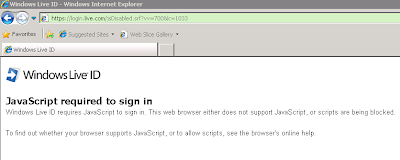 Solution:
1. Open Server Manager
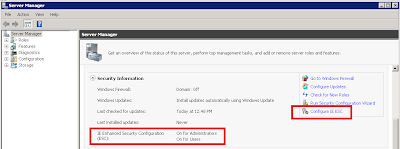
2. Turn Off the Internet Explorer Enhanced Security Configuration for Administrators and Users.
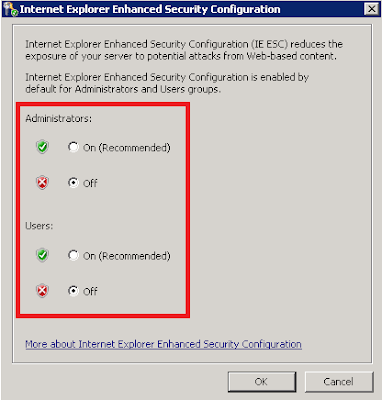
On a Windows Server 2008 system, JavaScript is being blocked in Internet Explorer.
 Solution:
1. Open Server Manager
- Start > Control Panel
- Programs > Turn Windows features on or off
- Server Manager
- Put the cursor on the root node called, "Server Manager"

2. Turn Off the Internet Explorer Enhanced Security Configuration for Administrators and Users.

Wednesday, February 10, 2010
FAST and Windows: A Blessing for Innovation
In a recent post on the Microsoft Enterprise Search Blog, Bjørn Olstad (CTO of FAST) published a post titled, Innovation on Linux and UNIX, which explains the longer term technology strategy for FAST with respect to supported operating systems. The post describes an increased focus of innovation for the product, for Windows operating system installations, while gradually deprecating support for Linux and Unix installations.
I can sort of understand the negative reactions to this announcement and the notion that customers may turn to other search platforms to maintain their Linux/Unix operating standards. However, I believe that this is a truly good decision by Microsoft, which will result in a higher quality product.
The reality is; in order to push innovation of the search platform forward beyond its current boundaries of functionality and performance, it is an inherihent requirement that the low level levels of the architecture be tightly bonded with the operating system. By not making this long term decision, a forced common denomintor is then imposed on the platform at higher levels of the architecture, ultimately inhibiting the product. Multiple OS support for installations actually sets the platform back. We've seen this as recent as 5.3 when we are required to install FAST ESP as a 32 bit application along with Java runtime 32 bit. This is a 64 bit world now, get with the program.
My sense is that the product roadmap will offer great improvements in the document processor and query processor pipelines, linguistics, user experience, etc. These improvements are required to allow search to become the leading functional component for indexing, transforming, and presenting not only content but navigation, functional components, and structures on Web sites. The relationship that search platforms will have with tomorrow's Web applciations, is comparable to the relationship that relational databases have with yesterday's Web sites. This innovation simply cannot afford to be spread thin.
I can sort of understand the negative reactions to this announcement and the notion that customers may turn to other search platforms to maintain their Linux/Unix operating standards. However, I believe that this is a truly good decision by Microsoft, which will result in a higher quality product.
The reality is; in order to push innovation of the search platform forward beyond its current boundaries of functionality and performance, it is an inherihent requirement that the low level levels of the architecture be tightly bonded with the operating system. By not making this long term decision, a forced common denomintor is then imposed on the platform at higher levels of the architecture, ultimately inhibiting the product. Multiple OS support for installations actually sets the platform back. We've seen this as recent as 5.3 when we are required to install FAST ESP as a 32 bit application along with Java runtime 32 bit. This is a 64 bit world now, get with the program.
My sense is that the product roadmap will offer great improvements in the document processor and query processor pipelines, linguistics, user experience, etc. These improvements are required to allow search to become the leading functional component for indexing, transforming, and presenting not only content but navigation, functional components, and structures on Web sites. The relationship that search platforms will have with tomorrow's Web applciations, is comparable to the relationship that relational databases have with yesterday's Web sites. This innovation simply cannot afford to be spread thin.
Tuesday, February 09, 2010
Links: Windows PowerShell compiled Help for SharePoint Server 2010
I am relieved that Microsoft has published PowerShell help files for SharePoint. The help files will certainly come in handy. These are available for download:
Windows PowerShell compiled Help for SharePoint Server 2010
http://www.microsoft.com/downloads/details.aspx?FamilyID=045f7af5-b226-4a05-8ace-4e17cfdef856&displaylang=en
This site contains separate help file (.chm) downloads for:
· Access Services
· ECM
· Excel Services
· InfoPath
· PerformancePoint
· Search
· Secure Store
· SharePoint Foundation Search
· SharePoint Products
· State Service
· User Profile
· Visio Services
· Web Analytics
· Word Services
Monday, February 01, 2010
Strange Computer Virus
This might be the first time I am posting a computer cleanup instruction on this blog, but I feel compelled since several people around me have been complaining about a common set of symptoms hitting their computers recently. I thought I could share some steps that a colleague took to successfully clean an infected system.
DISCLAIMER:
The purpose of this post is for informational purposes only and to share some steps performed on an infected system to fix a computer virus, related to symptoms described in the Problem section of this post. I don't know the name of the virus at this time. And, please don't go and modify the registry unless you know what you are doing.
Description:
System virus, automatically redirects internet explorer to a site that requests purchase of an anti-virus product. Task manager becomes blocked and inaccessible.
Solution:
Part I
* Boot the infected system and at the BIOS Press [F8] (Prior to Windows Displaying)
* Select “Safe Mode”
* Log in with the local administrator account
* Start, Run, Type MSCONFIG, and click OK
* Open Windows Explorer, and invoke the file property view and select “show hide files..”
* Look for a strange file type without much detail pointing directly to a user profile, sub to the application directory. Eg. “Document and Settings” > “User Profile”…..”
* Deselect the file and write the file name down. This will prevent it from launching during start up.
* Reboot into Safe Mode again.
* Log in as the local Administrator account.
* Browse to: “Document and Settings” > “User Profile”….. abs search for file name written down in the previous step.
Part II
* On a separate computer, download ATF-Cleaner
http://www.atribune.org/index.php?option=com_content&task=view&id=25&Itemid=25
* Copy ATF-Cleaner.exe to a USB drive so that you can move it onto the infected system
* Copy ATF-Cleaner.exe to the desktop of the infected system
* Double-click and run ATF-Cleaner.exe
* Click “Select and Delete All”
* Now review search results and delete directory where file is contained.
* Open Regedit – and Export a copy of the registry
* Select Edit > Find and Search for file.
* Delete file reference key
* Reboot
* Login in Windows in normal mode and test
DISCLAIMER:
The purpose of this post is for informational purposes only and to share some steps performed on an infected system to fix a computer virus, related to symptoms described in the Problem section of this post. I don't know the name of the virus at this time. And, please don't go and modify the registry unless you know what you are doing.
Description:
System virus, automatically redirects internet explorer to a site that requests purchase of an anti-virus product. Task manager becomes blocked and inaccessible.
Solution:
Part I
* Boot the infected system and at the BIOS Press [F8] (Prior to Windows Displaying)
* Select “Safe Mode”
* Log in with the local administrator account
* Start, Run, Type MSCONFIG, and click OK
* Open Windows Explorer, and invoke the file property view and select “show hide files..”
* Look for a strange file type without much detail pointing directly to a user profile, sub to the application directory. Eg. “Document and Settings” > “User Profile”…..”
* Deselect the file and write the file name down. This will prevent it from launching during start up.
* Reboot into Safe Mode again.
* Log in as the local Administrator account.
* Browse to: “Document and Settings” > “User Profile”….. abs search for file name written down in the previous step.
Part II
* On a separate computer, download ATF-Cleaner
http://www.atribune.org/index.php?option=com_content&task=view&id=25&Itemid=25
* Copy ATF-Cleaner.exe to a USB drive so that you can move it onto the infected system
* Copy ATF-Cleaner.exe to the desktop of the infected system
* Double-click and run ATF-Cleaner.exe
* Click “Select and Delete All”
* Now review search results and delete directory where file is contained.
* Open Regedit – and Export a copy of the registry
* Select Edit > Find and Search for file.
* Delete file reference key
* Reboot
* Login in Windows in normal mode and test
Subscribe to:
Posts (Atom)


