Customizing Enterprise Search Results
http://msdn2.microsoft.com/en-us/library/ms550732.aspx
Enterprise Search Core Results XSLT Transformation
http://msdn2.microsoft.com/en-us/library/ms584121.aspx
How to: Change the Properties Returned in the Core Search Results
http://msdn2.microsoft.com/en-us/library/ms560074.aspx
How to: View and Edit the Search Results XSLT Transformation
http://msdn2.microsoft.com/en-us/library/ms544191.aspx
Sample: Search Core Results Web Part XSLT
http://msdn2.microsoft.com/en-us/library/ms562390.aspx
Sunday, July 22, 2007


Links: SharePoint V3: Search: BDC
Enabling Business Data Search
http://msdn2.microsoft.com/en-us/library/ms492695.aspx
SharePoint 2007: BDC - User Profiles
http://blah.winsmarts.com/2007-4-SharePoint_2007__BDC_-_User_Profiles.aspx
Walkthrough: Configuring Search for the AdventureWorks Business Data Application Sample
http://msdn2.microsoft.com/en-us/library/ms493671.aspx
http://msdn2.microsoft.com/en-us/library/ms492695.aspx
SharePoint 2007: BDC - User Profiles
http://blah.winsmarts.com/2007-4-SharePoint_2007__BDC_-_User_Profiles.aspx
Walkthrough: Configuring Search for the AdventureWorks Business Data Application Sample
http://msdn2.microsoft.com/en-us/library/ms493671.aspx
Links: SharePoint V3: Search: Search Center
Adding Properties to MOSS Advanced Search
http://www.codeproject.com/spoint/MOSS_Advanced_Search.asp?print=true
How to: Change the Properties Returned in the Core Search Results
http://msdn2.microsoft.com/en-us/library/ms560074.aspx
How to: Display a Search Scope in the Search Box and Advanced Search Web Parts
http://msdn2.microsoft.com/en-us/library/ms498872.aspx
Walkthrough: Add a Tab and Custom Search Page with Enterprise Search Web Parts to the Search Center
http://msdn2.microsoft.com/en-us/library/ms584031.aspx
http://www.codeproject.com/spoint/MOSS_Advanced_Search.asp?print=true
How to: Change the Properties Returned in the Core Search Results
http://msdn2.microsoft.com/en-us/library/ms560074.aspx
How to: Display a Search Scope in the Search Box and Advanced Search Web Parts
http://msdn2.microsoft.com/en-us/library/ms498872.aspx
Walkthrough: Add a Tab and Custom Search Page with Enterprise Search Web Parts to the Search Center
http://msdn2.microsoft.com/en-us/library/ms584031.aspx
Links: SharePoint V3: Search: Planning
Plan search (Office SharePoint Server)
http://technet2.microsoft.com/Office/en-us/library/e8c0fccd-8364-4352-8778-c9c46a668b701033.mspx
Plan for administrative and service accounts (Office SharePoint Server
http://technet2.microsoft.com/Office/en-us/library/f07768d4-ca37-447a-a056-1a67d93ef5401033.mspx?mfr=true
MOSS Search - Customer Proof of Concept Scoping and Typical Tasks
http://blogs.msdn.com/miketag/archive/2007/01/18/moss-search-customer-proof-of-concept-scoping-and-typical-tasks.aspx
SharePoint Deployment Capacity & Performance Planning 2003 & 2007
http://blogs.msdn.com/joelo/archive/2006/07/19/671789.aspx
Estimate performance and capacity requirements for search environments
http://technet2.microsoft.com/Office/en-us/library/5465aa2b-aec3-4b87-bce0-8601ff20615e1033.mspx?mfr=true
Estimate performance and capacity requirements for Internet environments (Office SharePoint Server)
http://technet2.microsoft.com/Office/en-us/library/45997bad-da15-4442-8727-78e0f2dc5a9c1033.mspx?mfr=true
Estimate MOSS Search Disk Space Requirements
http://blogs.msdn.com/miketag/archive/2007/07/05/estimate-moss-search-disk-space-requirements.aspx
http://technet2.microsoft.com/Office/en-us/library/e8c0fccd-8364-4352-8778-c9c46a668b701033.mspx
Plan for administrative and service accounts (Office SharePoint Server
http://technet2.microsoft.com/Office/en-us/library/f07768d4-ca37-447a-a056-1a67d93ef5401033.mspx?mfr=true
MOSS Search - Customer Proof of Concept Scoping and Typical Tasks
http://blogs.msdn.com/miketag/archive/2007/01/18/moss-search-customer-proof-of-concept-scoping-and-typical-tasks.aspx
SharePoint Deployment Capacity & Performance Planning 2003 & 2007
http://blogs.msdn.com/joelo/archive/2006/07/19/671789.aspx
Estimate performance and capacity requirements for search environments
http://technet2.microsoft.com/Office/en-us/library/5465aa2b-aec3-4b87-bce0-8601ff20615e1033.mspx?mfr=true
Estimate performance and capacity requirements for Internet environments (Office SharePoint Server)
http://technet2.microsoft.com/Office/en-us/library/45997bad-da15-4442-8727-78e0f2dc5a9c1033.mspx?mfr=true
Estimate MOSS Search Disk Space Requirements
http://blogs.msdn.com/miketag/archive/2007/07/05/estimate-moss-search-disk-space-requirements.aspx
Friday, July 13, 2007
SharePoint V1, V2, V3: SharePoint Web Site Prompts User For Windows Credentials
Description:
SharePoint web site prompts user for Windows credentials
Solution:
Open Internet Explorer
Tools
Internet Options
Security Tab
Highlight "Local Intranet"
Click Sites
Add SharePoint URLs
Click Close to close Local Intranet
Highlight "Local Intranet"
Click Custom Level
Scroll to the option User "Authentication: Logon"
Set this to "Automatic logon only in Intranet zone"
Click OK to close Security Settings
Click OK to close Internet Options
Navigate Internet Explorer to SharePoint URL
SharePoint web site prompts user for Windows credentials
Solution:
Open Internet Explorer
Tools
Internet Options
Security Tab
Highlight "Local Intranet"
Click Sites
Add SharePoint URLs
Click Close to close Local Intranet
Highlight "Local Intranet"
Click Custom Level
Scroll to the option User "Authentication: Logon"
Set this to "Automatic logon only in Intranet zone"
Click OK to close Security Settings
Click OK to close Internet Options
Navigate Internet Explorer to SharePoint URL
WhitePaper: Microsoft Office Programs and SharePoint Products and Technologies Integration Fair, Good, Better, Best
This document compares the user experiences of Office 2007 and Office 2003 as it relates to SharePoint 2007 integration. It summarizes the benefits of Office 2007. This information is helpful for anybody with SharePoint 2007 who might be considering an upgrade to Office 2007, or maybe somebody who already has upgraded to Office 2007 and wants to understand the SharePoint 2007 integration features available to them.
WhitePaper: Microsoft Office Programs and SharePoint Products and Technologies Integration Fair, Good, Better, Best
WhitePaper: Microsoft Office Programs and SharePoint Products and Technologies Integration Fair, Good, Better, Best
Thursday, July 12, 2007
SharePoint V3: Configuring the "I Need To..." Web Part
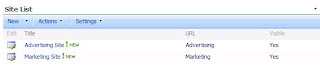
* Create a custom list (e.g. Site List) with the following columns:
Title (single line of text)
URL (hyperlink)
Visable (choice, checkbox, yes is only option, yes is default value)
* Add the "I Need To..." web part to a web page
* Modify Shared Web Part
* Click the Change button and set the following fields:
Select custom list (e.g. Site List)
Filter Field: Visible
Filter Value: Yes
Title (single line of text)
URL (hyperlink)
Visable (choice, checkbox, yes is only option, yes is default value)

* Add the "I Need To..." web part to a web page
* Modify Shared Web Part
* Click the Change button and set the following fields:
Select custom list (e.g. Site List)
Filter Field: Visible
Filter Value: Yes

Thursday, July 05, 2007
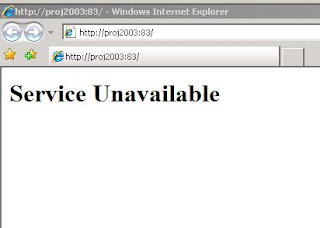
SharePoint V2, V3: Error: Service Unavailable
Description:
* This applies to: WSS 2.0, WSS 3.0, SPS2003, MOSS2007
* Service account password had changed.
* Site returns error: "Service Unavailable"
Solution:
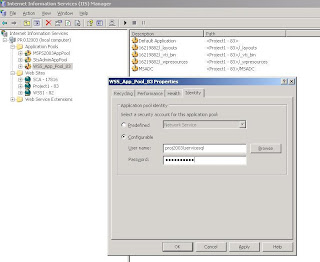
IIS Manager > Application Pool Properties > Identity Tab
* Update the service account and password
Start > Run
* IISRESET /noforce
Start > Programs > Administrative Tools > Services
* Update user name and password for any other services registered with this user account
* Restart the updated services
* This applies to: WSS 2.0, WSS 3.0, SPS2003, MOSS2007
* Service account password had changed.
* Site returns error: "Service Unavailable"

Solution:
IIS Manager > Application Pool Properties > Identity Tab
* Update the service account and password

Start > Run
* IISRESET /noforce
Start > Programs > Administrative Tools > Services
* Update user name and password for any other services registered with this user account
* Restart the updated services
Thursday, June 28, 2007
SharePoint V3: Site Images Appear as Red X
Description:
After logging into a SharePoint Web Application, the site images show as red x.

Solution:
* IIS Manager > Application Pool Properties for Web Application > Identity
* Select "Configurable" radio button
* For user name and password, type the domain\username and password of a farm service account
* Run IIS Reset

After logging into a SharePoint Web Application, the site images show as red x.

Solution:
* IIS Manager > Application Pool Properties for Web Application > Identity
* Select "Configurable" radio button
* For user name and password, type the domain\username and password of a farm service account
* Run IIS Reset

SharePoint V3: Error: Access Denied When Clicking User Profiles and Properties in SSP
Description:
Shared Service Provider > User Profiles and Properties
Error: Access Denied


Solution:
Log into Shared Service Provider web application using an administrator account. In Actions > Site Settings > All Site Settings > Advanced Permissions, add the users to the access list for the site and assign permissions. In Actions > Site Settings > All Site Settings > Site Collection Owners, add the user account as a site collection owner if desired.
Shared Service Provider > User Profiles and Properties
Error: Access Denied


Solution:
Log into Shared Service Provider web application using an administrator account. In Actions > Site Settings > All Site Settings > Advanced Permissions, add the users to the access list for the site and assign permissions. In Actions > Site Settings > All Site Settings > Site Collection Owners, add the user account as a site collection owner if desired.
Wednesday, June 13, 2007
SharePoint V2: How to Configure and View Diagnostic Logs for Search in SharePoint Portal Server 2003
Configuring:
Central Admin > Component Configuration > Configure Diagnostic Settings

Under Logging Settings, highlight Search Service and click Edit

Modify the logging level (remember to go back afterwards and set it back to avoid using disk space unnecessarily)

Viewing:
Under View Diagnostic Logs, highlight the most recent search log and click View

Central Admin > Component Configuration > Configure Diagnostic Settings

Under Logging Settings, highlight Search Service and click Edit

Modify the logging level (remember to go back afterwards and set it back to avoid using disk space unnecessarily)

Viewing:
Under View Diagnostic Logs, highlight the most recent search log and click View

Monday, June 11, 2007
Links: SharePoint V3: What every SharePoint administrator needs to know about Alternate Access Mappings
Thursday, June 07, 2007
SharePoint V3: Error Importing User Profiles
Description:
In Microsoft Office SharePoint Server 2007, after initiating a full user profile import, the user profiles fail to import and the crawl log contains the following error:
"The specified domain either does not exist or could not be contacted. (Exception from HRESULT: 0x8007054B)"
Solution:
Adding WINS addresses to the LAN Connection properties corrected this issue.
1.
From the Index server: Control Panel > Network Connections > LAN Connection Properties > WINS tab
Add WINS server addresses
2.
SSP Admin > User Profile and Properties > Import
Perform user profile import
Verify import is successful
In Microsoft Office SharePoint Server 2007, after initiating a full user profile import, the user profiles fail to import and the crawl log contains the following error:
"The specified domain either does not exist or could not be contacted. (Exception from HRESULT: 0x8007054B)"
Solution:
Adding WINS addresses to the LAN Connection properties corrected this issue.
1.
From the Index server: Control Panel > Network Connections > LAN Connection Properties > WINS tab
Add WINS server addresses
2.
SSP Admin > User Profile and Properties > Import
Perform user profile import
Verify import is successful
Wednesday, June 06, 2007
SharePoint V2: Adding a New Portal to an SPS 2003 Server Farm
Description:
This blog post explains how to add a new portal to a SharePoint Portal Server 2003 farm having two front end web servers.
Solution:
Web Server #1
* From Windows Explorer: Create a directory on a non operating sytem drive to be used for the new IIS web site.
* From IIS Manager: Create a new web site, using the new directory as the home directory. Disable anonymous access.
* From SharePoint Portal Server 2003 Central Administration:
SharePoint Portal Server > Portal Site and Virtual Server Configuration > Create a Portal
Site Name: Give the portal a name, consider using host header or port number in name.
Virtual Server: Select the new IIS web site. Site URL: e.g. http://webserver1:port
Account Name, Email Address
Web Server #2
* From Windows Explorer: Create a directory on a non operating sytem drive to be used for the new IIS web site.
* From IIS Manager: Create a new web site, using the new directory as the home directory. Disable anonymous access.
* From SharePoint Portal Server 2003 Central Administration:
Windows SharePoint Services > Virtual Server Configuration > Extend or Upgrade Virtual Server Provisioning Options > Extend and map to another virtual server Current
Virtual Server: Verify this is set to the web site you want to extend
Server Mapping: Select the virtual server that was created on web server #1 Wait for refresh cache on the other serverse to succeed and click ok.
This blog post explains how to add a new portal to a SharePoint Portal Server 2003 farm having two front end web servers.
Solution:
Web Server #1
* From Windows Explorer: Create a directory on a non operating sytem drive to be used for the new IIS web site.
* From IIS Manager: Create a new web site, using the new directory as the home directory. Disable anonymous access.
* From SharePoint Portal Server 2003 Central Administration:
SharePoint Portal Server > Portal Site and Virtual Server Configuration > Create a Portal
Site Name: Give the portal a name, consider using host header or port number in name.
Virtual Server: Select the new IIS web site. Site URL: e.g. http://webserver1:port
Account Name, Email Address
Web Server #2
* From Windows Explorer: Create a directory on a non operating sytem drive to be used for the new IIS web site.
* From IIS Manager: Create a new web site, using the new directory as the home directory. Disable anonymous access.
* From SharePoint Portal Server 2003 Central Administration:
Windows SharePoint Services > Virtual Server Configuration > Extend or Upgrade Virtual Server Provisioning Options > Extend and map to another virtual server Current
Virtual Server: Verify this is set to the web site you want to extend
Server Mapping: Select the virtual server that was created on web server #1 Wait for refresh cache on the other serverse to succeed and click ok.
Tuesday, June 05, 2007
SharePoint V3: Configuring the Author Managed Property
Description:
This blog post explains how to configure the Author managed property so that it may be used effectively in Search within an Office SharePoint Server 2007 environment.
Solution:
SSP Admin > Search Settings > Metadata Property Mappings > Managed Properties > Author
Step 1
Set the "Mappings to crawled properties" radio button to "Include values from a single crawled property based on the order specified." It is common to expose the Author property in search results, so don't "include all values from crawled properties mapped" because your search results will end up with mulitple names listed beside the search result and it will be difficult to distinguish which is really the author.
Step 2
Map the most relevant crawled properties to the Author managed property, and position them in the best possible sequence. Obviously, if authors are truly dilligent about maintaining the Office document Author property within the document itself , then this is best candidate for first position. However, in many organizations, this property is not actively maintained. SharePoint's Created By property isn't always an accurate indicator of who actually created the document, so this one also tends to fail as being a reliable first position candidate. In many cases, the best thing to do is to create a custom Author site column, make it required, and add it to all document content types. Then, map the corresponding crawled property as first position. This ensures that the Author information will be maintained to some degree by people touching the documents.
Once the first position is set, then add and order the subsequent crawled properties.

This blog post explains how to configure the Author managed property so that it may be used effectively in Search within an Office SharePoint Server 2007 environment.
Solution:
SSP Admin > Search Settings > Metadata Property Mappings > Managed Properties > Author
Step 1
Set the "Mappings to crawled properties" radio button to "Include values from a single crawled property based on the order specified." It is common to expose the Author property in search results, so don't "include all values from crawled properties mapped" because your search results will end up with mulitple names listed beside the search result and it will be difficult to distinguish which is really the author.
Step 2
Map the most relevant crawled properties to the Author managed property, and position them in the best possible sequence. Obviously, if authors are truly dilligent about maintaining the Office document Author property within the document itself , then this is best candidate for first position. However, in many organizations, this property is not actively maintained. SharePoint's Created By property isn't always an accurate indicator of who actually created the document, so this one also tends to fail as being a reliable first position candidate. In many cases, the best thing to do is to create a custom Author site column, make it required, and add it to all document content types. Then, map the corresponding crawled property as first position. This ensures that the Author information will be maintained to some degree by people touching the documents.
Once the first position is set, then add and order the subsequent crawled properties.

SharePoint V2: Error: Upgrade Pre-Scan Error, Orphaned Site
Description:
During preparation for an upgrade to Microsoft Office SharePoint Server 2007, after running prescan.exe on a SharePoint Portal Server 2003 environment, the pre-upgrade report lists an error such as the one below.
06/04/2007 16:26:59 Error: Cannot get content database Id for SPSite: http://servername/sites/sitename
06/04/2007 16:26:59 Microsoft.SharePoint.SPException: There is no Web named "/sites/sitename". ---> System.Runtime.InteropServices.COMException (0x81070504): There is no Web named "/sites/sitename". at Microsoft.SharePoint.Library.SPRequestInternalClass.OpenSite(String bstrUrl, Boolean bGetUrlOnly, String& pbstrServerRelativeUrl, Guid& pgSiteId, Int32& pOwnerID, Int32& pSecondaryContactID, DateTime& pdtLastContentChange, DateTime& pdtLastSecurityChange) at Microsoft.SharePoint.Library.a.a(String A_0, Boolean A_1, String& A_2, Guid& A_3, Int32& A_4, Int32& A_5, DateTime& A_6, DateTime& A_7) --- End of inner exception stack trace --- at Microsoft.SharePoint.Library.a.a(String A_0, Boolean A_1, String& A_2, Guid& A_3, Int32& A_4, Int32& A_5, DateTime& A_6, DateTime& A_7) at Microsoft.SharePoint.SPSite.c() at Microsoft.SharePoint.SPSite.get_ID() at Microsoft.SharePoint.PreupgradeReport.Scan.GetContentDBBySite(SPSite site, SPVirtualServer vs)
Solution:
Windows SharePoint Services 2.0 and SharePoint Portal Server 2003 each have their own approach to cleaning up orphaned records. The KB articles below provide information on related hotfixes and explain how to use command line utilities to clean up corrupted databases.
Windows SharePoint Services 2.0
http://support.microsoft.com/kb/924881
http://support.microsoft.com/kb/918744
From: \program files\common files\microsoft shared\web server extensions\60\bin
To Detect: stsadm -o databaserepair -url http://ServerName -databasename DatabaseName
To Repair: stsadm -o databaserepair -url http://ServerName -databasename DatabaseName -deletecorruption
SharePoint Portal Server 2003
http://support.microsoft.com/kb/919175
http://support.microsoft.com/kb/918742
From: \programfiles\Sharepoint Portal Server\Bin
To Repair: spsadm repairorphans http://ServerName
During preparation for an upgrade to Microsoft Office SharePoint Server 2007, after running prescan.exe on a SharePoint Portal Server 2003 environment, the pre-upgrade report lists an error such as the one below.
06/04/2007 16:26:59 Error: Cannot get content database Id for SPSite: http://servername/sites/sitename
06/04/2007 16:26:59 Microsoft.SharePoint.SPException: There is no Web named "/sites/sitename". ---> System.Runtime.InteropServices.COMException (0x81070504): There is no Web named "/sites/sitename". at Microsoft.SharePoint.Library.SPRequestInternalClass.OpenSite(String bstrUrl, Boolean bGetUrlOnly, String& pbstrServerRelativeUrl, Guid& pgSiteId, Int32& pOwnerID, Int32& pSecondaryContactID, DateTime& pdtLastContentChange, DateTime& pdtLastSecurityChange) at Microsoft.SharePoint.Library.a.a(String A_0, Boolean A_1, String& A_2, Guid& A_3, Int32& A_4, Int32& A_5, DateTime& A_6, DateTime& A_7) --- End of inner exception stack trace --- at Microsoft.SharePoint.Library.a.a(String A_0, Boolean A_1, String& A_2, Guid& A_3, Int32& A_4, Int32& A_5, DateTime& A_6, DateTime& A_7) at Microsoft.SharePoint.SPSite.c() at Microsoft.SharePoint.SPSite.get_ID() at Microsoft.SharePoint.PreupgradeReport.Scan.GetContentDBBySite(SPSite site, SPVirtualServer vs)
Solution:
Windows SharePoint Services 2.0 and SharePoint Portal Server 2003 each have their own approach to cleaning up orphaned records. The KB articles below provide information on related hotfixes and explain how to use command line utilities to clean up corrupted databases.
Windows SharePoint Services 2.0
http://support.microsoft.com/kb/924881
http://support.microsoft.com/kb/918744
From: \program files\common files\microsoft shared\web server extensions\60\bin
To Detect: stsadm -o databaserepair -url http://ServerName -databasename DatabaseName
To Repair: stsadm -o databaserepair -url http://ServerName -databasename DatabaseName -deletecorruption
SharePoint Portal Server 2003
http://support.microsoft.com/kb/919175
http://support.microsoft.com/kb/918742
From: \programfiles\Sharepoint Portal Server\Bin
To Repair: spsadm repairorphans http://ServerName
Friday, June 01, 2007
SharePoint V3: MOSS 2007 Search: How to Index Lotus Notes Content
I recently configured MOSS Search to index Lotus Notes. Here is an overview of the process.
Preparation:
* Lotus Notes server name
* Lotus Notes database file name
* List of fields you want to display in search results
* Notes user logon file (e.g. user.id)
* User credentials for installing Notes client
Steps:
* Install Lotus Notes Client 6.0 to the SharePoint Index Server
* From the index server, share the c:\program files\lotus\notes\data directory allowing WSS_WPG group access
* From an existing workstation, copy a valid user id file to index server c:\program files\lotus\notes\data
* Download the Lotus C++ API Toolkit 3.0I* Extract the files* Copy lcppn30i.dll to the index server, c:\program files\microsoft office servers\12.0\bin
* Rename 1cppn30i.dll to 1cppn30.dll
* From index server, c:\program files\microsoft office servers\12.0\bin, execute notessetup.exe
* Specify the server name, database file, view, etc.
* From index server, cmd prompt, net stop osearch, then net start osearch
* SSP Admin > Search Settings > Content Sources: Configure content source for Lotus Notes
* SSP Admin > Search Settings > Scopes: Configure scope for Lotus Notes content source
* SSP Admin > Search Settings > MetaData Property Mappings: Create managed properties for those Lotus Notes properties that you want to search or display in search results
* Search Center: Configure the search web parts and search results web parts (and related xml files) to display useful field when the search result item is coming from the Lotus content source
Lessons:
* The notessetup.exe won't work with the 1cppn30i.dll file name, need to rename it to 1cppn30.dll
* I used 6.0 Notes Client, because Notes Client 6.5 did not create a data directory
References:
* Configure Office SharePoint Server Search to crawl Lotus Notes (Office SharePoint Server 2007 for Search)
* Using SharePoint 2007 to Index Lotus
* Secure crawls of Lotus Notes with SharePoint
* How to Configure Search to Honor Lotus Notes Security Settings
* MOSS2007 Search and Index Lotus Notes
* IBM software downloads (for Lotus C++ API ToolKit)
Preparation:
* Lotus Notes server name
* Lotus Notes database file name
* List of fields you want to display in search results
* Notes user logon file (e.g. user.id)
* User credentials for installing Notes client
Steps:
* Install Lotus Notes Client 6.0 to the SharePoint Index Server
* From the index server, share the c:\program files\lotus\notes\data directory allowing WSS_WPG group access
* From an existing workstation, copy a valid user id file to index server c:\program files\lotus\notes\data
* Download the Lotus C++ API Toolkit 3.0I* Extract the files* Copy lcppn30i.dll to the index server, c:\program files\microsoft office servers\12.0\bin
* Rename 1cppn30i.dll to 1cppn30.dll
* From index server, c:\program files\microsoft office servers\12.0\bin, execute notessetup.exe
* Specify the server name, database file, view, etc.
* From index server, cmd prompt, net stop osearch, then net start osearch
* SSP Admin > Search Settings > Content Sources: Configure content source for Lotus Notes
* SSP Admin > Search Settings > Scopes: Configure scope for Lotus Notes content source
* SSP Admin > Search Settings > MetaData Property Mappings: Create managed properties for those Lotus Notes properties that you want to search or display in search results
* Search Center: Configure the search web parts and search results web parts (and related xml files) to display useful field when the search result item is coming from the Lotus content source
Lessons:
* The notessetup.exe won't work with the 1cppn30i.dll file name, need to rename it to 1cppn30.dll
* I used 6.0 Notes Client, because Notes Client 6.5 did not create a data directory
References:
* Configure Office SharePoint Server Search to crawl Lotus Notes (Office SharePoint Server 2007 for Search)
* Using SharePoint 2007 to Index Lotus
* Secure crawls of Lotus Notes with SharePoint
* How to Configure Search to Honor Lotus Notes Security Settings
* MOSS2007 Search and Index Lotus Notes
* IBM software downloads (for Lotus C++ API ToolKit)
Monday, May 21, 2007
SharePoint V3: Fresh MOSS 2007 Search Configuration for Medium Server Farm
Description
After configuring and starting MOSS Search, you wish to have a clean configuration. Maybe the indexing process doesn't seem to be working correctly. Or, perhaps there are issues with the propogated index share folder. Or, maybe the crawler doesn't seem to complete its process. Or, maybe the first time around you forgot about your database naming convention and you want to rename the search database to something more relevant. Whatever the issue or reason, the solution below offers a way to gain a fresh start with MOSS search configuration. This solution creates a new search database, it clears the index and propogated index file shares and creates new ones.
Solution
From each of the search servers
* Start > Run > CMD
* net stop osearch
From each of the query servers
* Central Admin > Services on Server
* Stop/Remove MOSS Search (query) from each of the query search servers
From the index server
* Central Admin > Services on Server
* Stop/Remove MOSS search (index)
From the index server
* Central Admin > Services on server
* Note the database name
* Stop/Remove WSS search
From the index server
* Central Admin > Services on server
* Start/Add the WSS Search (this requires creating a new db)
From the index server
* Central Admin > Services on server
* Start/Add the MOSS Search (select only the index checkbox)
From each of the query servers
* Central Admin > Services on server
* Start/Add MOSS Search (select only the query checkbox)
From the SSP
* SSP Admin > User Profiles
* Verify that user profiles have been imported
From the SSP
* SSP Admin > Search Settings
* Verify all content sources, crawl rules, schedules, scopes are configured properly
* Perform a full crawl of content
After configuring and starting MOSS Search, you wish to have a clean configuration. Maybe the indexing process doesn't seem to be working correctly. Or, perhaps there are issues with the propogated index share folder. Or, maybe the crawler doesn't seem to complete its process. Or, maybe the first time around you forgot about your database naming convention and you want to rename the search database to something more relevant. Whatever the issue or reason, the solution below offers a way to gain a fresh start with MOSS search configuration. This solution creates a new search database, it clears the index and propogated index file shares and creates new ones.
Solution
From each of the search servers
* Start > Run > CMD
* net stop osearch
From each of the query servers
* Central Admin > Services on Server
* Stop/Remove MOSS Search (query) from each of the query search servers
From the index server
* Central Admin > Services on Server
* Stop/Remove MOSS search (index)
From the index server
* Central Admin > Services on server
* Note the database name
* Stop/Remove WSS search
From the index server
* Central Admin > Services on server
* Start/Add the WSS Search (this requires creating a new db)
From the index server
* Central Admin > Services on server
* Start/Add the MOSS Search (select only the index checkbox)
From each of the query servers
* Central Admin > Services on server
* Start/Add MOSS Search (select only the query checkbox)
From the SSP
* SSP Admin > User Profiles
* Verify that user profiles have been imported
From the SSP
* SSP Admin > Search Settings
* Verify all content sources, crawl rules, schedules, scopes are configured properly
* Perform a full crawl of content
SharePoint Error: Service Unavailable
Description:
Users receive "Service Unavailable" error when they point their browsers at the SharePoint site
Solution:
* Administrative Tools > Services > SQL Server Service > Log On Tab
Set the identity to a domain user account
Restart the service
* IIS Manager > Application Pools > Application Pool Properties > Identity Tab
Set the identity to a domain user account (e.g. use same as sql server service account)
* Start > Run > IISReset
See Also:
Microsoft Support KB973917: Description of the update that implements Extended Protection for Authentication in Internet Information Services (IIS) http://support.microsoft.com/kb/973917
Users receive "Service Unavailable" error when they point their browsers at the SharePoint site
Solution:
* Administrative Tools > Services > SQL Server Service > Log On Tab
Set the identity to a domain user account
Restart the service
* IIS Manager > Application Pools > Application Pool Properties > Identity Tab
Set the identity to a domain user account (e.g. use same as sql server service account)
* Start > Run > IISReset
See Also:
Microsoft Support KB973917: Description of the update that implements Extended Protection for Authentication in Internet Information Services (IIS) http://support.microsoft.com/kb/973917
SharePoint V3: MOSS 2007 People Search Scope, 0 Items
Description:
MOSS 2007 Search is configured but the People scope contains zero items.
Solution:
* SSP Admin > User Profiles and Properties
Verify that user profiles have been imported by looking at the number of profiles
* SSP Admin > Search Settings > Scopes > Scope Properties and Rules
Delete existing rules
Create a new rule where contentclass = urn:content-class:SPSPeople
Set the new rule behavior to "Require"
* SSP Admin > Search Settings > Scopes
Start Update Now
MOSS 2007 Search is configured but the People scope contains zero items.
Solution:
* SSP Admin > User Profiles and Properties
Verify that user profiles have been imported by looking at the number of profiles
* SSP Admin > Search Settings > Scopes > Scope Properties and Rules
Delete existing rules
Create a new rule where contentclass = urn:content-class:SPSPeople
Set the new rule behavior to "Require"
* SSP Admin > Search Settings > Scopes
Start Update Now
Monday, April 30, 2007
SharePoint V3 Error: The search request was unable to connect to the Search Service
Description:
After modifying SharePoint service account identities, searching results in the error: "The search request was unable to connect to the Search Service."

After modifying SharePoint service account identities, searching results in the error: "The search request was unable to connect to the Search Service."

Solution:
* IIS Manager > Application Pools > App Pool Properties > Identity Tab:
Set the user name and password to the SharePoint Service Account identity
* Start > Run > IISRESET /noforce
* IIS Manager > Application Pools > App Pool Properties > Identity Tab:
Set the user name and password to the SharePoint Service Account identity
* Start > Run > IISRESET /noforce

Wednesday, April 25, 2007
SharePoint V3: A MOSS 2007 Extranet Scenario of an Internal Parent Site Having Multiple Extranet Sub-Sites
One common extranet configuration of MOSS 2007 is when an organization sets up an internal-only site collection but has multiple external facing sub-sites (perhaps for clients or projects). I have created a sample configuration for this design using a fictitious company called “Wharf Technologies.” This example assumes the following:
* There is one set of internal users (e.g. Wharf employees)
* There are multiple sets of external users (e.g. clients)
* Users and groups are managed in Active Directory
* There is one root site collection called “Wharf Technologies Portal”
* There are many client sub-sites, one per client
* Wharf employees are supposed to have access to the Wharf Technologies Portal, plus all of the client sub-sites
* Wharf clients are not supposed to have access to the Wharf Technologies Portal; they should only have access to their client site
* For demonstration purposes, one of the client organizations is called Awesome Computers
* The Site Collection Administrators and Portal Owners have already been provisioned on the Wharf Technologies Portal
* The URL for the Wharf Technologies Portal is http://portal.wharf.com
* The Awesome Computers sub-site has already been created, the URL is http://portal.wharf.com/sites/awesomecomputers
* Each client site should have its own URL, available outsidse the Wharf network
Setting up something like this requires several network and SharePoint configurations. Below are steps outlining one approach to achieving these configurations in a sample environment. Keep in mind that there are many different approaches achieving the requirements and this is just one example. In real life you need to consider information security and corporate compliance policies and procedures of both the company hosting the web site and the client companies.
From Active Directory Users and Computers:
Create an AD security group called Wharf Technologies Users
Create an AD security group called Awesome Computers Users
From the Wharf Technologies Portal Site:
Actions > Site Settings > Modify All Site Settings > Advanced Permissions > New > Add Users
Add the Wharf Technologies Users AD group
Give Permissions Directly (Contribute)
Uncheck the option to send welcome e-mail to the new users
Click OK
From the Awesome Computers Sub-Site:
Site Actions > Site Settings > Advanced Permissions > Actions > Edit Permissions
Click OK to the warning message regarding unique permissions
New > Add Users
Add the Awesome Computers Users AD groupGive Permissions Directly (Contribute)
Uncheck the option to send welcome e-mail to the new users
Click OK
At this point the Awesome Computers have access to their site, but not the root site collection.
From Internet Information Services Manager:
Create a new web site called Awesome Computers
On the Web Site tab, provide a host header, awesomecomputers
On the web site tab, set the “content for this resource should come from:” option to “A redirection to URL”
For the “client will be sent to” option, check off “the exact URL entered above”
Set the “redirect to:” field to http://portal.wharf.com/sites/awesomecomputers/default.aspx
From Active Directory DNS:
Create an alias record mapping awesomecomputers host name to the host name of the Wharf Technologies Portal (e.g. portal.wharf.com)
From Internet Explorer:
Test the redirection web site, awesomecomputers.wharf.com should resolve to the Awesome Computers sub-site
From SharePoint:
If any custom branding has been applied, ensure that NT Authenticated Users group or a similar group has permission to the master page and css files. This will ensure that the branding is visible to the client users.
At this point users should be able to point their browser to http://awesomecomputers.wharf.com and be redirected directly to the Awesome Computers sub-site of the Wharf Technologies Portal.
The next configuration is to establish public facing access to the Wharf Technologies Portal ip address, port number, and establish external name resolution to the Awesome Computers host name. The configuration requirements of public ip address and name depend on the network hardware that is being used on the network perimeter and therefore vary from organization to organization. External DNS Name propagation make take several hours to complete since it must be updated at the service provider.
The end result is that each client site that is configured is accessible from outside the network, each having their own unique URL, and SharePoint permissions is set up such that client users can only access their own sites.
Monday, April 16, 2007
SharePoint V3: Configure BDC Search Scope, Add Search Tab, Modify Search Scopes Drop Down
In Microsoft Office SharePoint Server 2007 search scopes allow you to define a portion of an index according to content sources and content types. MOSS also supports searching line of business data, such as structured data that exists in a SQL Server database.
The instructions below explain how to create a custom search scope for the Adventure Works DW SQL Database, how to add an Adventure Works search tab, and how to add Adventure Works to the search scopes drop down. This example assumes that the Adventure Works database has already been defined in the Business Data Catalog.
Create and Configure the Adventure Works Search Scope
SSP > Search Settings > Scopes > View Scopes > New ScopeTitle: Adventure WorksTarget Results Page: Use the Default Search Results Page (for now)Click OK
Adventure Works Search Scope > Edit Properties and Rules > Rules > New RuleScope Rule Type: Content SourceContent Source: AdventureWorksDWBehavior: IncludeClick OK
Create Adventure Works Search and Search Results Pages
Navigate to the Search Center
Site Actions > View All Site Content > Pages > New > Page
Title: aw.aspx
URL: Pages/aw.aspx
Page Layout: Search Page
Click Create
Site Actions > View All Site Content > Pages > New > Page
Title: awresults.aspx
URL: Pages/aw.aspx
Page Layout: Search Results Page
Click Create
Configure the Adventure Works Search and Search Results Pages
Open the aw.aspx pageSite Actions > Edit PageSearch Box Web Part > Edit > Modify Shared Web Part > Miscellaneous
Target Search Results Page URL: awresults.aspx
Click OK
Open the awresults.aspx page
Site Actions > Edit PageSearch Core Results Web Part > Edit > Modify Shared Web Part > Miscellaneous
Scope: Adventure Works
Create and Configure the Adventure Works Search Tabs
Open the search.aspx page
Site Actions > Edit Page > Tabs > Add New Page
Tab Name: Adventure Works
Page: aw.aspx
Open the searchresults.aspx
Site Actions > Edit Page > Tabs > Add New Page
Tab Name: Adventure Works
Page: awresults.aspx

Update the advanced search links on each custom search page
Modify the Search Scopes Drop Down
Home > Site Actions > Site Settings > Modify All Site Settings > Site Collection Administration > Search Scopes
Click "Display Group: Search Dropdown"
Edit Scope Display Group
Enable the Adventure Works scope by checking it and assigning it an order number

The instructions below explain how to create a custom search scope for the Adventure Works DW SQL Database, how to add an Adventure Works search tab, and how to add Adventure Works to the search scopes drop down. This example assumes that the Adventure Works database has already been defined in the Business Data Catalog.
Create and Configure the Adventure Works Search Scope
SSP > Search Settings > Scopes > View Scopes > New ScopeTitle: Adventure WorksTarget Results Page: Use the Default Search Results Page (for now)Click OK
Adventure Works Search Scope > Edit Properties and Rules > Rules > New RuleScope Rule Type: Content SourceContent Source: AdventureWorksDWBehavior: IncludeClick OK
Create Adventure Works Search and Search Results Pages
Navigate to the Search Center
Site Actions > View All Site Content > Pages > New > Page
Title: aw.aspx
URL: Pages/aw.aspx
Page Layout: Search Page
Click Create
Site Actions > View All Site Content > Pages > New > Page
Title: awresults.aspx
URL: Pages/aw.aspx
Page Layout: Search Results Page
Click Create
Configure the Adventure Works Search and Search Results Pages
Open the aw.aspx pageSite Actions > Edit PageSearch Box Web Part > Edit > Modify Shared Web Part > Miscellaneous
Target Search Results Page URL: awresults.aspx
Click OK
Open the awresults.aspx page
Site Actions > Edit PageSearch Core Results Web Part > Edit > Modify Shared Web Part > Miscellaneous
Scope: Adventure Works
Create and Configure the Adventure Works Search Tabs
Open the search.aspx page
Site Actions > Edit Page > Tabs > Add New Page
Tab Name: Adventure Works
Page: aw.aspx
Open the searchresults.aspx
Site Actions > Edit Page > Tabs > Add New Page
Tab Name: Adventure Works
Page: awresults.aspx

Update the advanced search links on each custom search page
Modify the Search Scopes Drop Down
Home > Site Actions > Site Settings > Modify All Site Settings > Site Collection Administration > Search Scopes
Click "Display Group: Search Dropdown"
Edit Scope Display Group
Enable the Adventure Works scope by checking it and assigning it an order number

Friday, April 06, 2007
SharePoint V3: How the Site Directory Works
When you create a site collection using the Collaboration Portal template, a site called "Sites" is created by default and it comes wired with a site directory. The out-of-box site directory includes three tabs: Categories, Top Sites, and Site Map.
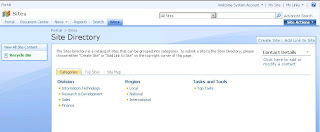
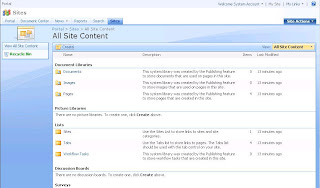
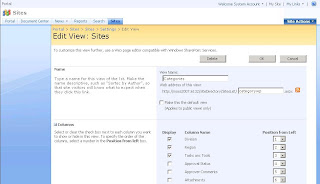
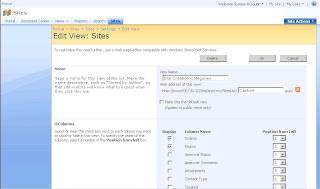
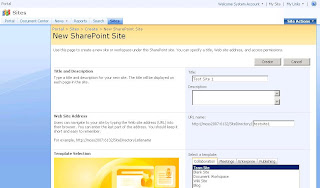
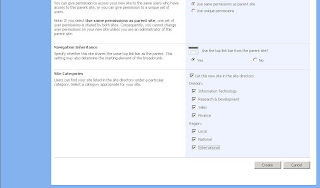


Categories and Top Sites rely upon information stored in the Sites list while the Site Map is automatically rendered.
When you click the Categories tab, you are viewing the categories.aspx page. When you click the link for a category, you are brought to the categoryresults.aspx page. When you click on the Top Sites tab, you are brought to the topsites.aspx page. When you click on the Site Map tab, you are brought to the sitemap.aspx page.
The aspx pages are stored in the Pages document library (Sites > View All Site Content > Pages).

The Categories Tab
The default categories that appear in the site directory are Division, Region, and Tasks and Tools. These are column names in the Sites custom list (Sites > View All Site Content > Sites > Settings > List Settings). The sub-categories (e.g. beneath Region there is Local, National, and International) are column values for the column. In the case of Region, Region is a choice column in the Sites custom list and Local, National, and International are available values for that column.
The Sites custom list has several views. The Categories view defines what is shown on the Categories.aspx page. For example, if you open the Categories view (Sites > View All Site Content > Sites > Settings > List Settings > Views > Categories) you will see that the three columns that are checked are Division, Region, and Tasks and Tools. These represent the categories that are visible on the Categories.aspx page.

Another important view in the Sites custom list is the Site Creation Categories view. This view defines what categories appear when a new site is created. For example, if you click Site Actions > Create Site you will see that the bottom of the new site page includes check boxes for Division and Region. This is because Division and Region columns are checked in the Site Creation Categories view.

Listing Sites in Site Directory
When you create a new site and indicate that you want it to be listed in the site directory, and you specify which categories you want it listed under, a new list item is created in the Sites custom list. For example, if you click Site Actions > Create Site and you create a site called Test Site 1, listing it under all possible site categories, then a new list item is created in the Sites custom list.


The Division and Region values you specified when you created the site appear as properties data for that list item. Since you selected all of the possible Division and Region values when you created Test Site 1, you can test the way the site directory works by clicking on one of these categories in the site directory.
Navigate to Sites and click on the Local subcategory beneath Region. You will see Test Site 1 listed in the results.

You can add previously created sites to the site directory by creating new list items in the Sites custom list.
Specifying a Different Site Directory
If you delete the default Site Directory site and create a new one you will notice that the site creation options for listing new sites in a site directory are no longer available. In order to associate site creation to a Site Directory other than the default one, you need to specify this new Site Directory.
Navigate to Home > Site Actions > Site Settings > Modify All Site Settings > Site Collection Administration > Site Directory Settings. Here you can define the location of the Site Directory. You can also enforce site creation options from this screen.

Under Promise and Over Deliver
When project sponsors for business application projects are gearing up for a new project they are exposed to products, lingo, marketing material, and all the things that create a buzz. Often times they see demonstrations or presentations that glorify the technologies (that is how these things are sold, right?). Sponsors are sold on ideals. They see a fine tuned demo and are convinced they can have the same thing.
Its great to experience the hype and the excitement of a new project, however, when a project is set in motion a reality check can quickly screech the record player...a message that there are technical limitations preventing a particular goal to be achieved as it was initially designed.
A big part of being satisfied at the completion of a project, is having accurate expectations when the solution design is established. This means being educated about the limitations and obstacles you will face along the way, before you even begin constructing. It also means being cautious about making promises.
Its great to experience the hype and the excitement of a new project, however, when a project is set in motion a reality check can quickly screech the record player...a message that there are technical limitations preventing a particular goal to be achieved as it was initially designed.
A big part of being satisfied at the completion of a project, is having accurate expectations when the solution design is established. This means being educated about the limitations and obstacles you will face along the way, before you even begin constructing. It also means being cautious about making promises.
Tuesday, April 03, 2007
SharePoint V2: ERROR: CREATE DATABASE permission denied in database 'master'. (Error code: 262).
Description:
From SharePoint Central Administration, attempting to create a new configuration database results in an error: "Error CREATE DATABASE permission denied in database 'master'. (Error code: 262)."

Solution:
* Start > Programs > Administrative Tools > IIS Manager > SharePoint Central Administration Web Site Properties > Home Directory Tab: Note the Application Pool Name (e.g. StsAdminAppPool).
* Start > Programs > Administrative Tools > IIS Manager > StsAdminAppPool Properties > Identity Tab: Set the user name and password to be the same as the database service account.
* Start > Run > IISRESET
From SharePoint Central Administration, attempting to create a new configuration database results in an error: "Error CREATE DATABASE permission denied in database 'master'. (Error code: 262)."

Solution:
* Start > Programs > Administrative Tools > IIS Manager > SharePoint Central Administration Web Site Properties > Home Directory Tab: Note the Application Pool Name (e.g. StsAdminAppPool).
* Start > Programs > Administrative Tools > IIS Manager > StsAdminAppPool Properties > Identity Tab: Set the user name and password to be the same as the database service account.
* Start > Run > IISRESET
Monday, April 02, 2007
SharePoint V3: Enabling PDF File Type in Office SharePoint Server 2007
For 32 bit:
* Download Adobe PDF IFilter located at:
http://www.adobe.com/support/downloads/detail.jsp?ftpID=2611
* Stop the IIS Admin service.
* Start > Settings > Control Panel > Add Remove Programs: Deinstall previous versions of Adobe PDF IFilter.
* Run the PDF IFilter install executable (e.g. ifilter60.exe). The default install directory is:
C:\Program Files\Adobe\
* Download the 17X17 PDF icon as PDFICON_SMALL.GIF, located at:
http://www.adobe.com/misc/linking.html
* Copy the gif file to:
Program Files\Common Files\microsoft Shared\Web Server Extensions\12\Template\Images
* Backup the DOCICON.XML file, located in:
Program Files\Common Files\microsoft Shared\Web Server Extensions\12\Template\XML
* Edit DOCICON.XML, adding a Mapping key for PDF (e.g. mapping value=" PDFICON_SMALL.GIF" key="PDF")
* Start > Run > IISRESET
* Shared Services Administration: SSP > Search Settings > File Types: Add PDF
* Shared Services Administration: SSP > Search Settings > Content Sources: Start a Full Crawl
For information on 64 bit, refer to Mauro's blog post:
http://blogs.officezealot.com/mauro/archive/2007/05/15/20352.aspx
* Download Adobe PDF IFilter located at:
http://www.adobe.com/support/downloads/detail.jsp?ftpID=2611
* Stop the IIS Admin service.
* Start > Settings > Control Panel > Add Remove Programs: Deinstall previous versions of Adobe PDF IFilter.
* Run the PDF IFilter install executable (e.g. ifilter60.exe). The default install directory is:
C:\Program Files\Adobe\
* Download the 17X17 PDF icon as PDFICON_SMALL.GIF, located at:
http://www.adobe.com/misc/linking.html
* Copy the gif file to:
Program Files\Common Files\microsoft Shared\Web Server Extensions\12\Template\Images
* Backup the DOCICON.XML file, located in:
Program Files\Common Files\microsoft Shared\Web Server Extensions\12\Template\XML
* Edit DOCICON.XML, adding a Mapping key for PDF (e.g. mapping value=" PDFICON_SMALL.GIF" key="PDF")
* Start > Run > IISRESET
* Shared Services Administration: SSP > Search Settings > File Types: Add PDF
* Shared Services Administration: SSP > Search Settings > Content Sources: Start a Full Crawl
For information on 64 bit, refer to Mauro's blog post:
http://blogs.officezealot.com/mauro/archive/2007/05/15/20352.aspx
Friday, March 30, 2007
Visual Studio 2005: Display Line Numbers Globally
Tools > Options > Text Editor > All Languages > Text Editor > Display > Check Line Numbers
Visual Studio 2005: Error: Setup Failed
Description:
Error:
Setup Failed

Solution:
The failed setup issue was caused by latency on the network. The setup files were located on a remote, mapped network drive.
To sucessfully install Visual Studio, perform the following steps:
* Clear the temp folder.
* Start > Run > %Temp% > Delete files.
* Copy the setup files locally.
* Run setup.exe.
Error:
Setup Failed

Solution:
The failed setup issue was caused by latency on the network. The setup files were located on a remote, mapped network drive.
To sucessfully install Visual Studio, perform the following steps:
* Clear the temp folder.
* Start > Run > %Temp% > Delete files.
* Copy the setup files locally.
* Run setup.exe.
Thursday, March 29, 2007
SharePoint V2: Error: HTTP 404: File Not Found Internet Explorer
Description:
Errors:
* Service Unavailable
* HTTP 404: File Not Found Internet Explorer.

After installing Macromedia RoboHelp to a SharePoint Portal Server 2003 web server, the existing SharePoint portals were returning the "Service Unavailable" error. RoboHelp was deinstalled from the server. Now, attempts to hit the SharePoint portals from Internet Explorer were behaving oddly. Using the FQDN (e.g. http://portalname.domain.com) in the URL was resulting in a 404 error. However, it was possible to hit the portal sites using the IP address and manually typing default.aspx (e.g. http://192.168.1.10/default.aspx).
Solution:
* Backup IIS Metabase:
IIS Manager > Right Click the IIS Server Node > All Tasks > Backup/Restore Configuration > Create Backup
* Compare Metabase Configurations:
C:\Windows\System32\inetsrv\history > Locate the current metabase xml file and the most recent, valid one prior to the faulty installation attempt.
In this particular case we used an xml compare tool and identified that the current IIS Metabase had been corrupted by the faulty Robohelp installation. We found that the web services section of the current IIS Metabase was missing these entries below, preventing SharePoint from processing the HTTP requests.
* 1,C:\Program Files\Common Files\Microsoft Shared\Web Server Extensions\60\isapi\owssvr.dll,0,Windows SharePoint Services,Windows SharePoint Services
* 1,C:\Program Files\Common Files\Microsoft Shared\Web Server Extensions\60\isapi\shtml.dll,0,Windows SharePoint Services,Windows SharePoint Services
* 1,C:\Program Files\Common Files\Microsoft Shared\Web Server Extensions\60\isapi\_vti_adm\admin.dll,0,Windows SharePoint Services,Windows SharePoint Services
* 1,C:\Program Files\Common Files\Microsoft Shared\Web Server Extensions\60\isapi\_vti_aut\author.dll,0,Windows SharePoint Services,Windows SharePoint Services
* Restore a Valid Metabase Configuration:
IIS Manager > Right Click the IIS Server Node > All Tasks > Backup/Restore Configuration > Highlight valid backup prior to faulty installation > Restore
* Validate:
After restoring a valid IIS Metabase backup, the SharePoint portals were functioning properly. They became accessible both through FQDN or IP Address.
Notes:
* It is not recommended to use this solution every time an IE 404 error is encountered. There are several possible causes for the IE 404 error. This example is one scenario where an IE 404 error was encountered and IIS Metabase restore happened to be the solution. It is recommended to fully investigate an issue and taking proper precautions before applying this solution.
* It is a good idea to take IIS Metabase backups prior to installing software to a web server that would alter the IIS configuration. Having the IIS Metabase backup handy provides an extra safety net in the event that a configuration needs to be rolled back.
Errors:
* Service Unavailable
* HTTP 404: File Not Found Internet Explorer.

After installing Macromedia RoboHelp to a SharePoint Portal Server 2003 web server, the existing SharePoint portals were returning the "Service Unavailable" error. RoboHelp was deinstalled from the server. Now, attempts to hit the SharePoint portals from Internet Explorer were behaving oddly. Using the FQDN (e.g. http://portalname.domain.com) in the URL was resulting in a 404 error. However, it was possible to hit the portal sites using the IP address and manually typing default.aspx (e.g. http://192.168.1.10/default.aspx).
Solution:
* Backup IIS Metabase:
IIS Manager > Right Click the IIS Server Node > All Tasks > Backup/Restore Configuration > Create Backup
* Compare Metabase Configurations:
C:\Windows\System32\inetsrv\history > Locate the current metabase xml file and the most recent, valid one prior to the faulty installation attempt.
In this particular case we used an xml compare tool and identified that the current IIS Metabase had been corrupted by the faulty Robohelp installation. We found that the web services section of the current IIS Metabase was missing these entries below, preventing SharePoint from processing the HTTP requests.
* 1,C:\Program Files\Common Files\Microsoft Shared\Web Server Extensions\60\isapi\owssvr.dll,0,Windows SharePoint Services,Windows SharePoint Services
* 1,C:\Program Files\Common Files\Microsoft Shared\Web Server Extensions\60\isapi\shtml.dll,0,Windows SharePoint Services,Windows SharePoint Services
* 1,C:\Program Files\Common Files\Microsoft Shared\Web Server Extensions\60\isapi\_vti_adm\admin.dll,0,Windows SharePoint Services,Windows SharePoint Services
* 1,C:\Program Files\Common Files\Microsoft Shared\Web Server Extensions\60\isapi\_vti_aut\author.dll,0,Windows SharePoint Services,Windows SharePoint Services
* Restore a Valid Metabase Configuration:
IIS Manager > Right Click the IIS Server Node > All Tasks > Backup/Restore Configuration > Highlight valid backup prior to faulty installation > Restore
* Validate:
After restoring a valid IIS Metabase backup, the SharePoint portals were functioning properly. They became accessible both through FQDN or IP Address.
Notes:
* It is not recommended to use this solution every time an IE 404 error is encountered. There are several possible causes for the IE 404 error. This example is one scenario where an IE 404 error was encountered and IIS Metabase restore happened to be the solution. It is recommended to fully investigate an issue and taking proper precautions before applying this solution.
* It is a good idea to take IIS Metabase backups prior to installing software to a web server that would alter the IIS configuration. Having the IIS Metabase backup handy provides an extra safety net in the event that a configuration needs to be rolled back.
Wednesday, March 21, 2007
SharePoint V3: Configuring Custom NewForm.aspx, EditForm.aspx, DispForm.aspx
NewForm.aspx, EditForm.aspx, DispForm.aspx represent the web pages that the SharePoint user sees when they click the New , Edit, or Display actions from a custom list web part tool bar, or from an "Linked to Edit Item" drop down.
In SharePoint deployments, it is fairly common to have a requirement to override these pages with custom pages. You would want to do this when you want to hide fields from a user, or when you want to enhance the appearance of the page for the user.
One example of where I needed to do this is on a custom list where I had configured a SharePoint Designer workflow. The workflow was fairly complex and I had configured some extra fields on the custom list to facilitate the workflow. I didn't want the users to see these extra fields when they were creating, editing, or viewing items in the list so I had to hide these fields.
Here are the steps to configuring custom NewForm.aspx on an existing custom list. These steps may also be used to configure custom EditForm.aspx or DispForm.aspx.
* SharePoint Designer > File > Open Site
* Expand the lists folder
* Expand the custom list that you are modifying
* Double click NewForm.aspx to open it
* File > Save As
* Name the custom list something unique (do not overwrite the default NewForm.aspx) e.g.
* NewFormCustom.aspx
* You will see a generic SharePoint control in the center of the page with column 1, column 2, column 3
* Right click the SharePoint control that is in the center of the NewFormCustom.aspx page, Cut to remove it from the pageInsert > SharePoint Controls > Custom List Form
* Right click within the Custom List Form SharePoint control to invoke the menu.
* Modify the Custom List Form SharePoint control.
* File, Save
* Right click the custom list container > Properties
* List Properties > Supporting Files Tab > Configure this tab accordingly, pointing NewItemForm to NewFormCustom.aspx
* Apply, OK
* File, Save
If you need the revert back to the original NewForm.aspx, you can open the list properties from SharePoint Designer, navigate to the Supporting Files tab, and point the NewItemForm property back to NewForm.aspx. Furthermore, if the requirements change, the original NewForm.aspx is still in tact and you have the option to create additional, custom NewForm.aspx pages.
Words of caution about working with the NewForm.aspx, EditForm.aspx, and DispForm.aspx:
* Always create a web part template of the custom list or document library as a backup, before making changes
* If the custom list or document library has workflow, take the additional step of creating a site template or backup the site collection entirely using stsadm
* Never rename the default NewForm.aspx, EditForm.aspx, or DispForm.aspx pages. This will corrupt the custom list. When you click on Edit Item you will receive an error, "Invalid URL." Instead use the steps above.
* After switching to the custom form, attachments are no longer supported on the custom list. If you try to add an attachment you will get an error, "This form was customized not working with attachment."
UPDATE:
In SharePoint deployments, it is fairly common to have a requirement to override these pages with custom pages. You would want to do this when you want to hide fields from a user, or when you want to enhance the appearance of the page for the user.
One example of where I needed to do this is on a custom list where I had configured a SharePoint Designer workflow. The workflow was fairly complex and I had configured some extra fields on the custom list to facilitate the workflow. I didn't want the users to see these extra fields when they were creating, editing, or viewing items in the list so I had to hide these fields.
Here are the steps to configuring custom NewForm.aspx on an existing custom list. These steps may also be used to configure custom EditForm.aspx or DispForm.aspx.
* SharePoint Designer > File > Open Site
* Expand the lists folder
* Expand the custom list that you are modifying
* Double click NewForm.aspx to open it
* File > Save As
* Name the custom list something unique (do not overwrite the default NewForm.aspx) e.g.
* NewFormCustom.aspx
* You will see a generic SharePoint control in the center of the page with column 1, column 2, column 3
* Right click the SharePoint control that is in the center of the NewFormCustom.aspx page, Cut to remove it from the pageInsert > SharePoint Controls > Custom List Form
* Right click within the Custom List Form SharePoint control to invoke the menu.
* Modify the Custom List Form SharePoint control.
* File, Save
* Right click the custom list container > Properties
* List Properties > Supporting Files Tab > Configure this tab accordingly, pointing NewItemForm to NewFormCustom.aspx
* Apply, OK
* File, Save
If you need the revert back to the original NewForm.aspx, you can open the list properties from SharePoint Designer, navigate to the Supporting Files tab, and point the NewItemForm property back to NewForm.aspx. Furthermore, if the requirements change, the original NewForm.aspx is still in tact and you have the option to create additional, custom NewForm.aspx pages.
Words of caution about working with the NewForm.aspx, EditForm.aspx, and DispForm.aspx:
* Always create a web part template of the custom list or document library as a backup, before making changes
* If the custom list or document library has workflow, take the additional step of creating a site template or backup the site collection entirely using stsadm
* Never rename the default NewForm.aspx, EditForm.aspx, or DispForm.aspx pages. This will corrupt the custom list. When you click on Edit Item you will receive an error, "Invalid URL." Instead use the steps above.
* After switching to the custom form, attachments are no longer supported on the custom list. If you try to add an attachment you will get an error, "This form was customized not working with attachment."
UPDATE:
Microsoft published a knowledge base article addressing the attachment issue:
Microsoft KB 953271:
Error message when you try to attach a file in a custom form on the Web site in Windows SharePoint Services 3.0: “This form was customized not working with attachment"
http://support.microsoft.com/kb/953271
Tuesday, March 20, 2007
Links: SharePoint V3: High Availability
White Paper: Using SQL Server Database Mirroring with Office SharePoint Server and Windows SharePoint Services
Database Mirroring in SQL Server 2005
Example: Setting Up Database Mirroring Using Windows Authentication (Transact-SQL)
Database Mirroring Transport Security
Asynchronous Database Mirroring (High-Performance Mode)
Automatic Failover
Alerting on Database Mirroring Events
Database Mirroring in SQL Server 2005
Example: Setting Up Database Mirroring Using Windows Authentication (Transact-SQL)
Database Mirroring Transport Security
Asynchronous Database Mirroring (High-Performance Mode)
Automatic Failover
Alerting on Database Mirroring Events
Friday, March 16, 2007
SQL Server: Query Server Name, Edition, Product Level, Product Version
Run this query for the SQL Server name, edition, product level, and product version:
SELECT
SERVERPROPERTY('SERVERNAME') AS 'Server Name',
SERVERPROPERTY('EDITION') AS 'Edition',
SERVERPROPERTY('PRODUCTLEVEL') AS 'Product Level',
SERVERPROPERTY('PRODUCTVERSION') AS 'Product Version'
Refer to Microsoft KB 321185 titled, "How to identify your SQL Server version and edition" to identify which service pack corresponds with the product version number.
SELECT
SERVERPROPERTY('SERVERNAME') AS 'Server Name',
SERVERPROPERTY('EDITION') AS 'Edition',
SERVERPROPERTY('PRODUCTLEVEL') AS 'Product Level',
SERVERPROPERTY('PRODUCTVERSION') AS 'Product Version'
Refer to Microsoft KB 321185 titled, "How to identify your SQL Server version and edition" to identify which service pack corresponds with the product version number.
SharePoint V3: Subtle Behaviors with Custom Site Tab and Site Column Groups
First one has to do with custom site templates (.stp). Starting from a site, if you navigate to Site Actions > Create > Sites and Workspaces and you look at the Template Selection section you will always see Collaboration, Meetings, Enterprise, Publishing tabs. If you have created at least one custom site template (.stp) then you will see a Custom tab as well. If you navigate to the site template gallery /_catalogs/wt/forms/common.aspx and delete your custom site templates (don't delete the forms folder) then you were to go back to the Create Site page you will see that the Custom tab has disappeared.
A similar behavior exists within the Site Column. From the home page if you navigate to Site Actions > Site Settings > Modify All Site Settings > Site Column Gallery. MOSS 2007 allows you to create new site columns groups when you create new site columns. You may also add a new site column to an existing group. The subtle behavior here is that if you move all of the site columns out of one particular site column group, then that group name will disappear. You need at least one site column to be added to the site column group in order for the group name to exist.
A similar behavior exists within the Site Column. From the home page if you navigate to Site Actions > Site Settings > Modify All Site Settings > Site Column Gallery. MOSS 2007 allows you to create new site columns groups when you create new site columns. You may also add a new site column to an existing group. The subtle behavior here is that if you move all of the site columns out of one particular site column group, then that group name will disappear. You need at least one site column to be added to the site column group in order for the group name to exist.
Wednesday, March 14, 2007
SharePoint V3: Master Page Not Inherited By Non-Publishing Sites
Description
We encountered an issue where we had deployed a custom master page but not all of the sites in the site collection were recognizing the changes.
First, a little background on what we had done:
We opened the home page (a publishing site) of a SharePoint V3 site collection in SharePoint Designer. Next we copied the default.master and renamed the copy to custom.master. In custom.master we changed the logo in the header of the page to a custom image. Next, we opened the site collection in Internet Explorer and in Site Settings > Look and Feel > Master Page changed the Site Master page to custom.master. We clicked OK to save changes and reviewed the top level site. The header logo was updated. Next we reviewed another top level site, but these sites did not have the new header logo.
Solution
Site Settings > Look and Feel > Master PageSite Master Page:
* Select Specify a master page to be used by this site and all sites that inherit from it.
* Select custom.master from the drop down selection.
* Check off Reset all subsites to inherit this Site Master Page Setting
Site Settings > Look and Feel > System Master PageSite Master Page:
* Select Specify a master page to be used by this site and all sites that inherit from it.
* Select custom.master from the drop down selection.
* Check off Reset all subsites to inherit this Site Master Page Setting
The way this works is that the "Master Page" setting is used by publishing sites. The "System Master Page" is used by non-publishing sites. The terminology used in SharePoint V3 and SharePoint Designer are not intuitive, although the descriptions on the Site Settings > Look and Feel > Master Page do help a bit.
Thanks Marc Anderson for taking the time to read the small print and explain this out loud.
For further explanation, refer to Kathy's blog post, SharePoint Designer Snippets: Working with Master Pages, which helps clarify any confusion regarding this topic.
To expand on this blog post, I think of the Site Settings > Look and Feel > Master Page like this:
* Master Page = Custom Master Page = Publishing Sites
* System Master Page = Default Master Page = Non-Publishing Sites
We encountered an issue where we had deployed a custom master page but not all of the sites in the site collection were recognizing the changes.
First, a little background on what we had done:
We opened the home page (a publishing site) of a SharePoint V3 site collection in SharePoint Designer. Next we copied the default.master and renamed the copy to custom.master. In custom.master we changed the logo in the header of the page to a custom image. Next, we opened the site collection in Internet Explorer and in Site Settings > Look and Feel > Master Page changed the Site Master page to custom.master. We clicked OK to save changes and reviewed the top level site. The header logo was updated. Next we reviewed another top level site, but these sites did not have the new header logo.
Solution
Site Settings > Look and Feel > Master PageSite Master Page:
* Select Specify a master page to be used by this site and all sites that inherit from it.
* Select custom.master from the drop down selection.
* Check off Reset all subsites to inherit this Site Master Page Setting
Site Settings > Look and Feel > System Master PageSite Master Page:
* Select Specify a master page to be used by this site and all sites that inherit from it.
* Select custom.master from the drop down selection.
* Check off Reset all subsites to inherit this Site Master Page Setting
The way this works is that the "Master Page" setting is used by publishing sites. The "System Master Page" is used by non-publishing sites. The terminology used in SharePoint V3 and SharePoint Designer are not intuitive, although the descriptions on the Site Settings > Look and Feel > Master Page do help a bit.
Thanks Marc Anderson for taking the time to read the small print and explain this out loud.
For further explanation, refer to Kathy's blog post, SharePoint Designer Snippets: Working with Master Pages, which helps clarify any confusion regarding this topic.
To expand on this blog post, I think of the Site Settings > Look and Feel > Master Page like this:
* Master Page = Custom Master Page = Publishing Sites
* System Master Page = Default Master Page = Non-Publishing Sites
SharePoint Designer Workflow: It's Just a Facilitator
SharePoint Designer workflow in general is best used as a facilitator of actions that make up a business process and it does not work well for automating or enforcing an entire, complex, human process. What I mean is that SharePoint Designer workflow is best used to automate certain actions that occur within a business process like assign a status of something, or email something, or copy something but its not going to replace human decision making and its not going to perform the entire business process for you.
Say, for example, that Company ABC's IT team is supporting 100 employees through email exchanges. When an employee has an issue, they email an IT distribution list then the IT staff responds to the issue. The IT team is finding that they are struggling to keep track of the support requests. They are considering using SharePoint to track support requests.
A solution to this business problem may be to use SharePoint to structure the metadata about support requests and use workflow to automate actions that occur during the process. Create a SharePoint custom list to track support requests with request id, requestor email, status, title, description, solution fields, and then use SharePoint Designer workflow to perform the following:
* Automatically generate request id for new support requests
* Automatically build and send email the requestor when status of items is changed
SharePoint Designer should not be used to implement rigid rules that contain deep branchings for how the support requests are resolved. You do not want to attempt to create a workflow that predicts and solves the support requests that you are tracking within SharePoint. Thining through and resolving support requests is a complex human process and it scales beyond practical limits of SharePoint Designer workflow.
Workflow can certainly improve processes, and it can simplify tasks that a person performs during a business process, such as the example above....just don't expect workflow to do somebody's job for them.
Friday, March 02, 2007
SharePoint V3: Error: Excel Services: Access Denied
Description:
Error: "Access Denied. You do not have permissions to open this file on Excel Services. Make sure that the file is in an Excel Services trusted location and that you have access to the file."
The Excel Services is properly enabled and Excel Services trusted file locations have been properly configured in SharePoint Central Admin. Your user account has access to the Office SharePoint Server 2007 document library that you are trying to publish an Excel workbook to, however, you receive an Access Denied error when attempting to publish an Excel 12 workbook to the document library.

Solution:
Open the Shared Services Admin Site
Central Admin > Application Management > Create or Configure this Farm's Shared Services > SSP > Open Shared Services Admin Site
Set the Unattended Service Account
Shared Services Admin > Excel Services Settings > Edit Excel Services Settings > External Data > Unattended Service Account
Error: "Access Denied. You do not have permissions to open this file on Excel Services. Make sure that the file is in an Excel Services trusted location and that you have access to the file."
The Excel Services is properly enabled and Excel Services trusted file locations have been properly configured in SharePoint Central Admin. Your user account has access to the Office SharePoint Server 2007 document library that you are trying to publish an Excel workbook to, however, you receive an Access Denied error when attempting to publish an Excel 12 workbook to the document library.
Solution:
Open the Shared Services Admin Site
Central Admin > Application Management > Create or Configure this Farm's Shared Services > SSP > Open Shared Services Admin Site
Set the Unattended Service Account
Shared Services Admin > Excel Services Settings > Edit Excel Services Settings > External Data > Unattended Service Account
Thursday, March 01, 2007
SharePoint Intranets, Evolving Beyond Department Sites
I admire software application, user interfaces that are built around a purpose. The most popular business application in the world, Microsoft Outlook is a great example. It provides messaging, task management, calendar management, and more. The buttons and menus are organized in a manner that is suitable for sending email or tracking a task. The user interface is intuitive, easy to use, and makes sense.
I think a trend for SharePoint intranet deployments is that they will include designs which are less influenced by content categorization and taxonomy and more influenced by functionality.
When you think of various SharePoint intranets that are being used in businesses today, you might struggle to draw a correlation between the user interface and the functionality. I think that has a lot to do with the fact that implementers are responsible for coming up with a design, a context. I think a common habit among implementers has been to design the applications around organizational structure of the company. When SharePoint sites first started popping up, they weren't much more than web folders for documents, and their main "purpose" was sharing documents as an alternative to a file share. So, the user interface design took on a shape similar to how documents are categorized in a folder share. I think that categorizing documents by department resulted in a trend of SharePoint portals that have a department based design.
I think a challenge now is to recognize where SharePoint came from, that department site designs are out of date, and applications built on it are no longer just HTTP enabled versions of Windows Explorer. We are now dealing with real business applications with real (and custom) purpose. User interfaces need to evolve accordingly.
If you've spent a significant amount of time performing a job function as a SharePoint portal user, in an environment that is organized by department you may have come to the realization like I have that organizing collaborative or actionable content and information according to department doesn't make a lot of sense all the time.
One way to evaluate this is to think about the audience (I mean audience in the general sense) the sites's information is addressed to and what the audience is supposed do with the information. You might find that when the audience doesn't have to "do" anything with the information other than consume it then it might work well in a department site. For example, an announcement is posted to an HR department web site that there is a new employee handbook. The audience simply consumes this information. They are not expected to collaborate and edit the handbook. In this example the department site probably works ok.
Its really when you start getting into information that you are working with when department sites start to fall apart. Collaboration using list items, documents, forms, and workflow occurs around a subject, not around a department. So why try to categorize the information you use to collaborate on, into a department? A SharePoint user who is performing a function doesn't care "who" owns the content any more then they care when it was created. It would make more sense to me if the user interface design promoted what users are actually doing in the system as opposed to who owns the subject matter that the user is working with.
I think a trend for SharePoint intranet deployments is that they will include designs which are less influenced by content categorization and taxonomy and more influenced by functionality.
When you think of various SharePoint intranets that are being used in businesses today, you might struggle to draw a correlation between the user interface and the functionality. I think that has a lot to do with the fact that implementers are responsible for coming up with a design, a context. I think a common habit among implementers has been to design the applications around organizational structure of the company. When SharePoint sites first started popping up, they weren't much more than web folders for documents, and their main "purpose" was sharing documents as an alternative to a file share. So, the user interface design took on a shape similar to how documents are categorized in a folder share. I think that categorizing documents by department resulted in a trend of SharePoint portals that have a department based design.
I think a challenge now is to recognize where SharePoint came from, that department site designs are out of date, and applications built on it are no longer just HTTP enabled versions of Windows Explorer. We are now dealing with real business applications with real (and custom) purpose. User interfaces need to evolve accordingly.
If you've spent a significant amount of time performing a job function as a SharePoint portal user, in an environment that is organized by department you may have come to the realization like I have that organizing collaborative or actionable content and information according to department doesn't make a lot of sense all the time.
One way to evaluate this is to think about the audience (I mean audience in the general sense) the sites's information is addressed to and what the audience is supposed do with the information. You might find that when the audience doesn't have to "do" anything with the information other than consume it then it might work well in a department site. For example, an announcement is posted to an HR department web site that there is a new employee handbook. The audience simply consumes this information. They are not expected to collaborate and edit the handbook. In this example the department site probably works ok.
Its really when you start getting into information that you are working with when department sites start to fall apart. Collaboration using list items, documents, forms, and workflow occurs around a subject, not around a department. So why try to categorize the information you use to collaborate on, into a department? A SharePoint user who is performing a function doesn't care "who" owns the content any more then they care when it was created. It would make more sense to me if the user interface design promoted what users are actually doing in the system as opposed to who owns the subject matter that the user is working with.
Effective Security Model for SharePoint
Creating an effective, scalable security model and governance plan for a SharePoint implementation is one of the most important and intricate aspects of a SharePoint deployment. Developing a security model usually requires cooperation from from a lot of different people. It requires communication with the business groups for articulating the security requirements of their content, the security people for communicating the policies (such as Sarbanes Oxley), interpreters of these requirements for designing a consistent roles based structure and naming convention (in AD and SharePoint) and IT staff responsible for managing the provisioning and deprovisioning.
Much like the user interface of SharePoint is an open canvas, the security model offers lots of room for creativity, though the efforts are mostly transparent to the end users. When designing a security model, I like to thing about things like what size is the user base, what is the organizational structure of the company, how do the business units interact with each other, what are the security policies in the company, how strict must the security on the content be, is the IT staff willing to accept the responsibilities, etc..
As a rule of thumb (with exceptions of course), I don't create SharePoint users, instead I create SharePoint groups and corresponding AD groups. I like to manage the memberships exclusively in AD. Another thing I try to avoid doing is creating roles based solely on org charts. If an organization is collaborative enough that they are implementing SharePoint, then chances people are interacting outside of their immediate department anyways. Most workspaces and content are custom and besides; departments change and reorganizations happen.
There is a significant effort that goes with keeping the security model in good shape. Limit SharePoint security to roles based groups, keep all of the group membership management in AD, and have a consistent organized pattern and naming convention. When that is all set, spend a some time developing the following two reports:
Much like the user interface of SharePoint is an open canvas, the security model offers lots of room for creativity, though the efforts are mostly transparent to the end users. When designing a security model, I like to thing about things like what size is the user base, what is the organizational structure of the company, how do the business units interact with each other, what are the security policies in the company, how strict must the security on the content be, is the IT staff willing to accept the responsibilities, etc..
As a rule of thumb (with exceptions of course), I don't create SharePoint users, instead I create SharePoint groups and corresponding AD groups. I like to manage the memberships exclusively in AD. Another thing I try to avoid doing is creating roles based solely on org charts. If an organization is collaborative enough that they are implementing SharePoint, then chances people are interacting outside of their immediate department anyways. Most workspaces and content are custom and besides; departments change and reorganizations happen.
There is a significant effort that goes with keeping the security model in good shape. Limit SharePoint security to roles based groups, keep all of the group membership management in AD, and have a consistent organized pattern and naming convention. When that is all set, spend a some time developing the following two reports:
- A report that shows Sharepoint Site, SharePoint group names, access levels
- A report that shows AD groups, member names, and email addresses, nested groups and their members
Subscribe to:
Posts (Atom)

